
The Python extension for VS Code is Microsoft’s free Python extension (ID ms-python.python). Install it from the Extensions view, select your interpreter, and VS Code gains IntelliSense, running, debugging, testing and environment management for Python:
code --install-extension ms-python.python # or Ctrl+Shift+X and search "Python"I checked everything on my own Windows 11 machine with VS Code 1.140 and Python 3.12.5; the version numbers shown are what’s installed there in October 2026.
We’ll install the extension, see what it brings with it, select an interpreter, set up a virtual environment, run and debug a file, and tune a few useful settings.
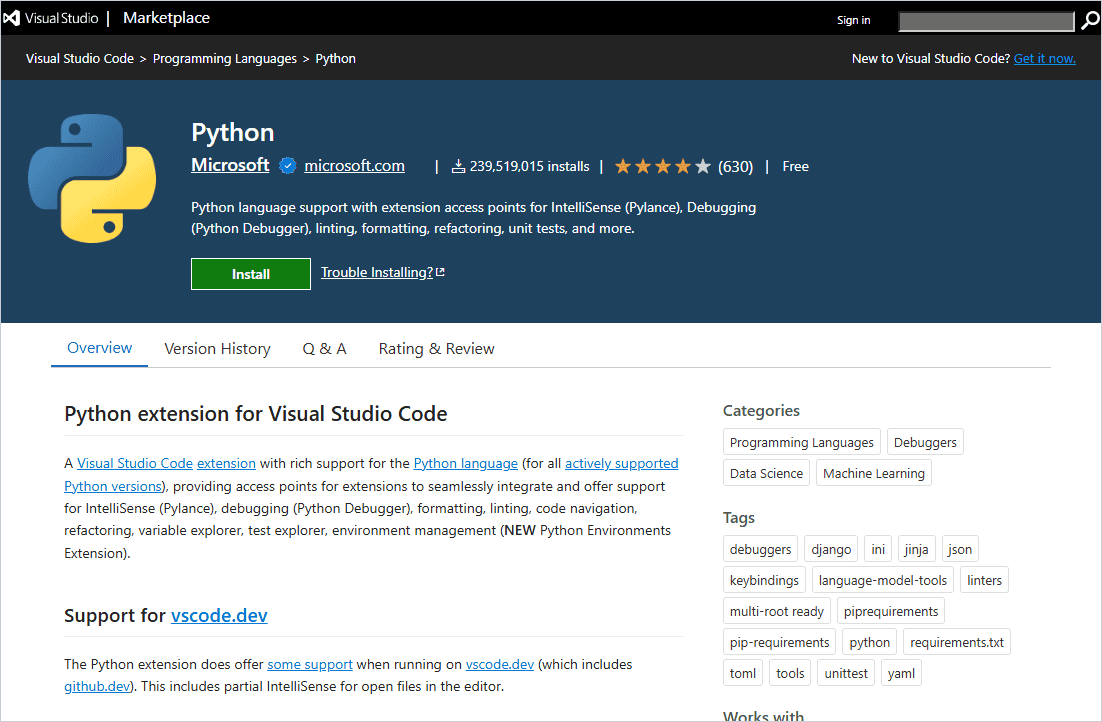
Install the Python extension for VS Code
- Open VS Code and press Ctrl+Shift+X to open Extensions.
- Search for Python and pick the one published by Microsoft.
- Click Install. VS Code also installs the companion extensions automatically.
- Make sure Python itself is installed; the extension doesn’t include it.
Don’t have Python yet? See installing Python on Mac, on Ubuntu or updating Python from the terminal.
What the Python extension installs
According to its Marketplace page, the Python extension pulls in three companions as optional dependencies: Pylance for IntelliSense, the Python Debugger (debugpy), and Python Environments for managing interpreters. Here’s what the terminal reports on my machine:
code --version
code --install-extension ms-python.python
code --list-extensions --show-versions | findstr /i "python"
Output:
1.140.0
07f806f999227108933c2e30515b26eecc1fda74
x64
Installing extensions...
Extension 'ms-python.python' v2026.6.0 is already installed. Use '--force' option to update to latest version or provide '@<version>' to install a specific version, for example: 'ms-python.python@1.2.3'.
ms-python.debugpy@2026.6.0
ms-python.python@2026.6.0
ms-python.vscode-pylance@2026.4.1
ms-python.vscode-python-envs@1.38.0
If the CLI says 'code' is not recognized, open VS Code, press Ctrl+Shift+P and run Shell Command: Install ‘code’ command in PATH (on Mac), or reinstall with the PATH option ticked on Windows.
How do you select a Python interpreter in VS Code?
- Open a
.pyfile or your project folder. - Press Ctrl+Shift+P and run Python: Select Interpreter.
- Pick your project’s
.venvor the Python version you want. - Confirm the choice in the status bar at the bottom right.
If you choose the wrong interpreter, you’ll see “module not found” squiggles; see Import numpy could not be resolved for that fix.
Create a virtual environment in VS Code
You can use Python: Create Environment from the Command Palette, or create one yourself in the terminal. VS Code usually detects a new .venv and offers to use it:
import sys
from datetime import date

print("running in:", sys.prefix.split("\\")[-1])
print(f"Python {sys.version.split()[0]} | today is {date(2026, 11, 18):%B %d, %Y}")
Output:
running in: .venv-vscode
Python 3.12.5 | today is November 18, 2026
Install packages into it from VS Code’s terminal with python -m pip install .... More in Python virtual environments and how to install a module in Python.
Run and debug Python in VS Code
- Run: click the Run Python File button (the triangle) at the top right, or right-click and choose Run Python File in Terminal.
- Debug: click in the gutter to add a breakpoint, then press F5 and choose Python Debugger.
- Run a selection: select lines and press Shift+Enter to send them to a Python REPL.
- Tests: open the Testing view to discover and run pytest or unittest tests.
Running from the terminal works the same as anywhere else; see how to run a Python script.
Useful VS Code settings for Python
Put your project settings in .vscode/settings.json so everyone on your team gets the same behavior:
{
    "python.defaultInterpreterPath": ".venv/Scripts/python.exe",
    "python.analysis.typeCheckingMode": "basic",
    "python.analysis.extraPaths": ["shared"],
    "editor.formatOnSave": true,
    "python.testing.pytestEnabled": true
}
Formatting and linting come from separate extensions such as Ruff or Black Formatter, which you’ll install the same way.
More guides for working in VS Code and Python:
- PyCharm vs VS Code for Python
- Best AI for Python code
- pip install -r requirements.txt
- Print a stack trace in Python
Frequently asked questions
What is the Python extension for VS Code?
Microsoft’s free ms-python.python extension, which adds IntelliSense, running, debugging, testing and environment management for Python.
Does the Python extension install Python?
No. Install Python separately, then select it with Python: Select Interpreter.
What does the Python extension install along with it?
Pylance, the Python Debugger (debugpy) and Python Environments, as optional dependencies.
How do I select an interpreter in VS Code?
Press Ctrl+Shift+P, run Python: Select Interpreter, and pick your venv or Python version.
Why can’t VS Code find my installed package?
The selected interpreter doesn’t have it. Select the right one, or install the package with python -m pip in VS Code’s terminal.
Where is the official setup guide?

Bijay Kumar is a 13-time Microsoft MVP with more than 18 years in software development, and the founder of Python Guides and TSinfo Technologies. He started out building .NET and SharePoint solutions at HP, TCS and KPIT before moving into Python, machine learning and AI, and he also builds web apps with TypeScript and React. He writes the tutorials here himself, and every example is run before publishing so you see the real output. More about Bijay · Microsoft MVP profile · LinkedIn