
Recently, while working on a Python data visualization project for a U.S.-based retail company, I encountered a frustrating issue. I was trying to create a stacked bar chart using Matplotlib, but the bars didn’t align properly, and sometimes, the totals didn’t add up as expected.
If you’ve ever faced similar errors while working with Matplotlib stacked bar charts in Python, you’re not alone. It’s one of those issues that can be confusing at first, especially when your data looks correct but the visualization doesn’t.
In this article, I’ll share my firsthand experience of troubleshooting and fixing Matplotlib stacked bar chart errors. I’ll walk you through the common causes, the correct way to stack bars, and provide a complete working example that you can run right away.
What is a Stacked Bar Chart in Python?
A stacked bar chart is a type of bar chart where each bar represents a total value broken down into subcategories. It’s perfect for showing how different components contribute to a total, for example, how different product categories contribute to total sales across U.S. states.
In Python, the most popular library to create stacked bar charts is Matplotlib. The function plt.bar() allows you to create bars and stack them using the bottom parameter.
However, if you forget to handle the bottom parameter correctly or misalign your data, you can easily run into Matplotlib stacked bar chart errors, such as bars not stacking properly or totals not summing to 100%.
Common Causes of Matplotlib Stacked Bar Chart Errors
From my experience, here are the most common reasons you might see errors in your Python Matplotlib stacked bar chart:
- Incorrect use of the
bottomparameter – Forgetting to specify the base position for stacking. - Mismatched data lengths – When your arrays or lists for each bar segment don’t have the same length.
- Improper use of NumPy arrays – Using lists instead of NumPy arrays can sometimes cause alignment issues.
- Overlapping bars due to wrong x-coordinates – When you don’t offset bar positions correctly.
- Percentage stacking issue – When you want your bars to sum to 100% but they don’t due to scaling errors.
Let’s look at how to fix each of these issues step-by-step.
Method 1 – Fix the bottom Parameter Issue
When stacking bars in Matplotlib, you must specify the starting point (the “bottom”) for each new layer. If you don’t, all bars will start from zero, overlapping each other.
Here’s how I fixed this issue in my Python project.
Example Code
import matplotlib.pyplot as plt
import numpy as np

# Sample sales data for three U.S. states
states = ['California', 'Texas', 'New York']
electronics = np.array([250, 180, 200])
furniture = np.array([150, 120, 130])
clothing = np.array([100, 90, 80])

# Create stacked bar chart
plt.bar(states, electronics, label='Electronics', color='skyblue')
plt.bar(states, furniture, bottom=electronics, label='Furniture', color='orange')
plt.bar(states, clothing, bottom=electronics + furniture, label='Clothing', color='green')

plt.title('Sales Breakdown by Category (U.S. States)')
plt.xlabel('State')
plt.ylabel('Sales ($ in Thousands)')
plt.legend()
plt.show()
I executed the above example code and added the screenshot below.

In this example, I used NumPy arrays so that I could easily add them together for the bottom parameter. This ensures each layer stacks correctly on top of the previous one.
If you forget to use the bottom, all bars will overlap, which is the most common Matplotlib stacked bar chart error.
Method 2 – Fix Data Length Mismatch Errors
Another common cause of errors is when your data arrays have different lengths. Matplotlib expects each series to have the same number of elements.
Here’s how I handled this issue in Python:
Example Code
import matplotlib.pyplot as plt
import numpy as np

# Incorrect data (different lengths)
# states = ['California', 'Texas', 'New York']
# electronics = [250, 180, 200]
# furniture = [150, 120]  # Missing one value

# Corrected data
states = ['California', 'Texas', 'New York']
electronics = [250, 180, 200]
furniture = [150, 120, 130]
clothing = [100, 90, 80]

# Plot
plt.bar(states, electronics, label='Electronics')
plt.bar(states, furniture, bottom=electronics, label='Furniture')
plt.bar(states, clothing, bottom=np.array(electronics) + np.array(furniture), label='Clothing')

plt.title('Fixed Data Mismatch in Stacked Bar Chart')
plt.legend()
plt.show()
I executed the above example code and added the screenshot below.
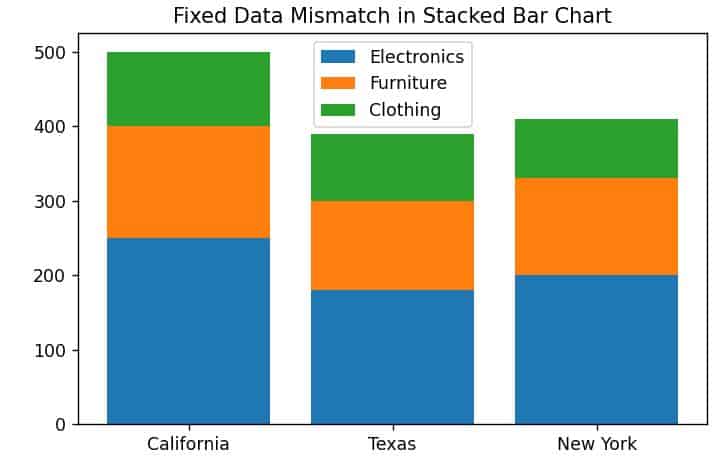
By ensuring that all lists or arrays have the same length, you prevent shape-related errors in Matplotlib stacked bar charts.
Method 3 – Create Percentage-Based Stacked Bar Charts
Sometimes you want your stacked bars to represent percentages that sum to 100%. If your totals don’t add up correctly, it usually means your data isn’t normalized.
Here’s how I fixed that in Python.
Example Code
import matplotlib.pyplot as plt
import numpy as np

# U.S. regional sales data
regions = ['West', 'South', 'East']
electronics = np.array([300, 200, 250])
furniture = np.array([200, 150, 100])
clothing = np.array([100, 80, 50])

# Normalize data to percentages
totals = electronics + furniture + clothing
electronics_perc = electronics / totals * 100
furniture_perc = furniture / totals * 100
clothing_perc = clothing / totals * 100

# Plot
plt.bar(regions, electronics_perc, label='Electronics', color='skyblue')
plt.bar(regions, furniture_perc, bottom=electronics_perc, label='Furniture', color='orange')
plt.bar(regions, clothing_perc, bottom=electronics_perc + furniture_perc, label='Clothing', color='green')

plt.title('Sales Percentage by Region (USA)')
plt.ylabel('Percentage (%)')
plt.legend()
plt.show()
I executed the above example code and added the screenshot below.

By dividing each category by the total, I ensured that the stacked bars always sum to 100%. This is especially useful when visualizing market share or demographic data in Python.
Method 4 – Handle Overlapping Bars and Alignment Issues
Sometimes, even when your data is correct, bars can overlap or appear misaligned. This usually happens when you plot multiple groups side by side.
Here’s how I fixed overlapping bars in Python using NumPy for position offsets.
Example Code
import matplotlib.pyplot as plt
import numpy as np

# Sample data
states = ['California', 'Texas', 'New York']
x = np.arange(len(states))  # x positions
width = 0.35  # bar width

# Sales data for two years
electronics_2024 = np.array([250, 200, 220])
furniture_2024 = np.array([150, 120, 130])
electronics_2025 = np.array([270, 210, 230])
furniture_2025 = np.array([160, 130, 140])

# 2024 bars
plt.bar(x - width/2, electronics_2024, width, label='Electronics 2024', color='skyblue')
plt.bar(x - width/2, furniture_2024, width, bottom=electronics_2024, color='orange')

# 2025 bars
plt.bar(x + width/2, electronics_2025, width, label='Electronics 2025', color='lightgreen')
plt.bar(x + width/2, furniture_2025, width, bottom=electronics_2025, color='gold')

plt.xticks(x, states)
plt.title('Yearly Sales Comparison (Stacked)')
plt.legend()
plt.show()
By offsetting the bars horizontally using x ± width/2, I avoided overlapping and made the stacked bars for different years easier to compare.
Method 5 – Debug with Print Statements and NumPy Checks
When I first encountered a Matplotlib stacked bar chart error, I didn’t know where the problem was, in the data or the plotting logic.
A simple trick that helped me was printing intermediate results and checking array shapes using NumPy.
Example Code
import numpy as np

electronics = np.array([250, 180, 200])
furniture = np.array([150, 120, 130])

print("Electronics shape:", electronics.shape)
print("Furniture shape:", furniture.shape)
print("Bottom array:", electronics + furniture)
This quick check can save you hours of debugging when your stacked bars don’t display as expected.
Tips to Avoid Future Stacked Bar Chart Errors
After years of working with Matplotlib in Python, here are a few tips that I follow to avoid stacked bar chart issues:
- Always use NumPy arrays for mathematical operations.
- Double-check that all datasets have the same length.
- Normalize your data if you’re working with percentages.
- Use the
bottomparameter correctly for stacking. - Add clear labels and legends for readability.
Creating a stacked bar chart in Python using Matplotlib is straightforward once you understand how the bottom parameter works and how to align your data properly.
In this tutorial, I shared the exact methods I use to fix Matplotlib stacked bar chart errors, from overlapping bars to incorrect totals. By following these steps, you’ll be able to build clean, professional visualizations for your Python projects, whether it’s sales data from U.S. states or performance metrics across teams.
You may also like to read:
- Plot Two Y Axes with the Same Data in Matplotlib
- Create a Stacked Bar Chart with Labels in Python Matplotlib
- Create a Stacked Bar Chart Using a For Loop with Matplotlib
- Create Stacked Bar Chart with Negative Values in Matplotlib

Bijay Kumar is an experienced Python and AI professional who enjoys helping developers learn modern technologies through practical tutorials and examples. His expertise includes Python development, Machine Learning, Artificial Intelligence, automation, and data analysis using libraries like Pandas, NumPy, TensorFlow, Matplotlib, SciPy, and Scikit-Learn. At PythonGuides.com, he shares in-depth guides designed for both beginners and experienced developers. More about us.

