
As a React developer with over eight years of experience, I’ve worked on countless projects where displaying PDF documents directly within the app was crucial. Whether it’s showing contracts, reports, or manuals, having a reliable PDF viewer component can significantly improve user experience.
In this article, I’ll walk you through creating a React PDF viewer component from scratch. I’ll share multiple methods, including using popular libraries and building a custom solution, so you can choose what fits your project best.
Use a React PDF Viewer Component
In many US-based businesses, especially in sectors like finance, healthcare, and legal services, PDFs are the standard format for official documents. Embedding PDFs directly in your React app allows users to view these documents without downloading them, improving workflow efficiency.
Having a PDF viewer also means you can add custom controls, such as zoom, page navigation, and search, tailored to your users’ needs. This flexibility is essential when building professional-grade applications.
Method 1: Use the react-pdf Library
One of the most popular and feature-rich libraries for rendering PDFs in React is react-pdf. It’s built on top of Mozilla’s PDF.js and provides a simple API to display PDFs with customizable controls.
Installation
First, install the library using npm or yarn:
npm install react-pdf
# or
yarn add react-pdf
Basic PDF Viewer Component
Here’s a minimal example of how to render a PDF document:
import React, { useState } from 'react';
import { Document, Page } from 'react-pdf';

const PdfViewer = () => {
  const [numPages, setNumPages] = useState(null);
  const [pageNumber, setPageNumber] = useState(1);

  function onDocumentLoadSuccess({ numPages }) {
    setNumPages(numPages);
  }

  return (
    <div style={{ textAlign: 'center' }}>
      <Document
        file="https://example.com/sample.pdf" // Replace with your PDF URL or local path
        onLoadSuccess={onDocumentLoadSuccess}
      >
        <Page pageNumber={pageNumber} />
      </Document>
      <p>
        Page {pageNumber} of {numPages}
      </p>
      <button disabled={pageNumber <= 1} onClick={() => setPageNumber(pageNumber - 1)}>
        Previous
      </button>
      <button disabled={pageNumber >= numPages} onClick={() => setPageNumber(pageNumber + 1)}>
        Next
      </button>
    </div>
  );
};

export default PdfViewer;
You can see the output in the screenshot below.
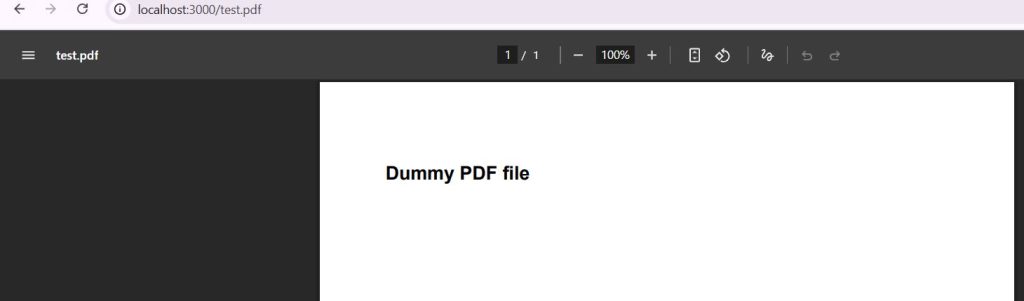
- The Document component loads the PDF.
- The Page component renders the current page.
- Buttons allow navigation between pages.
- The example uses an online PDF URL, but you can also use local files or blobs.
From my experience, react-pdf handles most common use cases well, including rendering large documents efficiently. However, if you need more control over the UI or want to build your own controls, keep reading.
Method 2: Build a Custom React PDF Viewer with PDF.js
If you want full control over the PDF rendering and UI, you can use Mozilla’s PDF.js directly. This approach requires more setup but allows you to customize every aspect.
Step 1: Install PDF.js
npm install pdfjs-distStep 2: Create the PDF Viewer Component
import React, { useEffect, useRef, useState } from 'react';
import * as pdfjsLib from 'pdfjs-dist/build/pdf';
import 'pdfjs-dist/web/pdf_viewer.css';

// Set workerSrc to load PDF.js worker
pdfjsLib.GlobalWorkerOptions.workerSrc = `//cdnjs.cloudflare.com/ajax/libs/pdf.js/${pdfjsLib.version}/pdf.worker.min.js`;

const CustomPdfViewer = ({ url }) => {
  const canvasRef = useRef(null);
  const [pdfDoc, setPdfDoc] = useState(null);
  const [pageNum, setPageNum] = useState(1);
  const [numPages, setNumPages] = useState(null);

  useEffect(() => {
    const loadingTask = pdfjsLib.getDocument(url);
    loadingTask.promise.then((pdf) => {
      setPdfDoc(pdf);
      setNumPages(pdf.numPages);
      renderPage(pdf, pageNum);
    });
  }, [url]);

  const renderPage = (pdf, num) => {
    pdf.getPage(num).then((page) => {
      const viewport = page.getViewport({ scale: 1.5 });
      const canvas = canvasRef.current;
      const context = canvas.getContext('2d');
      canvas.height = viewport.height;
      canvas.width = viewport.width;

      const renderContext = {
        canvasContext: context,
        viewport: viewport,
      };
      page.render(renderContext);
    });
  };

  const goToPrevPage = () => {
    if (pageNum <= 1) return;
    const newPage = pageNum - 1;
    setPageNum(newPage);
    renderPage(pdfDoc, newPage);
  };

  const goToNextPage = () => {
    if (pageNum >= numPages) return;
    const newPage = pageNum + 1;
    setPageNum(newPage);
    renderPage(pdfDoc, newPage);
  };

  return (
    <div style={{ textAlign: 'center' }}>
      <canvas ref={canvasRef}></canvas>
      <p>
        Page {pageNum} of {numPages}
      </p>
      <button onClick={goToPrevPage} disabled={pageNum === 1}>
        Previous
      </button>
      <button onClick={goToNextPage} disabled={pageNum === numPages}>
        Next
      </button>
    </div>
  );
};

export default CustomPdfViewer;
You can see the output in the screenshot below.
Using PDF.js directly gives you low-level access to PDF rendering. You can add features such as:
- Custom zoom controls
- Text selection and search
- Annotations and highlights
This approach is ideal for enterprise apps where PDF interaction is complex. From my experience, it requires more effort but pays off in flexibility.
Method 3: Use @pdf-viewer/react for a Modern React Experience
Recently, I explored the @pdf-viewer/react package, a modern React PDF viewer component designed for React and Next.js projects. It’s lightweight and supports customization out of the box.
Installation
npm install @pdf-viewer/reactBasic Usage
import React from 'react';
import { Viewer } from '@pdf-viewer/react';

const PdfViewerComponent = () => {
  return (
    <div style={{ height: '750px' }}>
      <Viewer fileUrl="https://example.com/sample.pdf" />
    </div>
  );
};

export default PdfViewerComponent;
You can see the output in the screenshot below.
- Built-in toolbar with zoom, search, and page navigation
- Easy to customize and extend
- Supports large documents with smooth scrolling
In my projects, this library reduced development time while providing a professional PDF viewing experience.
Tips for Working with PDFs in React
- Performance: Large PDFs can slow down your app. Use lazy loading or render only visible pages.
- Mobile Responsiveness: Ensure your PDF viewer adapts well to smaller screens.
- Security: If loading PDFs from external sources, validate URLs to avoid security risks.
- Accessibility: Add keyboard navigation and screen reader support for better accessibility.
Embedding PDFs directly into your React application can dramatically improve user experience, especially in document-heavy industries common in the US. Whether you choose the simplicity of react-pdf, the flexibility of PDF.js, or the modern approach of @pdf-viewer/react, you now have multiple ways to build a robust PDF viewer component.
Feel free to explore these options and customize them as per your project needs. Happy coding!
You may also like to read:
- React Class Components with Props
- Pass Props to Child Components in React
- Create a React Calendar Component with Events
- Unstyled React Component Libraries

Bijay Kumar is an experienced Python and AI professional who enjoys helping developers learn modern technologies through practical tutorials and examples. His expertise includes Python development, Machine Learning, Artificial Intelligence, automation, and data analysis using libraries like Pandas, NumPy, TensorFlow, Matplotlib, SciPy, and Scikit-Learn. At PythonGuides.com, he shares in-depth guides designed for both beginners and experienced developers. More about us.

