
In my eight years of developing React applications, I have often run into scenarios where a parent component needs to tell a child component to do something specific.
Usually, React flows data downward via props. But sometimes, you need to “reach in” and trigger a function inside that child.
Whether you are building a complex financial dashboard for a Wall Street firm or a simple shipping calculator for a US-based e-commerce site, mastering this communication is vital.
In this tutorial, I will show you the most effective ways to trigger a function in a child component, using practical examples you can use in your professional projects.
Method 1: Use the useImperativeHandle and useRef Hooks
This is the most “React-way” to explicitly call a function inside a child component. It allows the child to expose specific functions to the parent.
Imagine you have a US Tax Calculator component. The parent “Tax Dashboard” needs to trigger a “Reset” or “Calculate” function inside that child when a global button is clicked.
Here is how I implement this using forwardRef and useImperativeHandle.
import React, { useState, useRef, useImperativeHandle, forwardRef } from 'react';

// Child Component: TaxCalculator
const TaxCalculator = forwardRef((props, ref) => {
  const [taxAmount, setTaxAmount] = useState(0);

  // We use useImperativeHandle to expose the internal function to the parent
  useImperativeHandle(ref, () => ({
    calculateCaliforniaTax(income) {
      const caRate = 0.0725; // Example CA Sales Tax rate
      setTaxAmount(income * caRate);
      console.log("California Tax Calculated!");
    },
    resetCalculator() {
      setTaxAmount(0);
      console.log("Calculator Reset");
    }
  }));

  return (
    <div style={{ padding: '20px', border: '1px solid #ccc', marginTop: '10px' }}>
      <h3>State Tax Processor (Child)</h3>
      <p>Estimated Tax Liability: ${taxAmount.toFixed(2)}</p>
    </div>
  );
});

// Parent Component: FinanceDashboard
const FinanceDashboard = () => {
  const calculatorRef = useRef();
  const annualIncome = 50000; // Example USD income

  return (
    <div style={{ padding: '30px' }}>
      <h1>Financial Dashboard (Parent)</h1>
      <p>Managing annual revenue for US-based operations.</p>

      <button
        onClick={() => calculatorRef.current.calculateCaliforniaTax(annualIncome)}
        style={{ marginRight: '10px', padding: '10px' }}
      >
        Trigger CA Tax Calculation
      </button>

      <button
        onClick={() => calculatorRef.current.resetCalculator()}
        style={{ padding: '10px' }}
      >
        Clear Child Data
      </button>

      <TaxCalculator ref={calculatorRef} />
    </div>
  );
};

export default FinanceDashboard;
I executed the above example code and added the screenshot below.
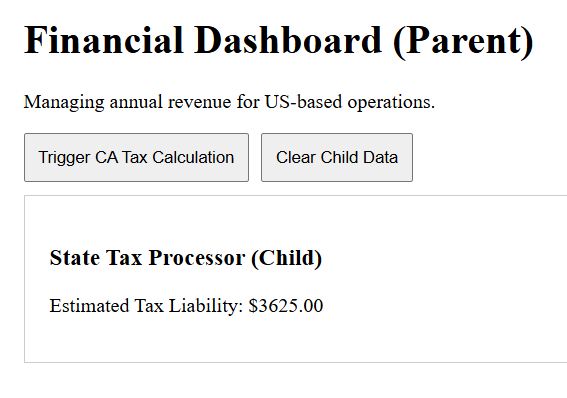
In this example, the useImperativeHandle hook acts as a gatekeeper. It tells React, “Only allow the parent to see these specific functions.”
I find this method incredibly useful when dealing with third-party libraries or complex forms where the parent needs to trigger validation or set input focus.
Method 2: Use a “Trigger” Prop with useEffect
Sometimes, you don’t want to deal with refs. A simpler way is to pass a “trigger” value (like a boolean or a counter) as a prop.
When the parent updates this value, the child “sees” the change via a useEffect hook and runs the desired function.
Let’s look at a US Post Office (USPS) Tracking example. When the user clicks “Refresh” in the parent, the child fetches the latest shipping status.
import React, { useState, useEffect } from 'react';

// Child Component: ShippingTracker
const ShippingTracker = ({ refreshTrigger, trackingNumber }) => {
  const [status, setStatus] = useState('Order Processed');

  // This effect runs whenever refreshTrigger changes
  useEffect(() => {
    if (refreshTrigger > 0) {
      fetchNewStatus();
    }
  }, [refreshTrigger]);

  const fetchNewStatus = () => {
    // Simulating an API call to a US Carrier
    const statuses = ['In Transit - Chicago, IL', 'Arrived at Hub - Dallas, TX', 'Out for Delivery'];
    const randomStatus = statuses[Math.floor(Math.random() * statuses.length)];
    setStatus(randomStatus);
    console.log(`Updated status for ${trackingNumber}`);
  };

  return (
    <div style={{ background: '#f4f4f4', padding: '15px', borderRadius: '8px' }}>
      <h4>USPS Tracking Details</h4>
      <p><strong>ID:</strong> {trackingNumber}</p>
      <p><strong>Current Status:</strong> {status}</p>
    </div>
  );
};

// Parent Component: CustomerAccount
const CustomerAccount = () => {
  const [count, setCount] = useState(0);
  const trackingID = "9400 1000 0000 0000 0000 00";

  const handleRefresh = () => {
    // Incrementing the count triggers the useEffect in the child
    setCount(prev => prev + 1);
  };

  return (
    <div style={{ maxWidth: '600px', margin: 'auto', textAlign: 'center' }}>
      <h2>My Amazon Orders</h2>
      <button onClick={handleRefresh} style={{ marginBottom: '20px', padding: '12px' }}>
        Refresh Tracking Info
      </button>

      <ShippingTracker refreshTrigger={count} trackingNumber={trackingID} />
    </div>
  );
};

export default CustomerAccount;
I executed the above example code and added the screenshot below.

I personally use this “counter” pattern often. It is clean because you aren’t passing actual functions back and forth, just a simple number.
Every time the parent increments the number, the child notices the dependency change and executes its logic.
Method 3: Lift State Up (The Recommended Approach)
In many cases, if you find yourself needing to trigger a function in a child, it might be a sign that the logic actually belongs in the parent.
This is called “Lifting State Up.” Instead of the child holding the data and the function, the parent holds them and passes them down.
Let’s use a New York City Weather App example.
import React, { useState } from 'react';

// Child Component: WeatherDisplay
// This is now a "dumb" or "presentational" component
const WeatherDisplay = ({ temperature, city, unit }) => {
  return (
    <div style={{ border: '2px solid blue', padding: '20px' }}>
      <h3>Weather for {city}</h3>
      <p>Current Temp: {temperature}°{unit}</p>
    </div>
  );
};

// Parent Component: WeatherSystem
const WeatherSystem = () => {
  const [temp, setTemp] = useState(72);
  const [unit, setUnit] = useState('F');

  const convertToCelsius = () => {
    setTemp(Math.round((temp - 32) * 5 / 9));
    setUnit('C');
  };

  const convertToFahrenheit = () => {
    setTemp(72); // Default NYC spring temp
    setUnit('F');
  };

  return (
    <div style={{ padding: '40px' }}>
      <h2>USA Meteorological Service</h2>
      <div style={{ marginBottom: '20px' }}>
        <button onClick={convertToCelsius} style={{ marginRight: '10px' }}>Convert to Metric (C)</button>
        <button onClick={convertToFahrenheit}>Reset to Imperial (F)</button>
      </div>

      <WeatherDisplay temperature={temp} city="New York City" unit={unit} />
    </div>
  );
};

export default WeatherSystem;
I executed the above example code and added the screenshot below.

By lifting the state, you avoid the complexity of trying to “reach inside” the child. The child simply reacts to the props it receives.
In my experience, this makes your code much easier to test and debug, especially as your React application scales.
Which Method Should You Choose?
Deciding which method to use depends on your specific architectural needs.
If you are building a reusable UI component library where you need a “Focus” or “ScrollTo” method, Method 1 (Refs) is the standard.
If you have a quick task where a parent needs to ping a child to refresh data, Method 2 (Prop Trigger) is very efficient.
However, if the child is just displaying data that the parent controls, Method 3 (Lifting State) is almost always the best choice for long-term maintenance.
Best Practices for Component Communication
Whenever I design these interactions, I keep a few rules in mind to ensure the code stays clean.
First, avoid “Prop Drilling.” If you are passing a trigger through five layers of components, consider using the React Context API.
Second, keep your child components as “dumb” as possible. The more logic you can keep in the parent, the easier it is to reuse the child elsewhere.
Finally, always document your useImperativeHandle hooks. Other developers on your team won’t know those functions exist unless you make it clear.
In this tutorial, I have covered the most common and effective ways to trigger a function in a child component in React.
Each method has its own place in a developer’s toolkit, and knowing when to use which will make you a much more effective React engineer.
You may read:
- React Functional Component Type
- React Router DOM Route Component
- Best React Mobile Component Libraries

Bijay Kumar is an experienced Python and AI professional who enjoys helping developers learn modern technologies through practical tutorials and examples. His expertise includes Python development, Machine Learning, Artificial Intelligence, automation, and data analysis using libraries like Pandas, NumPy, TensorFlow, Matplotlib, SciPy, and Scikit-Learn. At PythonGuides.com, he shares in-depth guides designed for both beginners and experienced developers. More about us.

