
In my journey of building React applications, I have often seen developers get confused about what exactly a component can “return.”
When I first started with React, I thought components could only return HTML-like tags. I quickly learned that the return statement is much more flexible.
In this tutorial, I will show you exactly how to handle return values in React components using my firsthand experience with real-world USA-based examples.
Understand the React Return Statement
Every functional React component must return something. If you forget the return statement, React will throw an error, and your UI will break.
Think of the return statement as the final output of your component’s logic. It tells React what should be rendered on the user’s screen.
Method 1: Return JSX Elements
The most common way to return a value is using JSX. This allows you to describe the UI using a syntax that looks like HTML.
In this example, let’s create a simple component that displays a “Tax Filing Reminder” for users in the United States.
import React from 'react';

const TaxReminder = () => {
  // Logic to determine if it is tax season
  const currentMonth = new Date().getMonth();
  const isTaxSeason = currentMonth >= 0 && currentMonth <= 3; // Jan to April

  return (
    <div style={{ padding: '20px', border: '1px solid #004a99', borderRadius: '8px' }}>
      <h1>Internal Revenue Service (IRS) Notification</h1>
      {isTaxSeason ? (
        <p>It is currently tax season. Please file your Form 1040 by April 15th.</p>
      ) : (
        <p>Tax season is over. Ensure your records are organized for next year.</p>
      )}
    </div>
  );
};

export default TaxReminder;
I executed the above example code and added the screenshot below.
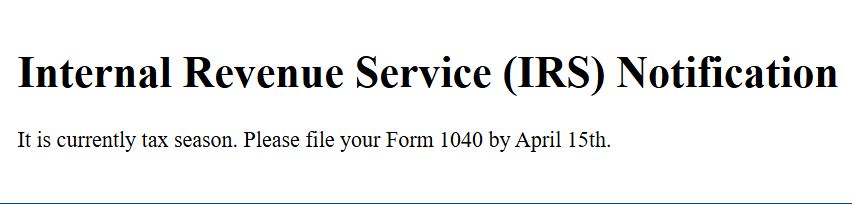
I prefer using parentheses after the return keyword. This allows me to write the JSX on multiple lines without causing any JavaScript syntax issues.
Method 2: Return Multiple Elements with Fragments
Sometimes you need to return multiple elements, but you don’t want to add an extra <div> to the DOM. This is where React Fragments come in handy.
I use Fragments constantly to keep the HTML structure clean, especially when building complex layouts like a US Census data table.
import React, { Fragment } from 'react';

const StateData = () => {
  return (
    <Fragment>
      <h2>State of California</h2>
      <p>Capital: Sacramento</p>
      <p>Population: ~39 million</p>
    </Fragment>
  );
};

// Shorthand syntax that I use most often:
const StateDataShort = () => {
  return (
    <>
      <h2>State of New York</h2>
      <p>Capital: Albany</p>
      <p>Population: ~19 million</p>
    </>
  );
};

export default StateData;
I executed the above example code and added the screenshot below.

Using the empty brackets <> is a great shortcut. It keeps my code concise while still satisfying React’s requirement to return a single parent element.
Method 3: Return Strings and Numbers
A React component doesn’t always have to return a tag. Sometimes, returning a plain string or a number is exactly what you need.
I often use this for “Utility Components” that just format data, such as a component that displays a US Dollar currency format.
import React from 'react';

const CurrencyFormatter = ({ amount }) => {
  // Validating the input
  if (isNaN(amount)) {
    return "Invalid Amount";
  }

  // Returning a formatted string directly
  return new Intl.NumberFormat('en-US', {
    style: 'currency',
    currency: 'USD',
  }).format(amount);
};

const BudgetDisplay = () => {
  return (
    <div>
      <h3>Monthly Housing Allowance (New York City):</h3>
      <p><CurrencyFormatter amount={3500} /></p>
    </div>
  );
};

export default BudgetDisplay;
I executed the above example code and added the screenshot below.

Notice that CurrencyFormatter doesn’t use any HTML tags in its return. React handles this perfectly and simply renders the text node.
Method 4: Return Null to Render Nothing
There are times when you want a component to hide itself completely based on a specific condition.
In my experience, returning null is the cleanest way to prevent a component from rendering. It tells React to skip this component during the paint process.
Let’s look at a “Severe Weather Alert” component that only appears if there is an active warning from the National Weather Service.
import React from 'react';

const WeatherAlert = ({ hasWarning, location }) => {
  // If there is no warning, we return null
  if (!hasWarning) {
    return null;
  }

  return (
    <div style={{ backgroundColor: '#ffcccc', color: '#cc0000', padding: '15px' }}>
      <strong>URGENT:</strong> Severe thunderstorm warning for {location}. Seek shelter!
    </div>
  );
};

const Dashboard = () => {
  return (
    <div>
      <h1>Chicago Weather Center</h1>
      <WeatherAlert hasWarning={true} location="Cook County, IL" />
      <WeatherAlert hasWarning={false} location="Miami, FL" />
    </div>
  );
};

export default Dashboard;
In the example above, the Miami alert will not appear in the DOM at all. This is much better than returning an empty <div>.
Method 5: Return Values to a Parent Component (via Callbacks)
This is a slightly different concept. Beginners often ask how to “return” a value from a child back up to a parent.
In React, data flows down, but we “return” values up by using callback functions passed as props.
I use this pattern frequently in forms, such as a US Zip Code validator.
import React, { useState } from 'react';

const ZipCodeInput = ({ onZipChange }) => {
  const handleChange = (e) => {
    const value = e.target.value;
    // We "return" the value to the parent by calling the prop function
    onZipChange(value);
  };

  return (
    <div>
      <label>Enter US Zip Code: </label>
      <input type="text" maxLength="5" onChange={handleChange} />
    </div>
  );
};

const OrderSummary = () => {
  const [zip, setZip] = useState('');

  return (
    <div style={{ padding: '20px' }}>
      <h1>Amazon Shipping Calculator</h1>
      <ZipCodeInput onZipChange={(val) => setZip(val)} />
      <p>Calculating shipping costs for Zip Code: <strong>{zip}</strong></p>
    </div>
  );
};

export default OrderSummary;
By calling onZipChange, the child component effectively updates the parent’s state with a value.
Method 6: Return an Array of Elements
While less common than using Fragments, React allows you to return an array of elements.
Each element in the array must have a unique key prop. I find this useful when I need to programmatically generate a list of items, like a list of US National Parks.
import React from 'react';

const NationalParkList = () => {
  // Returning an array of elements
  return [
    <li key="1">Yellowstone National Park (Wyoming)</li>,
    <li key="2">Yosemite National Park (California)</li>,
    <li key="3">Grand Canyon National Park (Arizona)</li>
  ];
};

const ParksGallery = () => {
  return (
    <div>
      <h2>Must-Visit US Destinations</h2>
      <ul>
        <NationalParkList />
      </ul>
    </div>
  );
};

export default ParksGallery;
This method is powerful when you want to inject several items into a list without wrapping them in a container.
Key Takeaways for React Returns
After years of debugging React apps, here are the three rules I follow for return values:
- Always return something: Even if it is null, your component must have an explicit output.
- Use Fragments for clean DOMs: Don’t pollute your CSS with unnecessary wrapper divs.
- Keep it simple: If your return statement is getting too large, it’s a sign you should break that component into smaller pieces.
Understanding the flexibility of the return statement will make you a much more efficient developer.
I hope you found this tutorial helpful! Whether you are returning a complex JSX tree or a simple null value, knowing these methods will help you build cleaner React interfaces.
You may also like to read:
- React Inline Style Component
- React Render Component from Variable
- React Container Component Pattern
- Web Components vs React

Bijay Kumar is an experienced Python and AI professional who enjoys helping developers learn modern technologies through practical tutorials and examples. His expertise includes Python development, Machine Learning, Artificial Intelligence, automation, and data analysis using libraries like Pandas, NumPy, TensorFlow, Matplotlib, SciPy, and Scikit-Learn. At PythonGuides.com, he shares in-depth guides designed for both beginners and experienced developers. More about us.

