
React is my go-to library for building dynamic user interfaces, and I’ve spent years refining how I structure my projects.
One thing I realized early on is that manually creating folders and files for every single component is a massive time-waster.
If you are still right-clicking to “New File” every time you need a button or a header, you are losing valuable coding time.
In this tutorial, I will show you exactly how to automate this process using various CLI methods to keep your workflow fast and efficient.
Why You Should Use a CLI to Create Components
When I first started with React, I didn’t mind the manual setup, but as my projects grew, the repetition became exhausting.
Using a CLI tool ensures that your component structure remains consistent across your entire team or project.
It also helps you avoid those pesky typos in filenames or import statements that always seem to happen when you’re in a rush.
Method 1: Use a Custom Node.js Script
I often prefer this method because it gives me total control over the folder structure without installing heavy third-party packages.
You can write a simple script that takes a component name as an argument and generates the .jsx and .css files automatically.
Below is the full code for a script I frequently use. You can save this as create-comp.js in your project root.
// create-comp.js
const fs = require('fs');
const path = require('path');

const componentName = process.argv[2];

if (!componentName) {
  console.error('Please provide a component name.');
  process.exit(1);
}

const folderPath = path.join(__dirname, 'src', 'components', componentName);

// Create the directory
if (!fs.existsSync(folderPath)) {
    fs.mkdirSync(folderPath, { recursive: true });
}

// React component template
const componentTemplate = `import React from 'react';
import './${componentName}.css';

const ${componentName} = () => {
  return (
    <div className="${componentName.toLowerCase()}-container">
      <h1>${componentName} Component</h1>
      <p>Managing logistics data for New York shipping hubs.</p>
    </div>
  );
};

export default ${componentName};
`;

// CSS template
const cssTemplate = `.${componentName.toLowerCase()}-container {
    padding: 20px;
    border: 1px solid #ccc;
    background-color: #f9f9f9;
}`;

// Write files
fs.writeFileSync(path.join(folderPath, `${componentName}.jsx`), componentTemplate);
fs.writeFileSync(path.join(folderPath, `${componentName}.css`), cssTemplate);

console.log(`Component ${componentName} created successfully at ${folderPath}`);
You can see the output in the screenshot below.
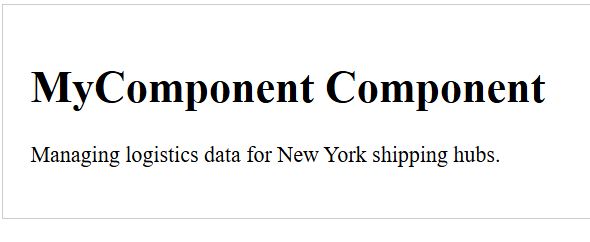
To run this, just open your terminal and type: node create-comp.js ShippingTracker
This will immediately generate a folder with your React file and stylesheet, ready for use in your application.
Method 2: Use the “generate-react-cli” Library
If you don’t want to maintain your own scripts, I highly recommend using a battle-tested tool like generate-react-cli.
I’ve used this on several large-scale projects in the USA, and it handles everything from Proptypes to test files effortlessly.
First, you need to install the package globally or as a dev dependency in your project.
npm install generate-react-cli –save-dev
Once installed, you can initialize the configuration to match your specific project needs.
npx generate-react-cli init
This command creates a generate-react-cli.json file where you can specify if you use SCSS, TypeScript, or specific testing libraries.
To create a component, for example, a “TaxCalculator” for a US-based financial app, use:
npx generate-react-cli component TaxCalculator
The tool will create a folder structure like this:
- TaxCalculator/TaxCalculator.js
- TaxCalculator/TaxCalculator.css
- TaxCalculator/TaxCalculator.test.js
Method 3: Leverage Hygen for Scalable Projects
When I am working on complex enterprise applications, I often turn to Hygen for code generation.
Hygen is incredibly fast and uses EJS templates, which makes it very flexible for different types of components.
To get started, you can install Hygen via npm:
npm install hygen -g
Next, you set up your templates. I usually create a template for a “ServiceCard” which might be used in a medical insurance portal.
Here is an example of a Hygen template for a React component:
---
to: src/components/<%= name %>/<%= name %>.jsx
---
import React from 'react';

export const <%= name %> = () => {
  return (
    <div className="card">
      <h2>USA Health Service: <%= name %></h2>
      <p>Providing quality care across all 50 states.</p>
    </div>
  );
};
You can then trigger the generation by running:
hygen component new –name MedicalPortal
This method is perfect if you need to generate multiple related files (like a storybook file and a lazy-loading index file) simultaneously.
Method 4: Use VS Code Snippets (The “Semi-CLI” Way)
While not a standalone CLI, I find that combining terminal commands with custom VS Code snippets is a secret weapon for speed.
I use the terminal to create the file and then use a keyboard shortcut to dump the boilerplate code.
You can create a custom snippet by going to File > Preferences > User Snippets and selecting javascriptreact.json.
{
  "React USA Component": {
    "prefix": "rusc",
    "body": [
      "import React from 'react';",
      "",
      "const ${1:ComponentName} = () => {",
      "  return (",
      "    <section className=\"container\">",
      "      <h2>Welcome to ${1:ComponentName}</h2>",
      "      <p>Serving our customers from Texas to New York.</p>",
      "    </section>",
      "  );",
      "};",
      "",
      "export default ${1:ComponentName};"
    ],
    "description": "Create a React component with USA context"
  }
}
Now, I simply create a blank file via terminal: touch src/components/Dashboard.jsx. Then, I type rusc and hit Tab, and the entire component structure appears instantly.
Best Practices for CLI Component Generation
Throughout my career, I’ve learned that automation is only good if it follows a strict set of rules.
Always ensure your CLI tool places components in a dedicated /components or /features directory to keep the root clean.
I also recommend including an index.js file in every component folder to make your imports much cleaner.
Instead of importing from ../../components/Header/Header, you can just import from ../../components/Header.
// index.js inside the component folder
export { default } from './Header';
This small addition, which can be automated in your scripts, makes a huge difference in long-term maintenance.
Handle Styles and Testing via CLI
A great CLI setup shouldn’t just create the logic; it should also handle the presentation and validation layers.
In my experience, if you don’t generate the test file alongside the component, the tests often never get written.
Make sure your CLI command includes a flag or a template for a .test.js file using Jest or React Testing Library.
// Example Test Template
import { render, screen } from '@testing-library/react';
import ComponentName from './ComponentName';

test('renders component message', () => {
  render(<ComponentName />);
  const linkElement = screen.getByText(/USA Health Service/i);
  expect(linkElement).toBeInTheDocument();
});
By automating this, you’re essentially forcing yourself to follow best practices, which leads to more robust code.
In this guide, I’ve shown you several ways to use a CLI to create React components, from custom scripts to powerful libraries.
Automation might take a few minutes to set up initially, but it will save you hundreds of hours over the course of a project.
You may also read:
- How to Return Values from React Components
- Why Do React Component Names Need to Start with a Capital Letter?
- How to Reset Component State in React
- Best Accessible React Component Libraries for Modern Web Apps

Bijay Kumar is an experienced Python and AI professional who enjoys helping developers learn modern technologies through practical tutorials and examples. His expertise includes Python development, Machine Learning, Artificial Intelligence, automation, and data analysis using libraries like Pandas, NumPy, TensorFlow, Matplotlib, SciPy, and Scikit-Learn. At PythonGuides.com, he shares in-depth guides designed for both beginners and experienced developers. More about us.

