
Throughout my years of building large-scale React applications, I’ve found that how you organize and export your components is just as important as the logic inside them.
In this guide, I will show you the different ways to export components in React, using real-world examples that go beyond simple “Hello World” snippets.
Whether you are building a financial dashboard or a state-specific data tool, understanding these export patterns will help you write cleaner, more maintainable code.
The Importance of Export Syntax in React
When I first started with React, I often struggled with when to use curly braces and when to omit them during imports.
Choosing the right export method affects how your components are bundled and how easily your teammates can find and use them in a large codebase.
Method 1: Use Default Exports
Default exports are perhaps the most common way to share a single component from a file.
In my experience, this is ideal when a file has one primary purpose, such as a main page or a specific layout component.
Let’s look at a component that displays a summary of the New York Stock Exchange (NYSE) data.
// NYSEDashboard.js
import React from 'react';

const NYSEDashboard = () => {
  const marketData = [
    { ticker: 'AAPL', price: 175.43 },
    { ticker: 'MSFT', price: 402.12 },
    { ticker: 'GOOGL', price: 142.56 }
  ];

  return (
    <div style={{ padding: '20px', border: '1px solid #ccc' }}>
      <h2>Wall Street Market Overview</h2>
      <ul>
        {marketData.map((stock) => (
          <li key={stock.ticker}>
            <strong>{stock.ticker}</strong>: ${stock.price}
          </li>
        ))}
      </ul>
    </div>
  );
};

// This is the default export
export default NYSEDashboard;
You can see the output in the screenshot below.

When you use a default export, you can name the component whatever you like when you import it into another file.
// App.js
import MarketSummary from './NYSEDashboard';

const App = () => {
  return (
    <div>
      <h1>Financial Insights App</h1>
      <MarketSummary />
    </div>
  );
};

export default App;
I usually prefer this for major components because it makes the import line look very clean.
Method 2: Use Named Exports
Named exports are incredibly useful when you have a single file that contains multiple related utilities or UI elements.
I often use this for “Library” files, where I might keep several different button styles or form inputs used across a US-based e-commerce site.
Let’s create a file that exports different shipping calculators for various US regions.
// ShippingCalculators.js
import React from 'react';

export const EastCoastShipping = ({ weight }) => {
  const rate = 5.99;
  return <div>East Coast Shipping: ${(weight * rate).toFixed(2)}</div>;
};

export const WestCoastShipping = ({ weight }) => {
  const rate = 7.49;
  return <div>West Coast Shipping: ${(weight * rate).toFixed(2)}</div>;
};

export const MidWestShipping = ({ weight }) => {
  const rate = 6.25;
  return <div>Midwest Shipping: ${(weight * rate).toFixed(2)}</div>;
};
Unlike default exports, when you import named exports, you must use the exact name of the component inside curly braces.
// Checkout.js
import React from 'react';
import { EastCoastShipping, WestCoastShipping } from './ShippingCalculators';

const Checkout = () => {
  return (
    <div>
      <h3>Calculate Your Delivery Costs</h3>
      <EastCoastShipping weight={10} />
      <WestCoastShipping weight={10} />
    </div>
  );
};

export default Checkout;
You can see the output in the screenshot below.
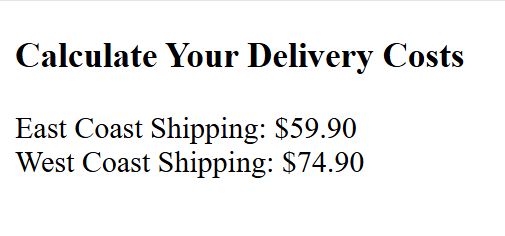
I find this method much safer for large teams because it enforces consistent naming across the entire project.
Method 3: Export at the Bottom of the File
Sometimes, I prefer to keep all my exports at the bottom of the file instead of adding the export keyword in front of every function or constant.
This gives me a quick overview of everything the file is sharing with the rest of the app without scrolling through lines of logic.
Let’s look at a component designed to display National Park information.
// NationalParks.js
import React from 'react';

const Yellowstone = () => (
  <div>
    <h3>Yellowstone National Park</h3>
    <p>Location: Wyoming, Montana, Idaho</p>
  </div>
);

const Yosemite = () => (
  <div>
    <h3>Yosemite National Park</h3>
    <p>Location: California</p>
  </div>
);

const GrandCanyon = () => (
  <div>
    <h3>Grand Canyon National Park</h3>
    <p>Location: Arizona</p>
  </div>
);

// Grouping exports at the bottom
export { Yellowstone, Yosemite, GrandCanyon };
You can see the output in the screenshot below.

This clean grouping is my go-to pattern when I’m writing documentation or building complex UI kits.
Method 4: Rename Exports (Aliasing)
There are times when you might encounter a naming conflict, or perhaps the original component name doesn’t fit the context of your new file.
React allows you to rename components during the export process using the as keyword.
// USStateTaxes.js
import React from 'react';

const CaliforniaTax = () => <div>CA Sales Tax: 7.25%</div>;
const TexasTax = () => <div>TX Sales Tax: 6.25%</div>;

export {
  CaliforniaTax as CATax,
  TexasTax as TXTax
};
Then, in your main file, you would use the new names:
import { CATax, TXTax } from './USStateTaxes';I’ve found this particularly helpful when integrating third-party libraries where component names might be too generic, like Header or Footer.
Method 5: Re-export from a Central Index File
As your project grows, your import list can become a mess of long file paths.
To solve this, I use a “Barrel” pattern where I create an index.js file in a folder to re-export everything from that directory.
Imagine a folder named Travel with separate files for Flights.js, Hotels.js, and CarRentals.js.
// Travel/index.js
export { default as FlightBooker } from './Flights';
export { default as HotelBooker } from './Hotels';
export { default as CarRental } from './CarRentals';
Now, instead of three separate import lines, you can grab everything you need in one go:
// Dashboard.js
import { FlightBooker, HotelBooker, CarRental } from './Travel';
In my experience, this makes the codebase significantly easier to navigate for new developers joining the project.
Best Practices I’ve Learned Over the Years
- Be Consistent: Don’t mix default and named exports in the same file unless there is a very specific reason to do so. It confuses the person importing them.
- Use Named Exports for Utilities: If you have a collection of small components, named exports make it easier for IDEs like VS Code to suggest auto-imports.
- Keep Filenames Logical: Always name your file the same as your default export. If your file is USAMap.js, the component should be USAMap.
- Avoid Anonymous Default Exports: Avoid doing export default () => { … }. It makes debugging harder because the component won’t have a name in the React DevTools.
In this tutorial, I’ve covered the most effective ways to handle React component export syntax.
I showed you how to use default exports for primary components and named exports for utility libraries.
We also looked at how to rename exports and use the barrel pattern to keep your project organized.
You may read:
- Best Accessible React Component Libraries for Modern Web Apps
- How to Create React Components Using CLI
- How to Build a React Stepper Component
- How to Use Jest spyOn with React Components

Bijay Kumar is an experienced Python and AI professional who enjoys helping developers learn modern technologies through practical tutorials and examples. His expertise includes Python development, Machine Learning, Artificial Intelligence, automation, and data analysis using libraries like Pandas, NumPy, TensorFlow, Matplotlib, SciPy, and Scikit-Learn. At PythonGuides.com, he shares in-depth guides designed for both beginners and experienced developers. More about us.

