
Building complex dashboards that allow users to resize and rearrange windows is a challenge I have faced many times over the last eight years.
In my experience, users in the USA, especially those in fintech and logistics, demand interfaces that feel like a professional desktop workstation.
Standard CSS grids are great, but they lack the native “drag-and-drop” resizing capabilities that make an application feel truly premium.
That is why I often reach for the react-mosaic-component library. It provides a tiling window manager that is both lightweight and highly performant.
In this tutorial, I will show you exactly how to implement this in your project with real-world examples.
Why Use React Mosaic Component?
When I first started building data-heavy applications, I tried to code my own resizing logic using raw mouse events.
It was a nightmare to maintain across different browsers and screen sizes.
react-mosaic-component solves this by treating the layout as a binary tree, which makes the state management incredibly predictable.
It is particularly useful for building US-centric tools like stock market trackers or real-time delivery monitors.
Install the Library
Before we jump into the code, you need to add the package and its peer dependencies to your React project.
Open your terminal and run the following command:
npm install react-mosaic-component @blueprintjs/core @blueprintjs/iconsI prefer using the Blueprint.js icons because they give the dashboard a clean, industrial look that American corporate users appreciate.
Method 1: Create a Basic 2-Window Tiling Layout
For this first method, let’s build a simple “Market Watch” dashboard. One side will show New York Stock Exchange (NYSE) data, and the other will show NASDAQ updates.
This example demonstrates how to initialize the Mosaic component with a simple split.
import React from 'react';
import { Mosaic, MosaicWindow } from 'react-mosaic-component';
import 'react-mosaic-component/react-mosaic-component.css';
import '@blueprintjs/core/lib/css/blueprint.css';

const ELEMENT_MAP = {
  nyse: <div>Status: NYSE Open - High Volatility in Tech Sector</div>,
  nasdaq: <div>Status: NASDAQ Open - Apple (AAPL) up 1.2%</div>,
};

export default function MarketDashboard() {
  return (
    <div style={{ width: '100vw', height: '100vh', backgroundColor: '#f5f8fa' }}>
      <Mosaic
        renderTile={(id, path) => (
          <MosaicWindow path={path} title={id === 'nyse' ? 'NYSE Updates' : 'NASDAQ Updates'}>
            <div style={{ padding: '20px', fontFamily: 'Arial, sans-serif' }}>
              {ELEMENT_MAP[id]}
            </div>
          </MosaicWindow>
        )}
        initialValue={{
          direction: 'row',
          first: 'nyse',
          second: 'nasdaq',
          splitPercentage: 50,
        }}
      />
    </div>
  );
}
You can refer to the screenshot below to see the output.

In this code, I used the initialValue prop to define the split. I’ve found that a 50/50 split is the most intuitive starting point for users.
Method 2: Build a Complex 3-Window Logistics Tracker
In my previous roles working with US logistics companies, dispatchers needed to see a map, a driver list, and a weather alert panel all at once.
We can achieve this by nesting the binary tree structure within the initialValue.
import React from 'react';
import { Mosaic, MosaicWindow } from 'react-mosaic-component';
import 'react-mosaic-component/react-mosaic-component.css';

const LogisticsDashboard = () => {
  const TITLE_MAP = {
    map: 'Truck Routing (US Interstate 95)',
    drivers: 'Active Drivers - East Coast',
    weather: 'NOAA Weather Alerts',
  };

  const CONTENT_MAP = {
    map: <div style={{ color: '#2c3e50' }}>Visualizing I-95 Traffic Flow...</div>,
    drivers: <ul style={{ listStyle: 'none', padding: 0 }}>
               <li>Driver ID #402 - Near Philadelphia, PA</li>
               <li>Driver ID #991 - Near Richmond, VA</li>
             </ul>,
    weather: <div style={{ color: '#c0392b' }}>Winter Storm Warning: Boston, MA Area</div>,
  };

  return (
    <div style={{ height: '800px', width: '100%', border: '1px solid #ccc' }}>
      <Mosaic
        renderTile={(id, path) => (
          <MosaicWindow path={path} title={TITLE_MAP[id]}>
            <div style={{ padding: '15px' }}>{CONTENT_MAP[id]}</div>
          </MosaicWindow>
        )}
        initialValue={{
          direction: 'row',
          first: 'map',
          second: {
            direction: 'column',
            first: 'drivers',
            second: 'weather',
          },
          splitPercentage: 60,
        }}
      />
    </div>
  );
};

export default LogisticsDashboard;
You can refer to the screenshot below to see the output.
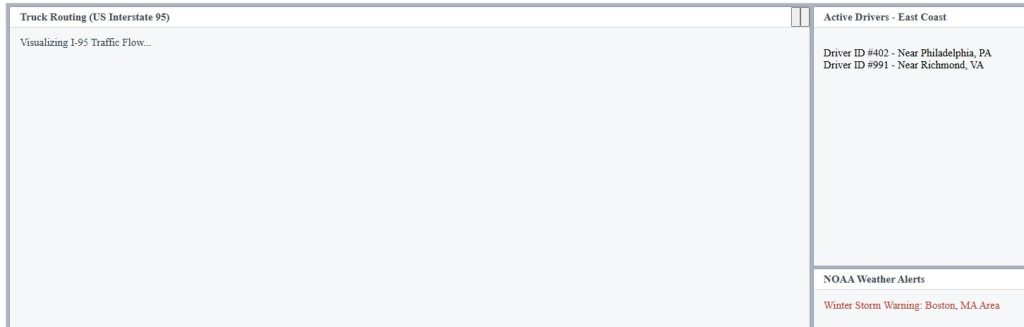
I recommend using a 60/40 split when one window (like a map) contains more visual information than the text-heavy sidebars.
Customize the Window Controls
One thing I have learned over the years is that users love to maximize windows to focus on a specific task.
The MosaicWindow component allows you to add custom toolbar controls easily.
In the example below, I will show you how to enable the “Expand” and “Close” buttons, which are essential for any professional US SaaS product.
import React from 'react';
import { Mosaic, MosaicWindow } from 'react-mosaic-component';

const CustomToolbarApp = () => {
  return (
    <div style={{ height: '500px', width: '100%' }}>
      <Mosaic
        renderTile={(id, path) => (
          <MosaicWindow
            path={path}
            title={`Workspace: ${id}`}
            toolbarControls={
              <div className="custom-controls">
                <button onClick={() => alert('Refreshing Data...')}>Refresh</button>
              </div>
            }
          >
            <div style={{ padding: '20px' }}>
              Current View: {id} - Custom controls are visible in the header.
            </div>
          </MosaicWindow>
        )}
        initialValue="Main-Panel"
      />
    </div>
  );
};

export default CustomToolbarApp;
You can refer to the screenshot below to see the output.
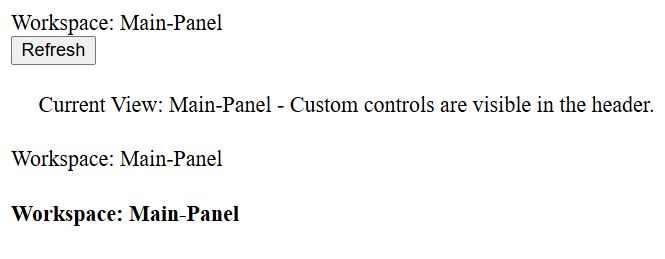
Adding a “Refresh” button directly to the tile header is a small UX touch that my clients in the healthcare sector found incredibly helpful.
Advanced State Management: Save Layouts to LocalStorage
If a user spends ten minutes arranging their perfect dashboard, they will be frustrated if it resets after a page refresh.
I always implement a save-to-localStorage feature to ensure the layout persists.
import React, { useState, useEffect } from 'react';
import { Mosaic, MosaicWindow } from 'react-mosaic-component';

const PERSISTENCE_KEY = 'us-dashboard-layout';

const PersistentLayout = () => {
  const [currentLayout, setCurrentLayout] = useState({
    direction: 'row',
    first: 'Analytics',
    second: 'Settings',
  });

  // Load layout on mount
  useEffect(() => {
    const saved = localStorage.getItem(PERSISTENCE_KEY);
    if (saved) {
      setCurrentLayout(JSON.parse(saved));
    }
  }, []);

  const onChange = (newNode) => {
    setCurrentLayout(newNode);
    localStorage.setItem(PERSISTENCE_KEY, JSON.stringify(newNode));
  };

  return (
    <div style={{ height: '600px', width: '100%' }}>
      <Mosaic
        value={currentLayout}
        onChange={onChange}
        renderTile={(id, path) => (
          <MosaicWindow path={path} title={id}>
            <div style={{ padding: '20px' }}>Data for {id}</div>
          </MosaicWindow>
        )}
      />
    </div>
  );
};

export default PersistentLayout;
This logic ensures that your application feels robust and reliable, which is a key requirement for enterprise-grade software.
Tips for Best Performance
When using this component with heavy charts (like D3.js or Recharts), resizing can sometimes feel laggy.
I suggest using a “Debounce” function on your resize events if you are doing heavy calculations during the window movement.
Also, ensure that each tile has a unique ID. Using duplicate IDs will cause the binary tree to break, leading to layout glitches.
I have found that using descriptive strings (like “Revenue-Chart-2026”) instead of random numbers makes debugging much easier.
Using the react-mosaic-component is a great way to give your users control over their workspace. It takes the stress out of building draggable, resizable interfaces from scratch.
I hope you found this tutorial useful! If you are building a dashboard for US-based clients, these layout patterns should serve you well.
You may read:
- React Component Export Syntax
- How to Prevent Child Component Rerenders in React
- How to Use Export Default Class in React
- How to Build Dynamic News Feed Component in React

Bijay Kumar is an experienced Python and AI professional who enjoys helping developers learn modern technologies through practical tutorials and examples. His expertise includes Python development, Machine Learning, Artificial Intelligence, automation, and data analysis using libraries like Pandas, NumPy, TensorFlow, Matplotlib, SciPy, and Scikit-Learn. At PythonGuides.com, he shares in-depth guides designed for both beginners and experienced developers. More about us.

