
React is incredibly fast, but unnecessary re-renders can quickly slow down a complex application.
I have spent years building enterprise-level React apps, and I have seen how a few “extra” renders can lead to a sluggish user experience.
In this tutorial, I will show you exactly how to stop these unnecessary updates using the same methods I use in production environments.
Understand Why React Components Re-render
Before we jump into the solutions, it is important to understand why a component updates in the first place.
In my experience, a component re-renders for three main reasons: its state changes, its props change, or its parent component re-renders.
While React’s virtual DOM is efficient, skipping the rendering process entirely for components that haven’t changed is the best way to keep your app snappy.
1. Use the React.memo Higher-Order Component
The most common way I prevent functional components from re-rendering is by using React.memo.
It works by memoizing the result. If the props passed to the component are the same as the last time, React skips rendering it.
In this example, we will look at a simple dashboard for a New York-based logistics company tracking delivery trucks.
import React, { useState } from 'react';

// This component will only re-render if its props change
const TruckStatus = React.memo(({ status }) => {
  console.log("Rendering TruckStatus Component");
  return (
    <div style={{ padding: '10px', border: '1px solid #ccc', margin: '10px' }}>
      <h3>Truck Status: {status}</h3>
      <p>Location: Manhattan, NY</p>
    </div>
  );
});

const DeliveryDashboard = () => {
  const [count, setCount] = useState(0);
  const [status, setStatus] = useState("In Transit");

  return (
    <div style={{ padding: '20px' }}>
      <h1>NYC Logistics Tracker</h1>
      <p>Updates: {count}</p>

      <button onClick={() => setCount(count + 1)}>
        Refresh Dashboard Data
      </button>

      <button onClick={() => setStatus("Delivered")}>
        Mark as Delivered
      </button>

      <TruckStatus status={status} />
    </div>
  );
};

export default DeliveryDashboard;
You can see the output in the screenshot below.
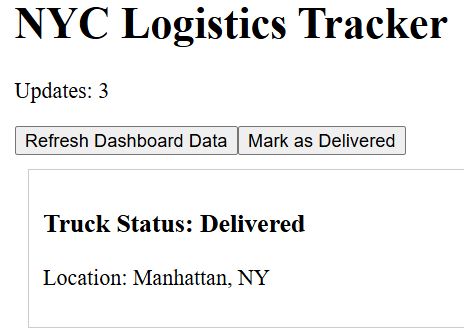
When you click “Refresh Dashboard Data,” the count state changes. Without React.memo, the TruckStatus component would re-render every time.
By wrapping it in memo, it stays static until the status actually changes.
2. Optimize Functions with the useCallback Hook
Sometimes, React.memo isn’t enough. If you pass a function as a prop, the child component might still re-render.
This happens because, in JavaScript, functions are objects. Every time the parent renders, a “new” function is created in memory.
To fix this, I use the useCallback hook to memoize the function definition.
Let’s look at a scenario involving a US tax filing assistant where we pass a reset function to a sub-component.
import React, { useState, useCallback } from 'react';

const ResetButton = React.memo(({ onReset }) => {
  console.log("Rendering ResetButton Component");
  return (
    <button onClick={onReset} style={{ marginTop: '10px' }}>
      Reset Tax Calculation
    </button>
  );
});

const TaxCalculator = () => {
  const [income, setIncome] = useState(50000);
  const [otherState, setOtherState] = useState(false);

  // useCallback ensures this function instance stays the same
  const handleReset = useCallback(() => {
    setIncome(0);
  }, []);

  return (
    <div style={{ padding: '20px' }}>
      <h2>IRS Form 1040 Estimator</h2>
      <p>Estimated Annual Income: ${income}</p>

      <input
        type="number"
        value={income}
        onChange={(e) => setIncome(e.target.value)}
      />

      <button onClick={() => setOtherState(!otherState)}>
        Toggle Theme
      </button>

      <ResetButton onReset={handleReset} />
    </div>
  );
};

export default TaxCalculator;
You can see the output in the screenshot below.
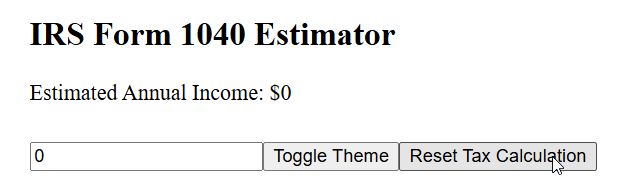
By using useCallback, the handleReset function remains the same across renders, allowing React.memo inside ResetButton to do its job properly.
3. Memoize Expensive Calculations with useMemo
I often encounter scenarios where a component performs heavy data processing, such as filtering a list of US Zip Codes.
If the component re-renders for an unrelated reason, you don’t want to run that heavy calculation again.
The useMemo hook allows you to store the result of a calculation and only re-run it when specific dependencies change.
import React, { useState, useMemo } from 'react';

const ZipCodeAnalyzer = () => {
  const [search, setSearch] = useState('');
  const [toggle, setToggle] = useState(false);

  const zipCodes = ['90210', '10001', '60601', '33101', '75201', '80202'];

  // This heavy filtering only runs if search changes
  const filteredZips = useMemo(() => {
    console.log("Filtering Zip Codes...");
    return zipCodes.filter(zip => zip.includes(search));
  }, [search]);

  return (
    <div style={{ padding: '20px' }}>
      <h2>USA Zip Code Directory</h2>

      <input
        type="text"
        placeholder="Search Zip..."
        value={search}
        onChange={(e) => setSearch(e.target.value)}
      />

      <button onClick={() => setToggle(!toggle)}>
        Change UI Color: {toggle ? "Blue" : "Red"}
      </button>

      <ul>
        {filteredZips.map(zip => <li key={zip}>{zip}</li>)}
      </ul>
    </div>
  );
};

export default ZipCodeAnalyzer;
You can see the output in the screenshot below.
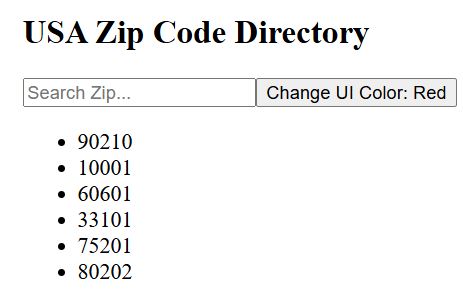
In this case, clicking the “Change UI Color” button triggers a state change, but it doesn’t force the expensive filtering logic to run again.
4. Correct Implementation of the Key Prop
Many developers overlook the importance of the key prop when rendering lists.
If you use indexes as keys, React might re-render every item in a list even if only one item was added or removed.
I always recommend using a unique ID, especially when dealing with dynamic data like a list of US States in a dropdown.
import React, { useState } from 'react';

const StateList = () => {
  const [states, setStates] = useState([
    { id: 'ca', name: 'California' },
    { id: 'tx', name: 'Texas' },
    { id: 'fl', name: 'Florida' }
  ]);

  const addState = () => {
    const newState = { id: 'ny', name: 'New York' };
    setStates([newState, ...states]);
  };

  return (
    <div style={{ padding: '20px' }}>
      <h2>Popular US States</h2>
      <button onClick={addState}>Add New York to Top</button>
      <ul>
        {states.map((state) => (
          <li key={state.id}>{state.name}</li>
        ))}
      </ul>
    </div>
  );
};

export default StateList;
By using state.id instead of the array index, React can identify exactly which element is new and avoid re-rendering the existing list items.
5. Move State Down the Component Tree
One of the simplest tricks I’ve learned over the years is “pushing state down.” Often, a parent component re-renders because it holds state that is only used by a small fraction of its children.
If you move that state into a dedicated sub-component, the rest of the parent’s children will stop re-rendering.
import React, { useState } from 'react';

// This component stays static
const HeavyComponent = () => {
  console.log("Heavy UI Rendering...");
  return <div style={{ height: '200px', background: '#f0f0f0' }}>Static Map of USA</div>;
};

// State is isolated here
const InputSection = () => {
  const [text, setText] = useState("");
  return (
    <div>
      <input
        value={text}
        onChange={(e) => setText(e.target.value)}
        placeholder="Type something..."
      />
      <p>Current Input: {text}</p>
    </div>
  );
};

const MainApp = () => {
  return (
    <div style={{ padding: '20px' }}>
      <h1>Performance App</h1>
      <InputSection />
      <HeavyComponent />
    </div>
  );
};

export default MainApp;
In this structure, typing in the input box only re-renders InputSection. The HeavyComponent remains untouched.
Preventing re-renders in React is all about being intentional with your state management and memoization.
You may also read:
- How to Force Update a React Functional Component
- How to Test Function Calls in React Components
- How to Check if a Component is Rendered in React
- How to Open a React Component in a New Tab

Bijay Kumar is an experienced Python and AI professional who enjoys helping developers learn modern technologies through practical tutorials and examples. His expertise includes Python development, Machine Learning, Artificial Intelligence, automation, and data analysis using libraries like Pandas, NumPy, TensorFlow, Matplotlib, SciPy, and Scikit-Learn. At PythonGuides.com, he shares in-depth guides designed for both beginners and experienced developers. More about us.

