
Building a timeline from scratch in React can be a real headache, especially when you need it to be responsive.
I’ve spent years scaling React applications, and I’ve learned that a solid timeline library saves days of development.
Whether you are tracking a FedEx shipment across the United States or displaying a historical roadmap of Silicon Valley, the right library makes all the difference.
In this guide, I will share my firsthand experience with the best React timeline libraries that I’ve used in production environments.
Why You Need a React Timeline Component
A timeline is more than just a list of dates; it is a visual storytelling tool for your users.
I often use them to show project milestones in enterprise dashboards or to visualize a user’s subscription history.
Method 1: Use React-Chrono for Sophisticated Layouts
React-Chrono is my go-to library when I need something that looks professional right out of the box.
It supports multiple modes like horizontal, vertical, and even a tree mode, which is great for complex data.
In this example, let’s build a timeline for a “Tech Startup Growth Journey” based in Austin, Texas.
Full Code Example:
import React from "react";
import { Chrono } from "react-chrono";

const StartupTimeline = () => {
  const items = [
    {
      title: "January 2022",
      cardTitle: "Seed Funding Round",
      url: "https://example.com",
      cardSubtitle: "Austin, TX",
      cardDetailedText: "Successfully raised $2M from Texas-based angel investors to scale cloud infrastructure.",
    },
    {
      title: "July 2022",
      cardTitle: "Product Beta Launch",
      cardSubtitle: "San Francisco, CA",
      cardDetailedText: "Launched our MVP to a select group of 500 beta testers in the Bay Area.",
    },
    {
      title: "March 2023",
      cardTitle: "Series A Funding",
      cardSubtitle: "New York, NY",
      cardDetailedText: "Closed a $15M Series A round led by NYC venture firms to expand our engineering team.",
    }
  ];

  return (
    <div style={{ width: "100%", height: "500px" }}>
      <h3>Our Company Growth Roadmap</h3>
      <Chrono
        items={items}
        mode="VERTICAL_ALTERNATING"
        theme={{
            primary: "#0056b3",
            secondary: "#ffcc00",
            cardBgColor: "#f8f9fa",
            titleColor: "#333"
        }}
      />
    </div>
  );
};

export default StartupTimeline;
You can refer to the screenshot below to see the output.
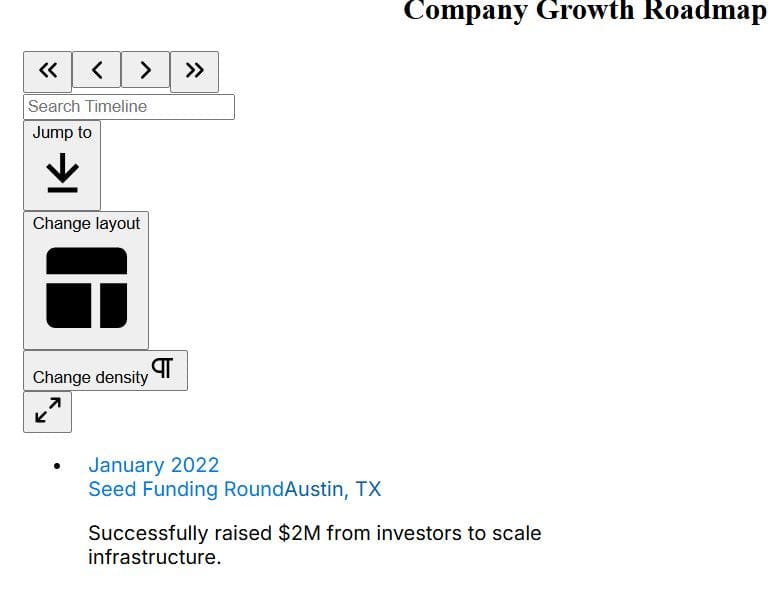
I personally love the alternating vertical mode because it utilizes the screen real estate effectively on both desktop and mobile.
Method 2: Vertical Timeline with React-Vertical-Timeline-Component
When I am building a personal portfolio or a simple “About Us” page, I prefer react-vertical-timeline-component.
It is incredibly lightweight and uses CSS animations that feel very smooth when the user scrolls down.
Let’s use a “NASA Space Mission” theme for this implementation to keep things interesting.
Full Code Example:
import React from 'react';
import { VerticalTimeline, VerticalTimelineElement }  from 'react-vertical-timeline-component';
import 'react-vertical-timeline-component/style.min.css';

const NASATimeline = () => {
  return (
    <div style={{ backgroundColor: '#eeeeee', padding: '20px' }}>
      <h2 style={{ textAlign: 'center' }}>Space Exploration Milestones</h2>
      <VerticalTimeline>
        <VerticalTimelineElement
          className="vertical-timeline-element--work"
          contentStyle={{ background: 'rgb(33, 150, 243)', color: '#fff' }}
          contentArrowStyle={{ borderRight: '7px solid  rgb(33, 150, 243)' }}
          date="1969 - Present"
          iconStyle={{ background: 'rgb(33, 150, 243)', color: '#fff' }}
        >
          <h3 className="vertical-timeline-element-title">Apollo 11 Mission</h3>
          <h4 className="vertical-timeline-element-subtitle">Cape Canaveral, FL</h4>
          <p>The first manned mission to land on the Moon, a historic moment for the United States.</p>
        </VerticalTimelineElement>

        <VerticalTimelineElement
          className="vertical-timeline-element--work"
          date="2011 - 2021"
          iconStyle={{ background: 'rgb(233, 30, 99)', color: '#fff' }}
        >
          <h3 className="vertical-timeline-element-title">Mars Curiosity Rover</h3>
          <h4 className="vertical-timeline-element-subtitle">Pasadena, CA</h4>
          <p>Curiosity landed in Gale Crater to investigate Martian climate and geology.</p>
        </VerticalTimelineElement>
      </VerticalTimeline>
    </div>
  );
};

export default NASATimeline;
You can refer to the screenshot below to see the output.
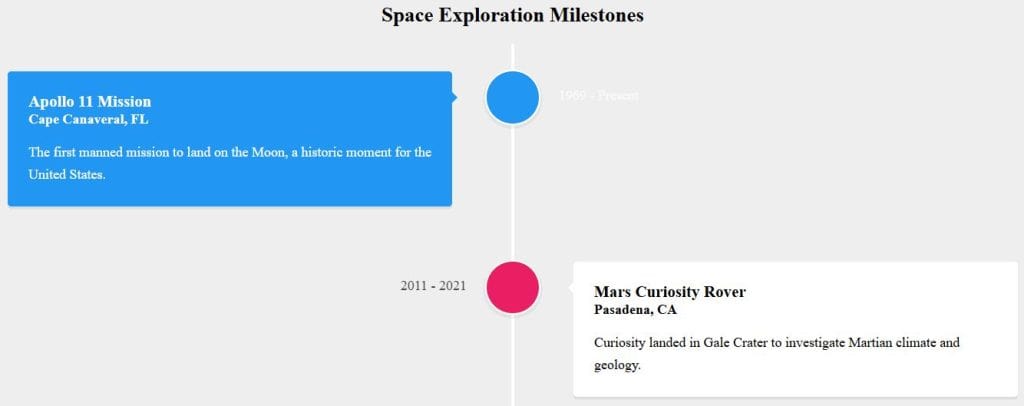
The best part about this library is how easily you can customize the icons to fit your brand’s aesthetic.
Method 3: Lightweight Customization with Material UI (MUI) Timeline
If you are already using Material UI in your project, you shouldn’t look anywhere else.
The @mui/lab package includes a powerful Timeline component that integrates perfectly with your existing theme.
I often use this for “Order Tracking” screens in e-commerce apps for US retailers.
Full Code Example:
import * as React from 'react';
import Timeline from '@mui/lab/Timeline';
import TimelineItem from '@mui/lab/TimelineItem';
import TimelineSeparator from '@mui/lab/TimelineSeparator';
import TimelineConnector from '@mui/lab/TimelineConnector';
import TimelineContent from '@mui/lab/TimelineContent';
import TimelineDot from '@mui/lab/TimelineDot';
import TimelineOppositeContent from '@mui/lab/TimelineOppositeContent';
import Typography from '@mui/material/Typography';

export default function OrderTracking() {
  return (
    <Timeline position="alternate">
      <TimelineItem>
        <TimelineOppositeContent color="text.secondary">
          09:30 am
        </TimelineOppositeContent>
        <TimelineSeparator>
          <TimelineDot color="primary" />
          <TimelineConnector />
        </TimelineSeparator>
        <TimelineContent>
          <Typography variant="h6" component="span">Package Picked Up</Typography>
          <Typography>Distribution Center - Chicago, IL</Typography>
        </TimelineContent>
      </TimelineItem>

      <TimelineItem>
        <TimelineOppositeContent color="text.secondary">
          02:00 pm
        </TimelineOppositeContent>
        <TimelineSeparator>
          <TimelineDot color="secondary" />
          <TimelineConnector />
        </TimelineSeparator>
        <TimelineContent>
          <Typography variant="h6" component="span">In Transit</Typography>
          <Typography>En route to Denver, CO</Typography>
        </TimelineContent>
      </TimelineItem>

      <TimelineItem>
        <TimelineOppositeContent color="text.secondary">
          05:30 pm
        </TimelineOppositeContent>
        <TimelineSeparator>
          <TimelineDot color="success" />
        </TimelineSeparator>
        <TimelineContent>
          <Typography variant="h6" component="span">Delivered</Typography>
          <Typography>Resident Porch - Seattle, WA</Typography>
        </TimelineContent>
      </TimelineItem>
    </Timeline>
  );
}
MUI gives you total control over the “Opposite Content,” which is perfect for showing timestamps.
Method 4: Highly Interactive Timelines with React-Calendar-Timeline
For Gantt-chart style timelines or resource scheduling, react-calendar-timeline is the gold standard.
I’ve used this for scheduling shifts for healthcare workers in large hospitals across the US. It handles thousands of items without any lag, which is vital for enterprise performance.
Full Code Example:
import React from "react";
import Timeline from "react-calendar-timeline";
import "react-calendar-timeline/lib/Timeline.css";
import moment from "moment";

const ResourceTimeline = () => {
  const groups = [{ id: 1, title: 'Truck A' }, { id: 2, title: 'Truck B' }];

  const items = [
    {
      id: 1,
      group: 1,
      title: 'Delivery to Phoenix',
      start_time: moment().add(-2, 'hour'),
      end_time: moment().add(2, 'hour')
    },
    {
      id: 2,
      group: 2,
      title: 'Delivery to Las Vegas',
      start_time: moment().add(-1, 'hour'),
      end_time: moment().add(3, 'hour')
    }
  ];

  return (
    <div>
      <h3>Logistics Fleet Schedule</h3>
      <Timeline
        groups={groups}
        items={items}
        defaultTimeStart={moment().add(-12, 'hour')}
        defaultTimeEnd={moment().add(12, 'hour')}
      />
    </div>
  );
};

export default ResourceTimeline;
This library is a bit heavier, but the ability to drag and drop items makes it worth the bundle size.
Choose the Right Library for Your Project
I always tell my team to evaluate the “Maintenance vs. Customization” trade-off before picking a library.
If you need a quick, beautiful vertical layout for a blog, go with react-chrono.
If you are already in the MUI ecosystem, stick with their built-in components to keep your bundle size small.
For complex, data-heavy scheduling tools, react-calendar-timeline is your best friend.
I hope you found this comparison useful and that it helps you choose the best React timeline library for your next project.
In this tutorial, I’ve covered several ways to implement a timeline in your React applications using different popular libraries.
Each method has its own pros and cons, and the best choice depends on your specific needs.
I’ve used these libraries in various professional projects, and they have consistently delivered great results.
You may also like to read other React tutorials:
- How to Test Function Calls in React Components
- How to Check if a Component is Rendered in React
- How to Open a React Component in a New Tab
- How to Prevent React Component Re-rendering

Bijay Kumar is an experienced Python and AI professional who enjoys helping developers learn modern technologies through practical tutorials and examples. His expertise includes Python development, Machine Learning, Artificial Intelligence, automation, and data analysis using libraries like Pandas, NumPy, TensorFlow, Matplotlib, SciPy, and Scikit-Learn. At PythonGuides.com, he shares in-depth guides designed for both beginners and experienced developers. More about us.

