
If I need a Python script to run something at a specific time, I usually start with the current time, compare it with a target time, and then trigger the task when it matches. In this tutorial, I’ll show you how to do that with plain Python first, then with the schedule library for cleaner recurring jobs.
Why time-based scheduling matters
A lot of Python automation depends on time. I use scheduling when I need reports to run in the morning, backups to run at night, reminders to go out at a set hour, or cleanup jobs to run every few minutes.
If I handle time badly, jobs can run late, run twice, or fail after a daylight saving time change. That is why I prefer clear logic, timezone-aware datetime objects, and a scheduler that fits the job.
Get the current time
Before I can schedule anything, I need the current time.
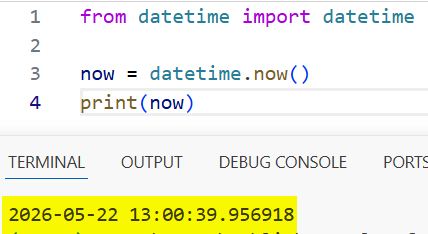
from datetime import datetime

now = datetime.now()
print(now)
You can refer to the screenshot below to see the output.
If I only need the time part, I can use this:
from datetime import datetime

current_time = datetime.now().time()
print(current_time)
For real scheduling work, I usually keep the full datetime because it is easier to compare and adjust.
Run a task at a specific time
Here is the simplest version. I compare the current time with a target time and run a task when the hour and minute match.
from datetime import datetime
import time

target_hour = 14
target_minute = 30

def send_report():
    print("Sending the report now.")

while True:
    now = datetime.now()
    if now.hour == target_hour and now.minute == target_minute:
        send_report()
        break
    time.sleep(30)
This is fine for a beginner script, but it is not perfect for production because the job can trigger more than once during the same minute unless I guard it carefully. That is why I usually use a scheduler library for recurring tasks.
Use the schedule library
For most day-to-day automation, I like the schedule library because it is simple and readable.
Install it first:
pip install schedule
Then I can schedule a job every minute:
import schedule
import time
from datetime import datetime

def job():
    print("Task ran at:", datetime.now())

schedule.every(1).minutes.do(job)

while True:
    schedule.run_pending()
    time.sleep(1)
This pattern is easy to understand and works well for scripts that stay running in the background.
Schedule a task at a specific time
If I want something to run every day at a certain time, I can use .at().
import schedule
import time
from datetime import datetime

def backup_job():
    print("Backup started at:", datetime.now())

schedule.every().day.at("14:30").do(backup_job)

while True:
    schedule.run_pending()
    time.sleep(1)
That is a good fit for daily tasks like exports, reminders, cleanup jobs, and sync operations.
Schedule recurring tasks
I can also run tasks at regular intervals.
import schedule
import time
from datetime import datetime

def heartbeat():
    print("Heartbeat at:", datetime.now())

schedule.every(10).seconds.do(heartbeat)
schedule.every(5).minutes.do(heartbeat)

while True:
    schedule.run_pending()
    time.sleep(1)
This is useful when I want a small script to keep checking data, polling an API, or logging system status.
Use UTC for reliable scheduling
If my app runs across time zones, I prefer UTC for internal scheduling. That keeps the logic consistent, no matter where the server is located.
from datetime import datetime, timezone

utc_now = datetime.now(timezone.utc)
print(utc_now)
Using UTC is especially helpful for:
- Server-side logs.
- API events.
- Background jobs.
- Database timestamps.
- Multi-region applications.
When I need to show the time to a user, I convert it to their local timezone at the end.
Convert UTC to a local timezone
If I store the time in UTC, I can display it in a U.S. timezone later.
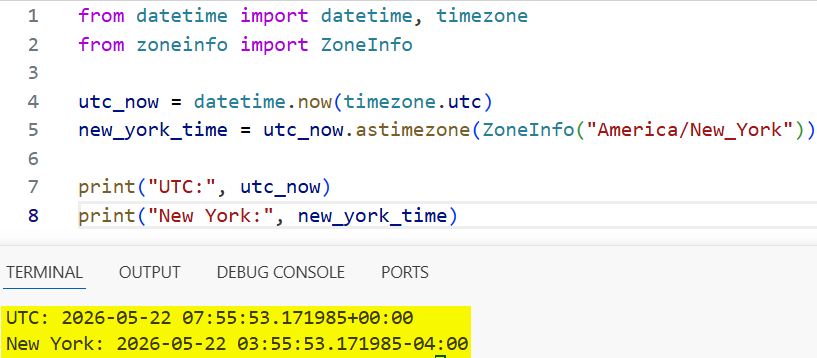
from datetime import datetime, timezone
from zoneinfo import ZoneInfo

utc_now = datetime.now(timezone.utc)
new_york_time = utc_now.astimezone(ZoneInfo("America/New_York"))

print("UTC:", utc_now)
print("New York:", new_york_time)
You can refer to the screenshot below to see the output.
That keeps storage clean and display accurate.
Build a simple scheduler with plain Python
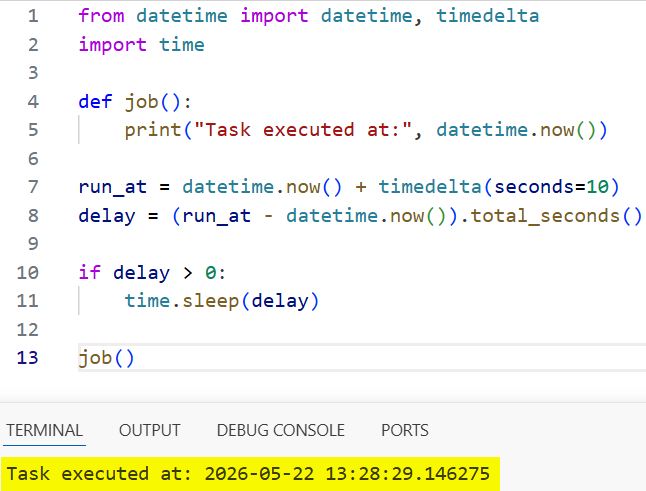
Sometimes I do not need a full library. If I only want one task to run once at a specific moment, I can calculate the delay and sleep until that time.
from datetime import datetime, timedelta
import time

def job():
    print("Task executed at:", datetime.now())

run_at = datetime.now() + timedelta(seconds=10)
delay = (run_at - datetime.now()).total_seconds()

if delay > 0:
    time.sleep(delay)

job()
You can refer to the screenshot below to see the output.
This is useful when I want a one-time delayed action instead of a recurring schedule.
Keep the script running safely
A scheduler only works if the script stays alive. If I close the process, the scheduled job stops too.
To keep it running, I can use:
- A terminal session like tmux or screen.
- A Linux service like systemd.
- A process manager like supervisord.
- Docker with a restart policy.
- A cloud job runner if the task is production-critical.
For small scripts, schedule is great. For larger production systems, I usually move to cron, Airflow, Celery, or a cloud scheduler.
When to use a schedule and when not to
I use a schedule when:
- I want a simple Python-native scheduler.
- The job runs inside the same app.
- I need a quick recurring task.
- I do not want extra infrastructure.
I do not use it when:
- The job must survive restarts on its own.
- I need enterprise-grade retry logic.
- I need distributed task queues.
- I need strict time guarantees at scale.
That helps me choose the right tool instead of forcing one library into every job.
Common mistakes
These are the mistakes I see most often:
- Comparing naive and aware datetime objects.
- Using local time when UTC would be safer.
- Forgetting daylight saving changes.
- Not keeping the scheduler loop alive.
- Expecting a script to run in the background forever without process management.
If I avoid those problems early, the scheduler is much more dependable.
Full example
Here is a complete example I can reuse as a starting point.
import schedule
import time
from datetime import datetime, timezone
from zoneinfo import ZoneInfo

def daily_report():
    now_utc = datetime.now(timezone.utc)
    now_chicago = now_utc.astimezone(ZoneInfo("America/Chicago"))
    print("Report generated at UTC:", now_utc)
    print("Report generated in Chicago:", now_chicago)

schedule.every().day.at("09:00").do(daily_report)

print("Scheduler started...")

while True:
    schedule.run_pending()
    time.sleep(1)
This example keeps the internal time in UTC, shows a U.S. local timezone for display, and runs every day at 9:00 AM.
Practical use cases
I use time-based scheduling for things like:
- Daily sales reports.
- Email reminders.
- File cleanup jobs.
- API polling.
- Database maintenance.
- Morning dashboard refreshes.
- Backup scripts.
Those are the kinds of examples that make a tutorial feel useful, not just theoretical.
Final thoughts
If I want to schedule tasks based on the current time in Python, I can do it with plain datetime checks or with the schedule library. For simple jobs, plain Python is enough. For recurring jobs, the schedule is cleaner and easier to read.
For better reliability, I store time in UTC, convert it for display only, and keep the scheduler process running with a proper process manager.
You may also like to read:
- Change an Integer to a Datetime Object in Python
- Get the Current Date and Time in Python
- Epoch Time to Datetime Conversion in Python
- Convert Python String to Datetime with Timezone

Bijay Kumar is an experienced Python and AI professional who enjoys helping developers learn modern technologies through practical tutorials and examples. His expertise includes Python development, Machine Learning, Artificial Intelligence, automation, and data analysis using libraries like Pandas, NumPy, TensorFlow, Matplotlib, SciPy, and Scikit-Learn. At PythonGuides.com, he shares in-depth guides designed for both beginners and experienced developers. More about us.

