
In my decade of working with Python, I’ve handled thousands of images across various automation and data science projects.
Whether you are building a tool to process real estate photos or scraping product images for an e-commerce site, knowing how to save your output correctly is vital.
In this tutorial, I will walk you through the most reliable ways to save images in Python.
I’ve personally used these methods in production environments, and they are quite easy once you get the hang of them.
1. Use the Pillow (PIL) Library
Pillow is my go-to library for most image manipulation tasks in Python. It is the “friendly” fork of the old PIL library and handles formats like JPEG and PNG beautifully.
Suppose you are working on a project that processes photos of National Parks in the US. After resizing or filtering, you need to commit those changes to your drive.
Here is how I usually do it:
from PIL import Image
import requests
from io import BytesIO

# Imagine we are processing a high-res photo of the Grand Canyon
# For this example, I'll open an image from a URL and save it locally
url = "https://images.unsplash.com/photo-1474044159687-1ee9f3a51722"
response = requests.get(url)
img = Image.open(BytesIO(response.content))

# I always recommend verifying the format before saving
print(f"Original Format: {img.format}")

# Saving the image as a JPEG with high quality
img.save("grand_canyon_processed.jpg", "JPEG", quality=95)

# You can also save it as a PNG to preserve transparency
img.save("grand_canyon_processed.png", "PNG")
I executed the above example code and added the screenshot below.
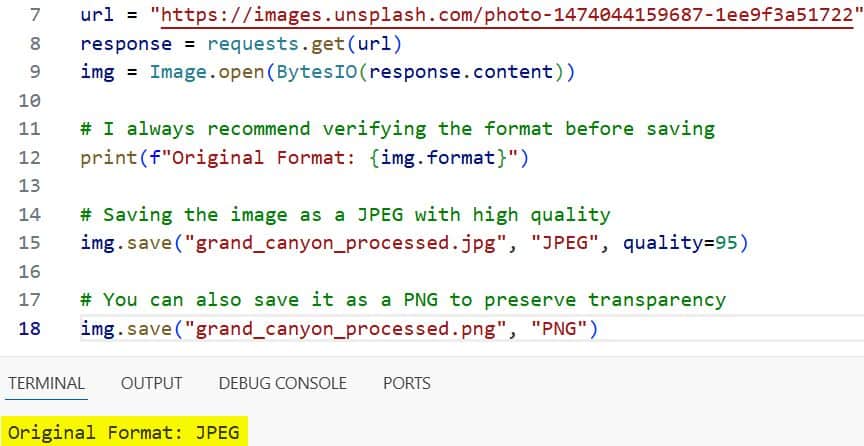
I prefer using the quality parameter when saving JPEGs. It gives you control over the file size versus the visual clarity.
2. Save Images with OpenCV
When I’m working on computer vision projects, like detecting Texas license plates or tracking movement in security footage, OpenCV is the standard.
OpenCV uses BGR color space by default, but its imwrite function is incredibly fast for saving files.
Here is the approach I take:
import cv2
import numpy as np

# Let's create a synthetic image representing a simple US Flag pattern
# 300x500 pixels, 3 color channels
image = np.zeros((300, 500, 3), dtype=np.uint8)

# Filling with colors (OpenCV uses BGR, not RGB)
image[:100, :] = [180, 0, 0]    # Blue section
image[100:200, :] = [255, 255, 255]  # White section
image[200:, :] = [0, 0, 190]    # Red section

# Saving the image is a single line of code
# I've found that cv2.imwrite automatically handles the extension for you
status = cv2.imwrite('us_flag_pattern.jpg', image)

if status:
    print("Image was successfully saved to your local directory.")
else:
    print("Error: The image could not be saved.")
I executed the above example code and added the screenshot below.
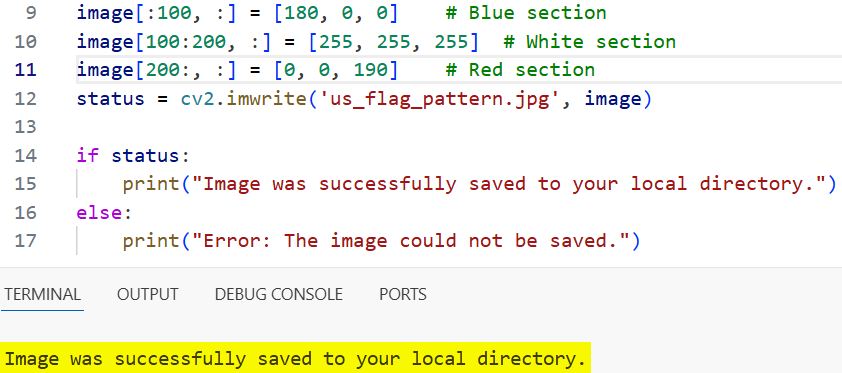
One thing I’ve learned the hard way: always check the return status of imwrite. It returns False if it can’t write to the directory, and it won’t necessarily throw a loud error.
3. Save Visualizations with Matplotlib
If you are a data analyst plotting US Census data or stock market trends, you’ll likely be using Matplotlib.
Saving a plot as an image is different from saving a raw pixel array. You are essentially saving a “figure.”
Here is how I handle this during my data reporting:
import matplotlib.pyplot as plt

# Sample data: Top 5 most populated US Cities (approx. in millions)
cities = ['New York', 'Los Angeles', 'Chicago', 'Houston', 'Phoenix']
population = [8.3, 3.9, 2.7, 2.3, 1.6]

plt.figure(figsize=(10, 6))
plt.bar(cities, population, color='skyblue')
plt.title('Top 5 Populated US Cities')
plt.xlabel('City')
plt.ylabel('Population (Millions)')

# I use bbox_inches='tight' to ensure no labels are cut off
plt.savefig('us_city_population_chart.png', dpi=300, bbox_inches='tight')

# You can also save it as a PDF for high-quality printing
plt.savefig('us_city_population_report.pdf')

plt.show()
I executed the above example code and added the screenshot below.
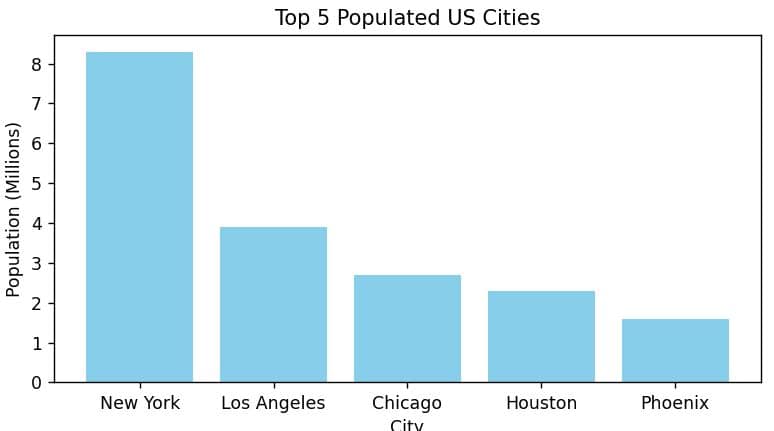
Setting the dpi (dots per inch) to 300 is a professional tip I follow. It ensures the chart looks crisp in both PowerPoint presentations and printed reports.
4. Handle Images from a URL (The Requests Method)
Often, you don’t even need an image library to save an image. If you just need to download a file from the web, the requests library is the most efficient.
I’ve used this to bulk-download public domain images from US Government archives.
import requests

# URL of a public domain image from a US (.gov) source
image_url = "https://www.nasa.gov/sites/default/files/images/730631main_1673_full.jpg"

response = requests.get(image_url, stream=True)

if response.status_code == 200:
    # Open a local file with write-binary permissions
    with open('nasa_space_image.jpg', 'wb') as f:
        for chunk in response.iter_content(1024):
            f.write(chunk)
    print("Download complete.")
else:
    print("Could not retrieve the image.")
Using stream=True and iter_content is a best practice for large images. It prevents your computer’s RAM from getting overloaded by downloading the file in small chunks.
Choose the Right Format: JPEG vs. PNG
In my experience, choosing the right file extension is just as important as the code itself.
If you are saving a photograph of a landscape in Montana, use JPEG. It provides great compression for complex colors.
If you are saving a logo or an image with text (like a “Sale” banner for a US holiday), use PNG. It prevents the “fuzziness” or artifacts often seen in JPEGs.
I generally avoid BMP or TIFF unless I am working on specific medical or industrial imaging projects that require zero compression.
Troubleshoot Common Issues
I frequently see beginners struggle when their images don’t appear in the folder they expect.
Always check your file paths. I recommend using absolute paths or the os library to define exactly where the image should go.
Another common pitfall is file permissions. Ensure your Python script has the right to “Write” to the folder, especially if you are working on a shared server or a restricted Windows directory.
In this tutorial, I showed you how to save images using Pillow, OpenCV, Matplotlib, and the Requests library.
I hope you found this helpful and easy to follow. Each method has its own strengths depending on your specific project needs.
You may also read:
- Use the strip() Function in Python
- Implement and Use the hash() Functions in Python
- Use the map() Function in Python
- Use the randint() Function in Python

Bijay Kumar is an experienced Python and AI professional who enjoys helping developers learn modern technologies through practical tutorials and examples. His expertise includes Python development, Machine Learning, Artificial Intelligence, automation, and data analysis using libraries like Pandas, NumPy, TensorFlow, Matplotlib, SciPy, and Scikit-Learn. At PythonGuides.com, he shares in-depth guides designed for both beginners and experienced developers. More about us.

