
Tkinter has no built-in date or time picker. For dates, install tkcalendar and use DateEntry (an entry with a dropdown calendar) or Calendar (a calendar shown in the window). For times, use two ttk.Spinbox widgets for hours and minutes, or the tkTimePicker package for a spin or clock-style picker. This guide shows each one with a screenshot, how to read the value as a date/datetime, and how to use them in CustomTkinter.
Tested with Python 3.12.5 (Tk 8.6.13), tkcalendar 1.6.1, tkTimePicker 2.0.2 and CustomTkinter 6.0.0 on Windows 11. The screenshots are the real windows. For the full reference, see the tkcalendar documentation.
pip install tkcalendarDate picker: tkcalendar DateEntry
import tkinter as tk
from tkinter import ttk
from tkcalendar import DateEntry

root = tk.Tk()
root.title("Date picker")
root.geometry("360x300")

ttk.Label(root, text="Delivery date:").pack(pady=(20, 4))
picker = DateEntry(root, width=14, date_pattern="yyyy-mm-dd",
                   year=2026, month=10, day=15)       # optional: start date (default: today)
picker.pack()

result = ttk.Label(root, text="")
result.pack(pady=10)

def show_date():
    chosen = picker.get_date()                         # a datetime.date object
    result.config(text=f"You picked {chosen:%A, %d %B %Y}")

ttk.Button(root, text="OK", command=show_date).pack()
root.mainloop()
get_date() returns a datetime.date, so you can format or compare it directly. The OK button in this example produces:
You picked Thursday, 15 October 2026
<class 'datetime.date'> 2026-10-15
date_pattern sets how the date is shown in the entry; get() returns that text while get_date() returns the date object.
Calendar widget (always visible)
Calendar shows the month directly in the window. The <<CalendarSelected>> event fires when the user clicks a day:
import tkinter as tk
from tkinter import ttk
from tkcalendar import Calendar

root = tk.Tk()
root.title("Calendar")

cal = Calendar(root, selectmode="day", year=2026, month=10, day=15,
               showweeknumbers=False, firstweekday="monday",
               background="#306998", foreground="white",
               headersbackground="#e8eef5", selectbackground="#ffd43b", selectforeground="black")
cal.pack(padx=16, pady=16)

label = ttk.Label(root, text="Selected: 2026-10-15")
label.pack(pady=(0, 12))

def on_select(event):
    label.config(text=f"Selected: {cal.selection_get()}")

cal.bind("<<CalendarSelected>>", on_select)
root.mainloop()
Time picker with ttk.Spinbox
For a time picker without extra packages, use two Spinboxes. wrap=True goes from 23 back to 00, increment=5 steps minutes by five, and format="%02.0f" keeps the leading zero. Combining the date and time gives a datetime:
import tkinter as tk
from datetime import datetime, time
from tkinter import ttk
from tkcalendar import DateEntry

root = tk.Tk()
root.title("Booking")

frame = ttk.Frame(root, padding=(24, 16, 40, 16))
frame.pack()

ttk.Label(frame, text="Date").grid(row=0, column=0, sticky="w")
date_picker = DateEntry(frame, width=12, date_pattern="yyyy-mm-dd", year=2026, month=10, day=15)
date_picker.grid(row=1, column=0, padx=(0, 16))

ttk.Label(frame, text="Time").grid(row=0, column=1, columnspan=3, sticky="w")
hour = ttk.Spinbox(frame, from_=0, to=23, wrap=True, width=3, format="%02.0f")
minute = ttk.Spinbox(frame, from_=0, to=55, increment=5, wrap=True, width=3, format="%02.0f")
hour.set("09")
minute.set("30")
hour.grid(row=1, column=1)
ttk.Label(frame, text=":").grid(row=1, column=2)
minute.grid(row=1, column=3)

result = ttk.Label(frame, text="")
result.grid(row=3, column=0, columnspan=4, sticky="w")

def read(spinbox, highest):
    """The Spinbox value as an int, kept in range even if the user typed something odd."""
    try:
        value = int(spinbox.get())
    except ValueError:
        value = 0
    return max(0, min(highest, value))

def show():
    chosen = datetime.combine(date_picker.get_date(), time(read(hour, 23), read(minute, 59)))
    result.config(text=chosen.strftime("%A %d %B %Y, %H:%M"))

ttk.Button(frame, text="OK", command=show).grid(row=2, column=0, columnspan=4, pady=10, sticky="w")
root.mainloop()
Users can also type into a Spinbox, so read() keeps the value in range. Choosing 14:45, then typing 99 and “abc”:
Thursday 15 October 2026, 14:45
Thursday 15 October 2026, 23:00
tkTimePicker: spin and clock-style time pickers
The tkTimePicker package provides ready-made time pickers:
pip install tkTimePickerimport tkinter as tk
from tktimepicker import SpinTimePickerModern, constants
root = tk.Tk()
root.title("Time")
root.configure(bg="#404040")
picker = SpinTimePickerModern(root)
picker.addAll(constants.HOURS24) # hours (24-hour clock) and minutes
picker.configureAll(bg="#404040", height=1, fg="#ffffff", font=("Segoe UI", 18),
hoverbg="#404040", hovercolor="#ffd43b",
clickedbg="#2e2d2d", clickedcolor="#ffd43b")
picker.configure_separator(bg="#404040", fg="#ffffff")
picker.set24Hrs(14) # start time 14:30
picker.setMins(30)
picker.pack(padx=90, pady=20)
def show_time():
print(f"{picker.hours24():02d}:{picker.minutes():02d}")
tk.Button(root, text="Get time", command=show_time).pack(pady=(0, 20))
root.mainloop()Output when you click Get time:
14:30
time() returns a tuple (hours, minutes, period). In 24-hour mode it still includes a period ('AM'), so hours24() and minutes() are clearer, as used above.
Or a clock face, like the time picker on a phone:
import tkinter as tk
from tktimepicker import AnalogPicker, AnalogThemes, constants

root = tk.Tk()
root.title("tkTimePicker: clock style")

picker = AnalogPicker(root, type=constants.HOURS12)
picker.pack(expand=True, fill="both")
AnalogThemes(picker).setDracula()                # built-in themes: setDracula, setNavyBlue, setPurple
picker.setHours(9)                               # start time 9:30
picker.setMinutes(30)

tk.Button(root, text="Get time", command=lambda: print(picker.time())).pack(pady=8)
root.mainloop()
Output of picker.time() for the start time:
(9, 30, 'AM')
Highlight dates and limit the range
calevent_create() marks days with a tag, and tag_config() colours each tag. mindate and maxdate stop users from picking dates outside a range:
import tkinter as tk
from datetime import date
from tkcalendar import Calendar

root = tk.Tk()
root.title("Events")

cal = Calendar(root, selectmode="day", year=2026, month=10, day=1,
               mindate=date(2026, 10, 1), maxdate=date(2026, 12, 31))   # limit the range
cal.pack(padx=16, pady=16)

holidays = {date(2026, 10, 12): "Company holiday", date(2026, 10, 30): "Office closed"}
meetings = {date(2026, 10, 7): "Sprint review", date(2026, 10, 21): "Sprint review"}
for day, text in holidays.items():
    cal.calevent_create(day, text, "holiday")
for day, text in meetings.items():
    cal.calevent_create(day, text, "meeting")

cal.tag_config("holiday", background="#c62828", foreground="white")
cal.tag_config("meeting", background="#306998", foreground="white")
root.mainloop()
Reading the events back, and trying to select a date after maxdate:
2026-10-07 Sprint review
2026-10-21 Sprint review
selected: 2026-12-31
A date after maxdate is clamped to 31 December 2026 instead of being selected.
Date formats and locale
import tkinter as tk
from tkcalendar import DateEntry

root = tk.Tk()
root.withdraw()

for pattern in ["yyyy-mm-dd", "dd/mm/yyyy", "mm/dd/yy", "d.m.yyyy"]:
    entry = DateEntry(root, date_pattern=pattern, year=2026, month=10, day=5)
    print(f"{pattern:12} -> {entry.get():12} get_date(): {entry.get_date()}")

french = DateEntry(root, locale="fr_FR", year=2026, month=10, day=5)
print("fr_FR default   ->", french.get())
root.destroy()
Output:
yyyy-mm-dd   -> 2026-10-05   get_date(): 2026-10-05
dd/mm/yyyy   -> 05/10/2026   get_date(): 2026-10-05
mm/dd/yy     -> 10/05/26     get_date(): 2026-10-05
d.m.yyyy     -> 5.10.2026    get_date(): 2026-10-05
fr_FR default   -> 05/10/2026
date_pattern accepts only numeric codes: d/dd (day), m/mm (month) and y/yy/yyyy (year) with any separator. A month name such as MMM raises ValueError: ... is not a valid date pattern, so format get_date() with strftime() when you need one. locale changes the default pattern and the month and day names in the calendar.
Date picker in CustomTkinter
CustomTkinter has no date picker of its own, but tkcalendar’s widgets work inside a CTk window. Set the colours to match the dark theme:
import customtkinter as ctk
from tkcalendar import Calendar

ctk.set_appearance_mode("dark")
app = ctk.CTk()
app.title("CTk")

cal = Calendar(app, selectmode="day", year=2026, month=10, day=15,
               background="#1f6aa5", foreground="white", bordercolor="#2b2b2b",
               headersbackground="#2b2b2b", headersforeground="white",
               normalbackground="#333333", normalforeground="white",
               weekendbackground="#3a3a3a", weekendforeground="white",
               othermonthbackground="#2b2b2b", othermonthwebackground="#2b2b2b",
               selectbackground="#1f6aa5")
cal.pack(padx=20, pady=20)

label = ctk.CTkLabel(app, text="Pick a date")
label.pack(pady=(0, 10))

def on_select(event):
    label.configure(text=f"Selected: {cal.selection_get():%d %b %Y}")

cal.bind("<<CalendarSelected>>", on_select)
ctk.CTkButton(app, text="Book", command=lambda: print(cal.selection_get())).pack(pady=(0, 20))
app.mainloop()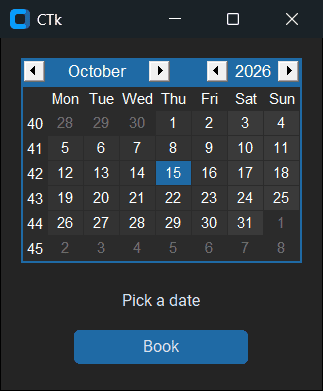
Which picker should you use?
| Need | Use | Install |
|---|---|---|
| Compact date input | DateEntry | tkcalendar |
| Always-visible calendar, highlighted days | Calendar | tkcalendar |
| Simple time input | Two ttk.Spinbox | Nothing |
| Styled or clock-face time picker | SpinTimePickerModern / AnalogPicker | tkTimePicker |
| Date and time together | DateEntry + Spinboxes → datetime.combine() | tkcalendar |
Next, explore these Tkinter widgets:
Frequently asked questions
Does Tkinter have a date picker?
Not built in. Install tkcalendar and use DateEntry for a dropdown picker or Calendar for an inline calendar.
How do I make a time picker in Tkinter?
Use two ttk.Spinbox widgets (hours 0–23, minutes 0–59 with wrap=True), or install tkTimePicker for SpinTimePickerModern or the clock-style AnalogPicker.
How do I get the selected date from DateEntry?
get_date() returns a datetime.date; get() returns the text shown in the entry.
How do I change the date format in tkcalendar?
Pass date_pattern, for example DateEntry(root, date_pattern="dd/mm/yyyy"). Only numeric day, month and year codes are allowed.
How do I combine a date and a time into a datetime?
datetime.combine(date_entry.get_date(), time(hour, minute)).
Is there a date picker for CustomTkinter?
CustomTkinter doesn’t include one, but tkcalendar’s DateEntry and Calendar work in a CTk window; style them with the colour options shown above.

Bijay Kumar is a 13-time Microsoft MVP with more than 18 years in software development, and the founder of Python Guides and TSinfo Technologies. He started out building .NET and SharePoint solutions at HP, TCS and KPIT before moving into Python, machine learning and AI, and he also builds web apps with TypeScript and React. He writes the tutorials here himself, and every example is run before publishing so you see the real output. More about Bijay · Microsoft MVP profile · LinkedIn