
Have you ever spent hours creating the perfect Python Matplotlib chart only to find that your X-axis labels are overlapping or floating in the wrong place?
I have been developing data visualizations in Python for over a decade, and I can tell you that messy labels are one of the most common frustrations for developers.
When you deal with long category names, like US State names or monthly financial quarters, the default Python Matplotlib settings often fail to align the text properly.
In this tutorial, I will show you exactly how to master the set_xticklabels function to control horizontal and vertical alignment like a pro.
Label Alignment in Python Matplotlib
In my experience, data visualization is 20% data processing and 80% fine-tuning the aesthetics so the audience actually understands the story.
If your horizontal alignment (ha) or vertical alignment (va) is off, the reader might associate a label with the wrong data point, leading to misinterpretation.
In Python Matplotlib, the set_xticklabels method provides us with precise control over these properties, ensuring every tick mark points exactly where it should.
Python Matplotlib set_xticklabels Horizontal Alignment (ha)
Horizontal alignment is crucial when you rotate labels. If you rotate labels 45 degrees but leave the alignment at the center, the text looks like it is drifting away from the tick mark.
In Python, the ha (or horizontalalignment) parameter accepts three main values: ‘left’, ‘right’, and ‘center’.
Method 1: Use the ‘ha’ Parameter in set_xticklabels
I often use the ‘right’ alignment when I rotate my Python X-axis labels. This ensures that the end of the text string anchors directly under the tick mark.
Let’s look at a practical USA-centric example. Suppose we are plotting the GDP growth of various US states.
import matplotlib.pyplot as plt

# Data: Top US States by GDP (Hypothetical Growth)
states = ['California', 'Texas', 'New York', 'Florida', 'Illinois', 'Pennsylvania', 'Ohio']
gdp_growth = [2.5, 3.1, 1.8, 3.5, 1.2, 1.5, 1.1]

fig, ax = plt.subplots(figsize=(10, 6))
ax.bar(states, gdp_growth, color='skyblue')

# Setting labels with 45-degree rotation and right horizontal alignment
ax.set_xticks(range(len(states)))
ax.set_xticklabels(states, rotation=45, ha='right', fontsize=12)

ax.set_title('GDP Growth by US State - Python Matplotlib Alignment', fontsize=14)
ax.set_xlabel('US States', fontsize=12)
ax.set_ylabel('Growth Rate (%)', fontsize=12)

plt.tight_layout()
plt.show()
You can see the output in the screenshot below.

In this Python code, I set ha=’right’. You will notice how the names like “California” and “Pennsylvania” align perfectly with the bars.
Method 2: Adjust Horizontal Alignment via Text Properties Dictionary
Sometimes, I prefer passing properties as a dictionary if I am building a reusable Python visualization function.
This method keeps your set_xticklabels call clean and allows you to manage multiple text properties at once.
import matplotlib.pyplot as plt

# Data: Average Annual Salary in US Tech Hubs
cities = ['San Francisco', 'Seattle', 'Austin', 'New York City', 'Boston', 'Denver']
salaries = [155000, 145000, 120000, 150000, 130000, 115000]

fig, ax = plt.subplots(figsize=(10, 6))
ax.plot(cities, salaries, marker='o', linestyle='-', color='darkgreen')

# Define text properties for Python Matplotlib
label_style = {'horizontalalignment': 'center', 'fontsize': 11, 'fontweight': 'bold'}

ax.set_xticks(range(len(cities)))
ax.set_xticklabels(cities, fontdict=label_style)

ax.set_title('Tech Salary Trends in USA Cities', fontsize=14)
plt.grid(True, linestyle='--', alpha=0.6)
plt.show()
You can see the output in the screenshot below.
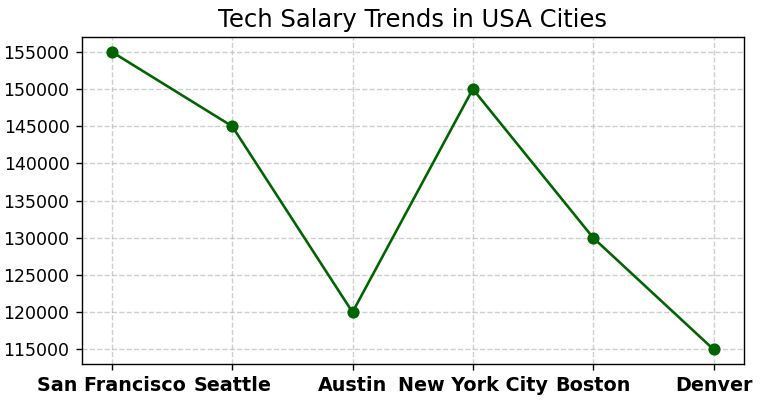
I used center alignment here because the labels are horizontal. If you don’t rotate the text, ‘center’ is usually the best Python default.
Python Matplotlib set_xticklabels Vertical Alignment (va)
Vertical alignment (va) determines how the text sits relative to the baseline of the tick. This is vital when you have labels of varying lengths or when using multiline labels.
The primary Python values for va are ‘top’, ‘bottom’, ‘center’, and ‘baseline’.
Method 1: Use the ‘va’ Parameter to Prevent Overlap
I have found that ‘top’ is the most effective vertical alignment for X-axis labels in Python Matplotlib. It pushes the text down away from the axis line.
Let’s look at an example involving US Retail Sales across different quarters.
import matplotlib.pyplot as plt

# Data: US Retail Sales by Quarter (Billions)
quarters = ['2023-Q1', '2023-Q2', '2023-Q3', '2023-Q4', '2024-Q1 (Est)']
sales = [1800, 1850, 1920, 2100, 1880]

fig, ax = plt.subplots(figsize=(9, 5))
ax.step(quarters, sales, where='mid', color='crimson', linewidth=2)

# Using 'top' vertical alignment for better spacing
ax.set_xticks(range(len(quarters)))
ax.set_xticklabels(quarters, va='top', rotation=0, color='darkblue')

ax.set_title('US Quarterly Retail Sales Performance', fontsize=14)
ax.set_ylabel('Sales (Billions USD)')

plt.show()
You can see the output in the screenshot below.
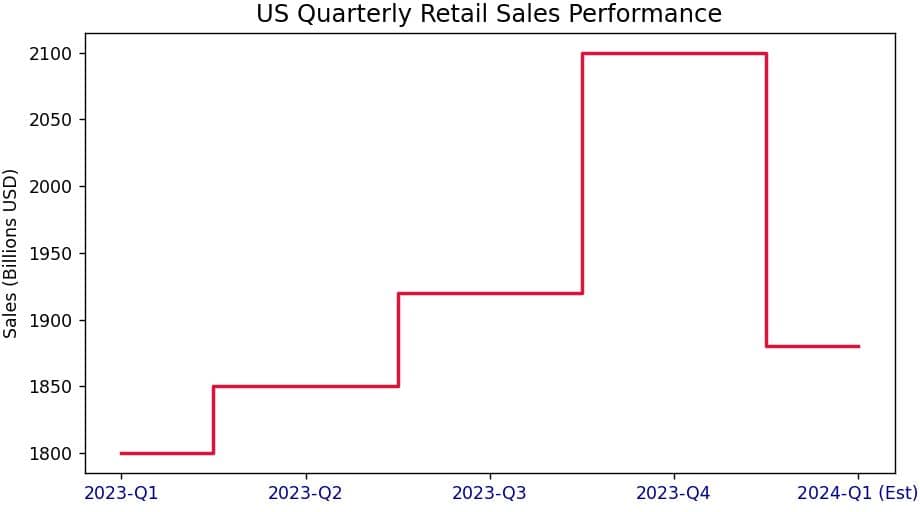
By setting va=’top’, I ensure there is a clear “breathing room” between the axis and the text.
Method 2: Vertical Alignment with Multi-line Python Labels
In many Python data science projects, I encounter labels that are too long for a single line. We can use \n to create a new line and then use va to balance it.
When you use multiline labels, va=’top’ ensures the first line starts just below the axis, preventing the labels from crashing into the plot area.
import matplotlib.pyplot as plt

# Data: Popular US Car Brands Market Share
brands = ['Ford\nMotors', 'General\nMotors', 'Tesla\nInc.', 'Toyota\nUSA', 'Honda\nUSA']
shares = [13.1, 16.5, 4.2, 15.3, 8.9]

fig, ax = plt.subplots(figsize=(8, 6))
ax.bar(brands, shares, color='navy')

# Aligning multiline labels vertically
ax.set_xticks(range(len(brands)))
ax.set_xticklabels(brands, va='top', fontsize=10)

ax.set_title('US Automobile Market Share by Brand', fontsize=14)
ax.set_ylabel('Percentage (%)')

plt.show()
You can see the output in the screenshot below.

In this Python example, the va=’top’ keeps the multi-line brand names neatly organized under the X-axis.
Pro-Tip: Combine Rotation and Alignment
I cannot stress this enough: if you rotate labels in Python Matplotlib, always use ha=’right’ and va=’top’.
Without these settings, the rotation happens around the center of the text, which makes the label look like it is disconnected from its data point.
Here is a quick Python snippet I use as a template for almost all my rotated X-axis labels:
# The "Golden Setting" for rotated Python labels
ax.set_xticklabels(labels, rotation=45, ha='right', rotation_mode='anchor')
The rotation_mode=’anchor’ parameter is a secret weapon. It tells Python to rotate the text after it has been aligned, which produces much more predictable results.
I hope you found this tutorial on Python Matplotlib label alignment helpful. Controlling the horizontal and vertical alignment of your xticklabels is a small change that makes a massive difference in the quality of your charts.
You may also like to read:
- How to Make Y-Axis Tick Labels Invisible in Matplotlib
- Matplotlib Constrained_Layout vs Tight_Layout in Python
- Use tight_layout Colorbar and GridSpec in Matplotlib
- Use Matplotlib fill_between where and alpha for Data Visualizations

Bijay Kumar is an experienced Python and AI professional who enjoys helping developers learn modern technologies through practical tutorials and examples. His expertise includes Python development, Machine Learning, Artificial Intelligence, automation, and data analysis using libraries like Pandas, NumPy, TensorFlow, Matplotlib, SciPy, and Scikit-Learn. At PythonGuides.com, he shares in-depth guides designed for both beginners and experienced developers. More about us.

