
In my years of working as a Python developer, I have found that almost every data project starts with an Excel file.
Whether it is a messy financial report or a structured list of US real estate listings, getting that data into Python is the first hurdle.
Pandas makes this process incredibly smooth, but there are a few tricks I’ve learned over the years to handle “real-world” spreadsheets.
In this tutorial, I will show you exactly how I read Excel files using Pandas, from basic imports to handling complex, multi-sheet workbooks.
Prepare Your Environment
Before we dive into the code, you need to make sure you have the right tools installed.
Pandas does not read Excel files natively; it uses “engines” like openpyxl or xlrd to do the heavy lifting.
You can install everything you need by running this command in your terminal:
pip install pandas openpyxlI personally prefer openpyxl because it supports the modern .xlsx format used in most US corporate environments today.
Method 1: The Basic Read (Loading a Single Sheet)
Most of the time, you just want to grab the data from the first sheet and start working. I usually use the read_excel() function for this. It is the bread and butter of data ingestion in Python.
Let’s assume we have a file named US_Tech_Salaries.xlsx located in the same folder as our script.
import pandas as pd

# I always specify the engine to avoid compatibility issues
df = pd.read_excel('US_Tech_Salaries.xlsx', engine='openpyxl')

# Displaying the first 5 rows to verify the data
print(df.head())
You can refer to the screenshot below to see the output.
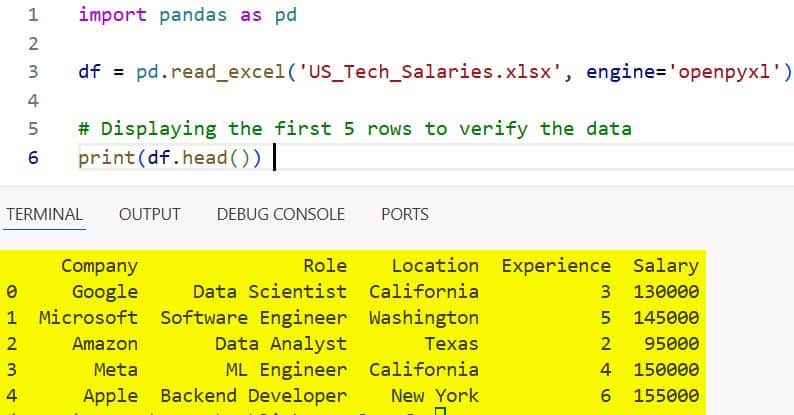
In my experience, this is the quickest way to check if your data is structured correctly before you start any heavy analysis.
Method 2: Read a Specific Sheet by Name or Index
Excel workbooks in the US often contain multiple tabs, such as “Q1 Sales,” “Q2 Sales,” and “Marketing Budget.”
If you don’t specify a sheet, Pandas will default to the first one, which might not be what you need.
You can use the sheet_name parameter to target exactly what you want.
import pandas as pd

# Reading the 'California_Branch' sheet specifically
df_ca = pd.read_excel('US_Retail_Data.xlsx', sheet_name='California_Branch')

# Alternatively, you can use the index (0 is the first sheet, 1 is the second)
df_second_sheet = pd.read_excel('US_Retail_Data.xlsx', sheet_name=1)

print(df_ca.info())
You can refer to the screenshot below to see the output.
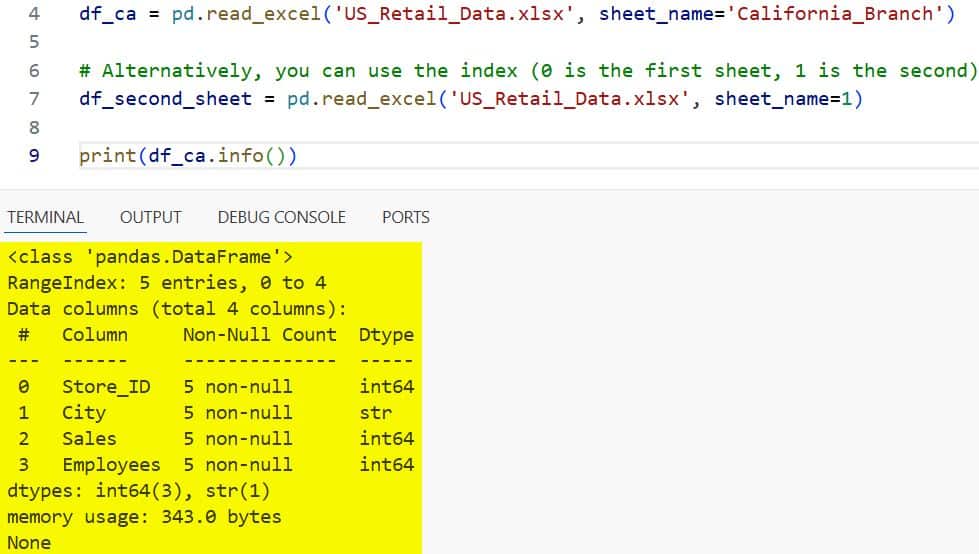
I find using the sheet name is much safer than the index, especially if other team members might rearrange the tabs later.
Method 3: Load Multiple Sheets at Once
Sometimes I need to compare data across different regions, like comparing sales in Texas versus New York.
Instead of reading the file multiple times, you can pull in several sheets at once.
If you pass a list of names, Pandas returns a Python dictionary where the keys are the sheet names and the values are the DataFrames.
import pandas as pd

# Loading specific states into a dictionary
states_data = pd.read_excel('US_Census_Data.xlsx', sheet_name=['Texas', 'New_York', 'Florida'])

# Accessing the Texas data
texas_df = states_data['Texas']

print(f"Texas Rows: {len(texas_df)}")
You can refer to the screenshot below to see the output.
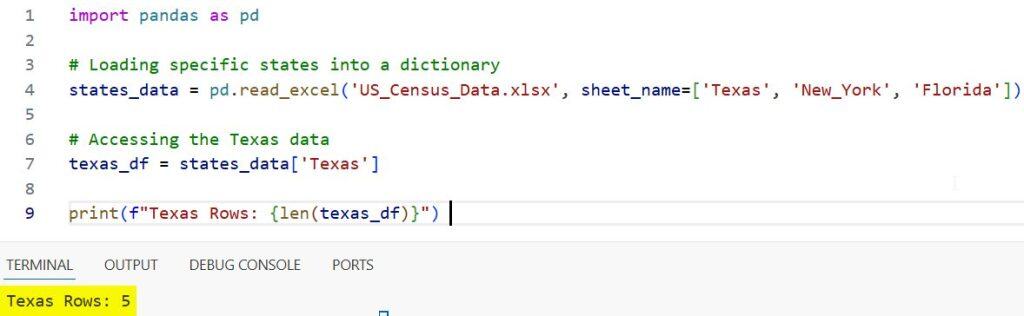
If you want to read all sheets in the file, simply set sheet_name=None. This is a lifesaver when dealing with massive workbooks.
Method 4: Select Specific Columns (To Save Memory)
I often deal with Excel files that have 50+ columns, but I only need three or four for my analysis.
Reading unnecessary columns wastes memory and slows down your script, especially with large US government datasets.
You can use the usecols parameter to pick only what you need.
import pandas as pd

# Only grabbing 'Employee_ID', 'City', and 'Annual_Salary'
cols_to_use = ['Employee_ID', 'City', 'Annual_Salary']

df = pd.read_excel('US_Company_Payroll.xlsx', usecols=cols_to_use)

print(df.columns)
You can also use Excel-style column letters (like “A:C” or “A, C, E”) if you prefer that format.
Method 5: Handle Messy Headers and Skipping Rows
Not every Excel file starts on the first row. I’ve seen many reports where the first few rows are just titles, logos, or legal disclaimers.
If you try to read these normally, your column headers will be complete junk.
The skiprows and header parameters are your best friends here.
import pandas as pd

# Skipping the first 3 rows of metadata and using the 4th row as the header
df = pd.read_excel('US_Quarterly_Report.xlsx', skiprows=3, header=0)

print(df.head())
You can refer to the screenshot below to see the output.
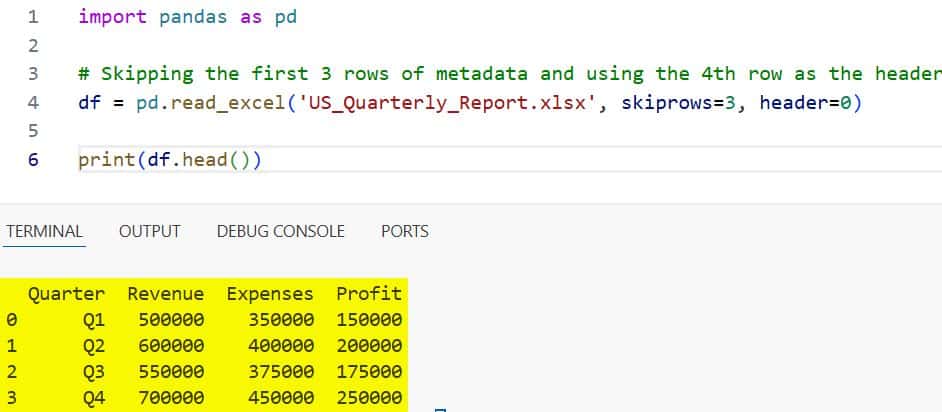
From my experience, it’s always worth opening the Excel file manually first just to see if there is any “fluff” at the top.
Method 6: Handle Dates and Missing Values
When I work with US healthcare data or financial logs, date formatting is always a pain. Pandas is smart, but sometimes it needs a hint to realize a column is actually a date.
You can also define what “missing data” looks like using na_values.
import pandas as pd

# Treating 'N/A' and 'Pending' as missing values and parsing the Date column
df = pd.read_excel(
    'US_Project_Timeline.xlsx',
    parse_dates=['Start_Date', 'End_Date'],
    na_values=['N/A', 'Pending']
)

# Checking the data types
print(df.dtypes)
Correctly parsing dates during the import phase saves you from writing extra lines of conversion code later on.
Method 7: Read Excel Files Directly from a URL
One of the coolest features I use frequently is reading a file directly from a website. Many US agencies, like the Bureau of Labor Statistics, provide direct links to Excel files.
You don’t even have to download them to your computer first.
import pandas as pd

# A hypothetical URL for US inflation data
url = "https://example.gov/data/us_inflation_stats.xlsx"

# Pandas handles the download and the reading in one go
df = pd.read_excel(url)

print(df.tail())
This is incredibly useful for building automated dashboards that always need the latest data.
Things to Keep in Mind
While read_excel is powerful, it is significantly slower than read_csv. If you are dealing with millions of rows, I usually recommend converting the Excel file to a CSV or Parquet format first.
Also, always remember that Excel files can have hidden formatting that might cause unexpected data types in your DataFrame.
I always make it a habit to run df.info() immediately after loading a new file to ensure everything looks correct.
I hope you found this tutorial helpful!
Reading Excel files is a fundamental skill for any Python developer, and mastering these parameters will make your data cleaning much easier.
You may also like to read:
- Ways to Convert Pandas Series to DataFrame in Python
- Ways to Replace Values in a Pandas Column
- Pandas Sort by Multiple Columns
- ambda Functions in Pandas DataFrames

Bijay Kumar is an experienced Python and AI professional who enjoys helping developers learn modern technologies through practical tutorials and examples. His expertise includes Python development, Machine Learning, Artificial Intelligence, automation, and data analysis using libraries like Pandas, NumPy, TensorFlow, Matplotlib, SciPy, and Scikit-Learn. At PythonGuides.com, he shares in-depth guides designed for both beginners and experienced developers. More about us.

