
I’ve often been asked to build CMS platforms or internal tools that require rich text editing.
Choosing the right React HTML editor component can be the difference between a smooth user experience and a maintenance nightmare.
I have spent countless hours debugging contenteditable issues and state synchronization in complex forms.
In this tutorial, I will share the most reliable methods to implement an HTML editor in your React project based on my professional experience.
Why You Need a Dedicated React HTML Editor
Building an editor from scratch using the native contenteditable attribute is a path I wouldn’t recommend to anyone.
Browser inconsistencies make it nearly impossible to maintain a clean HTML output across Chrome, Safari, and Edge.
A dedicated component handles the heavy lifting of mapping user input to structured data and then to valid HTML.
In most of my US-based client projects, like real estate listing portals or corporate blogging tools, we need features like bolding, lists, and image uploads.
Method 1: Implement a Rich Text Editor Using React Quill
React Quill is my go-to recommendation for most projects because it is lightweight and very easy to customize.
It is a wrapper around the Quill.js engine, which is battle-tested and produces very clean HTML.
I recently used this for a California-based legal firm’s internal documentation tool because of its excellent clipboard handling.
Step 1: Install the Package
First, you need to add the package to your project. Run the following command in your terminal:
npm install react-quillStep 2: Create the Editor Component
Here is the full code to create a functional editor. I’ve included custom “modules” to define exactly which tools appear in the toolbar.
import React, { useState } from 'react';
import ReactQuill from 'react-quill';
import 'react-quill/dist/quill.snow.css';

const PropertyDescriptionEditor = () => {
  const [editorHtml, setEditorHtml] = useState('');

  const handleChange = (html) => {
    setEditorHtml(html);
  };

  const modules = {
    toolbar: [
      [{ 'header': '1'}, {'header': '2'}, { 'font': [] }],
      [{size: []}],
      ['bold', 'italic', 'underline', 'strike', 'blockquote'],
      [{'list': 'ordered'}, {'list': 'bullet'},
       {'indent': '-1'}, {'indent': '+1'}],
      ['link', 'image', 'video'],
      ['clean']
    ],
    clipboard: {
      matchVisual: false,
    }
  };

  const formats = [
    'header', 'font', 'size',
    'bold', 'italic', 'underline', 'strike', 'blockquote',
    'list', 'bullet', 'indent',
    'link', 'image', 'video'
  ];

  const handleSave = () => {
    console.log("Saving to New York Real Estate Database:", editorHtml);
    alert("Listing Updated Successfully!");
  };

  return (
    <div style={{ padding: '20px', maxWidth: '800px' }}>
      <h2>Edit Property Description (Manhattan Listings)</h2>
      <ReactQuill
        theme="snow"
        onChange={handleChange}
        value={editorHtml}
        modules={modules}
        formats={formats}
        bounds={'.app'}
        placeholder="Enter the property details here..."
      />
      <div style={{ marginTop: '20px' }}>
        <button
          onClick={handleSave}
          style={{ padding: '10px 20px', backgroundColor: '#007bff', color: '#fff', border: 'none', borderRadius: '5px', cursor: 'pointer' }}
        >
          Publish Update
        </button>
      </div>
      <div style={{ marginTop: '30px' }}>
        <h3>HTML Preview Output:</h3>
        <div style={{ border: '1px solid #ccc', padding: '10px', background: '#f9f9f9' }}>
          {editorHtml}
        </div>
      </div>
    </div>
  );
};

export default PropertyDescriptionEditor;
I executed the above example code and added the screenshot below.
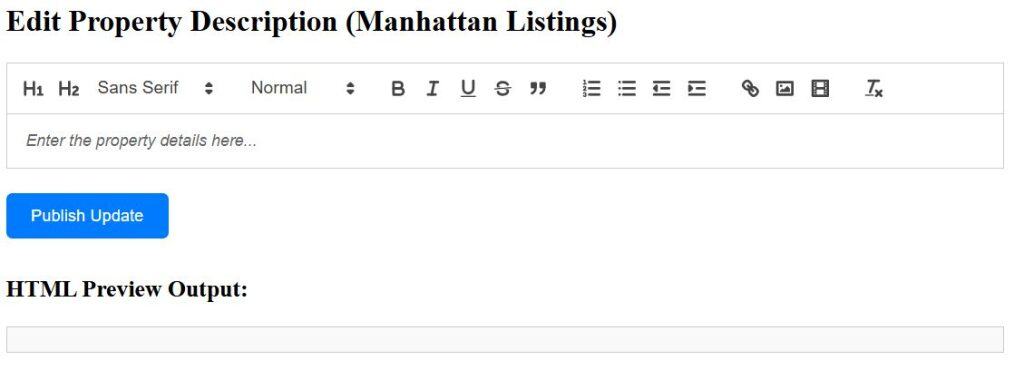
I find that the “snow” theme works best for most modern UIs in the US market. One thing I learned is to always set matchVisual: false in the clipboard settings.
This prevents the editor from adding extra whitespaces when users paste text from Microsoft Word or Google Docs.
Method 2: Use TinyMCE for Enterprise Applications
If you are working on a massive project that requires advanced features like spellcheck or power-paste, TinyMCE is the industry standard.
I often implement this for SaaS products that need a “Google Docs” feel.
TinyMCE offers a cloud-based solution which makes it very easy to stay updated without manual package upgrades.
The Full Integration Code
To use this, you’ll need an API key from TinyMCE, but you can use ‘no-api-key’ for development.
import React, { useRef } from 'react';
import { Editor } from '@tinymce/tinymce-react';

export default function MarketingEmailEditor() {
  const editorRef = useRef(null);

  const logContent = () => {
    if (editorRef.current) {
      console.log("Newsletter Content for Texas Region:", editorRef.current.getContent());
    }
  };

  return (
    <div style={{ margin: '20px' }}>
      <h1>Seattle Tech Weekly Newsletter Editor</h1>
      <Editor
        apiKey='no-api-key'
        onInit={(evt, editor) => editorRef.current = editor}
        initialValue="<p>Welcome to this week's highlights from the Seattle tech scene...</p>"
        init={{
          height: 500,
          menubar: true,
          plugins: [
            'advlist autolink lists link image charmap print preview anchor',
            'searchreplace visualblocks code fullscreen',
            'insertdatetime media table paste code help wordcount'
          ],
          toolbar: 'undo redo | formatselect | ' +
          'bold italic backcolor | alignleft aligncenter ' +
          'alignright alignjustify | bullist numlist outdent indent | ' +
          'removeformat | help',
          content_style: 'body { font-family:Helvetica,Arial,sans-serif; font-size:14px }'
        }}
      />
      <button
        onClick={logContent}
        style={{ marginTop: '10px', padding: '10px', cursor: 'pointer' }}
      >
        Export HTML for Email Blast
      </button>
    </div>
  );
}
I executed the above example code and added the screenshot below.

TinyMCE is incredibly robust for table manipulation and image resizing.
In a recent project for a Chicago-based retail giant, the marketing team needed to create complex tables for weekly flyers.
TinyMCE handled these requirements much better than smaller libraries.
Handle HTML Security (Sanitization)
When you allow users to input HTML, you open your application to Cross-Site Scripting (XSS) attacks.
I never store or display the HTML generated by these components without sanitizing it first.
I recommend using dompurify for this purpose. It is the gold standard for HTML sanitization in the React ecosystem.
Sanitization Example
import DOMPurify from 'dompurify';

const SafeComponent = ({ dirtyHtml }) => {
  const cleanHtml = DOMPurify.sanitize(dirtyHtml);

  return (
    <div dangerouslySetInnerHTML={{ __html: cleanHtml }} />
  );
};
I’ve made it a rule in my development workflow to always wrap the final output in a sanitizer.
This is especially critical for US healthcare or financial applications where data integrity is a legal requirement.
Best Practices for React HTML Editors
Based on my years in the field, here are a few tips to keep your implementation clean:
- Controlled vs Uncontrolled: Use controlled components (state-based) only if you need to perform real-time validation. Otherwise, uncontrolled components often perform better.
- Performance: Large editors can slow down your page. Consider lazy loading the editor component using React.lazy.
- Mobile Experience: Always test your editor on mobile devices. Many libraries struggle with the software keyboards on iOS and Android.
I usually wrap my editors in an Error Boundary. If the third-party library crashes, it won’t take down the entire user dashboard.
Building a custom React HTML editor component can seem daunting at first.
However, using established libraries like React Quill or TinyMCE makes the process much more manageable.
I hope this guide helps you choose the right tool for your next React project.
You may also like to read:
- React Component Renders Multiple Times
- React Component Communication
- Check if a React Component is Mounted
- React Component State Management

Bijay Kumar is an experienced Python and AI professional who enjoys helping developers learn modern technologies through practical tutorials and examples. His expertise includes Python development, Machine Learning, Artificial Intelligence, automation, and data analysis using libraries like Pandas, NumPy, TensorFlow, Matplotlib, SciPy, and Scikit-Learn. At PythonGuides.com, he shares in-depth guides designed for both beginners and experienced developers. More about us.

