
Testing React components used to feel like a chore. I remember spending hours mocking the DOM just to see if a button worked.
Everything changed when I started using Cypress for component testing. It allows you to see your components in a real browser while you build them.
In this guide, I will share my firsthand experience with Cypress component testing. We will look at how it differs from E2E testing and how to set it up.
Why I Prefer Component Testing Over E2E
When I first started, I used to write heavy End-to-End (E2E) tests for everything. It was a nightmare because one tiny API failure would break the whole suite.
Component testing is different. It lets you “mount” a single React component in isolation, similar to how you would in a sandbox environment.
This approach is much faster. You don’t have to wait for the entire app to load just to test a simple ZIP code validator or a login button.
Set Up Cypress for Your React Project
I usually prefer using Vite for my React projects these days because it is incredibly fast. Cypress works seamlessly with it.
First, you need to install Cypress as a development dependency in your project. I always do this via the terminal in my project root.
npm install cypress --save-devOnce installed, you can open the Cypress launchpad to start the configuration wizard.
npx cypress openI find the wizard very intuitive. It will automatically detect that you are using React and Vite (or Webpack) and create the necessary configuration files for you.
Method 1: Test a Basic Interaction Component
Let’s look at a practical example. Imagine we are building a “Shipping Estimator” component for a USA-based e-commerce store.
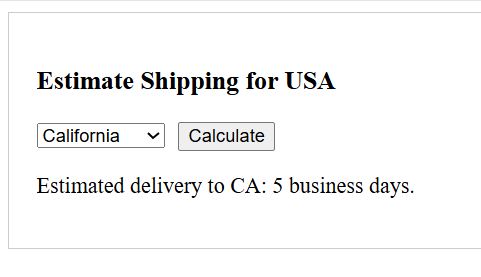
The component takes a State selection and calculates a delivery date. Here is the full React code for the component.
ShippingEstimator.jsx
import React, { useState } from 'react';

const ShippingEstimator = () => {
  const [state, setState] = useState('');
  const [days, setDays] = useState(null);

  const handleCalculate = () => {
    if (state === 'NY') setDays(2);
    else if (state === 'CA') setDays(5);
    else setDays(3);
  };

  return (
    <div style={{ padding: '20px', border: '1px solid #ccc' }}>
      <h3>Estimate Shipping for USA</h3>
      <select
        data-cy="state-select"
        value={state}
        onChange={(e) => setState(e.target.value)}
      >
        <option value="">Select State</option>
        <option value="NY">New York</option>
        <option value="CA">California</option>
        <option value="TX">Texas</option>
      </select>
      <button data-cy="calculate-btn" onClick={handleCalculate} style={{ marginLeft: '10px' }}>
        Calculate
      </button>
      {days && (
        <p data-cy="result-message">
          Estimated delivery to {state}: {days} business days.
        </p>
      )}
    </div>
  );
};

export default ShippingEstimator;
I executed the above example code and added the screenshot below.
Now, let’s write the test. In my experience, using data-cy attributes is the best way to keep tests from breaking when the UI changes.
ShippingEstimator.cy.jsx
import React from 'react';
import ShippingEstimator from './ShippingEstimator';

describe('<ShippingEstimator />', () => {
  it('should calculate shipping for California', () => {
    // Mount the component in the browser
    cy.mount(<ShippingEstimator />);

    // Select California from the dropdown
    cy.get('[data-cy="state-select"]').select('CA');

    // Click the calculate button
    cy.get('[data-cy="calculate-btn"]').click();

    // Assert that the correct delivery days are displayed
    cy.get('[data-cy="result-message"]')
      .should('be.visible')
      .and('contain', 'California: 5 business days');
  });

  it('should show New York delivery speed', () => {
    cy.mount(<ShippingEstimator />);
    cy.get('[data-cy="state-select"]').select('NY');
    cy.get('[data-cy="calculate-btn"]').click();

    cy.get('[data-cy="result-message"]')
      .should('contain', 'New York: 2 business days');
  });
});
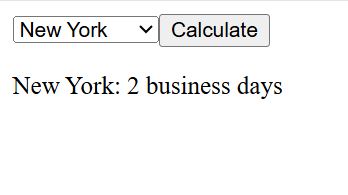
I executed the above example code and added the screenshot below.
Method 2: Test Components with Props and Spies
Sometimes I need to test if a component correctly triggers a callback function. This is common for reusable form components.
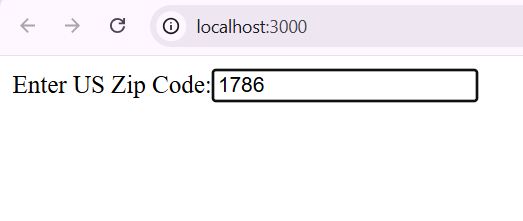
Let’s say we have a simple “Credit Card Zip Code” field used in a US checkout flow. We want to ensure it only alerts the parent when the input is 5 digits.
ZipCodeInput.jsx
import React from 'react';

const ZipCodeInput = ({ onValidZip }) => {
  const handleChange = (e) => {
    const value = e.target.value;
    if (value.length === 5 && /^\d+$/.test(value)) {
      onValidZip(value);
    }
  };

  return (
    <div>
      <label htmlFor="zip">Enter US Zip Code:</label>
      <input
        id="zip"
        data-cy="zip-input"
        type="text"
        maxLength="5"
        onChange={handleChange}
        placeholder="10001"
      />
    </div>
  );
};

export default ZipCodeInput;
I executed the above example code and added the screenshot below.
In the test, I use cy.spy() to create a dummy function. This allows me to verify that the function was called with the right data.
ZipCodeInput.cy.jsx
import React from 'react';
import ZipCodeInput from './ZipCodeInput';

describe('<ZipCodeInput />', () => {
  it('should trigger onValidZip when a 5-digit code is entered', () => {
    // Create a spy to track the callback
    const onValidZipSpy = cy.spy().as('validZipSpy');

    // Mount with the spy as a prop
    cy.mount(<ZipCodeInput onValidZip={onValidZipSpy} />);

    // Type an incomplete zip code
    cy.get('[data-cy="zip-input"]').type('902');

    // The spy should not have been called yet
    cy.get('@validZipSpy').should('not.have.been.called');

    // Finish typing the 5-digit Beverly Hills zip code
    cy.get('[data-cy="zip-input"]').type('10');

    // Now it should be called with '90210'
    cy.get('@validZipSpy').should('have.been.calledWith', '90210');
  });
});
Best Practices I Follow
I have found that component tests stay stable if you follow a few simple rules. First, never use CSS classes for selectors.
Styles change all the time, but the logic usually stays the same. I always stick to data-cy or data-testid.
Second, keep your components small. If a component is too hard to test in isolation, it usually means it is doing too much.
Finally, remember that component tests don’t replace E2E tests. I use them for UI logic, but I still use E2E for critical flows like payments.
I hope this tutorial helps you get started with Cypress component testing in your React projects. It has saved me countless hours of debugging.
You may also read other tutorials on React:
- React Component State Management
- Build a React HTML Editor Component
- How to Build a React Carousel Component
- How to Convert HTML to React Component

Bijay Kumar is an experienced Python and AI professional who enjoys helping developers learn modern technologies through practical tutorials and examples. His expertise includes Python development, Machine Learning, Artificial Intelligence, automation, and data analysis using libraries like Pandas, NumPy, TensorFlow, Matplotlib, SciPy, and Scikit-Learn. At PythonGuides.com, he shares in-depth guides designed for both beginners and experienced developers. More about us.

