
During my years of building React applications, I have seen many developers struggle with inconsistent UI elements.
One of the most common issues is having twenty different button styles scattered across a single project.
In this tutorial, I will show you how to create a professional, reusable button component that easily handles different states and styles.
Reusable Button Component
When I first started using React, I would write <button> tags and apply CSS classes directly every time I needed one.
This worked fine for a small landing page, but it became a nightmare as the application grew.
By creating a single component, you can manage your “Buy Now” or “Sign Up” buttons from one central place.
If your design team decides to change the brand color from blue to green, you only have to update one file.
Method 1: Build a Basic Reusable Button
For this first method, we will create a flexible component that accepts props for label, type, and click events.
I often use this approach for simple SaaS dashboards where consistency is the top priority.
Here is the full code for a standard functional component:
import React from 'react';

const CustomButton = ({ label, onClick, type = "button", styleClass = "primary" }) => {
  return (
    <button
      type={type}
      className={`btn-${styleClass}`}
      onClick={onClick}
    >
      {label}
    </button>
  );
};

export default CustomButton;
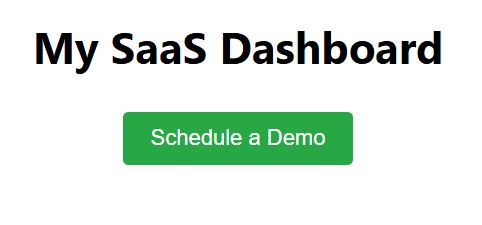
To use this in your application (for example, a “Schedule a Demo” button), you would call it like this:
<CustomButton
  label="Schedule a Demo"
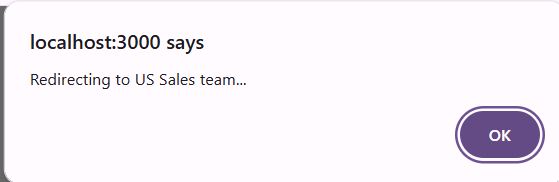
  onClick={() => console.log('Redirecting to US Sales team...')}
  styleClass="success"
/>
I executed the above example code and added the screenshot below.
Method 2: Handle Multiple Variants and Sizes
In more complex applications, like an e-commerce platform based in New York or Chicago, you often need different sizes for different screens.
I prefer using a “variant” system to handle Primary, Secondary, and Danger actions.
This prevents the code from becoming messy with too many conditional statements.
Below is the code to handle various styles using a simple object mapping:
import React from 'react';
import './Button.css';

const ReusableButton = ({
  children,
  variant = 'primary',
  size = 'md',
  isDisabled = false,
  ...props
}) => {

  const checkVariant = ['primary', 'secondary', 'danger', 'outline'].includes(variant)
    ? variant
    : 'primary';

  const checkSize = ['sm', 'md', 'lg'].includes(size) ? size : 'md';

  return (
    <button
      className={`btn ${checkVariant} ${checkSize}`}
      disabled={isDisabled}
      {...props}
    >
      {children}
    </button>
  );
};

export default ReusableButton;
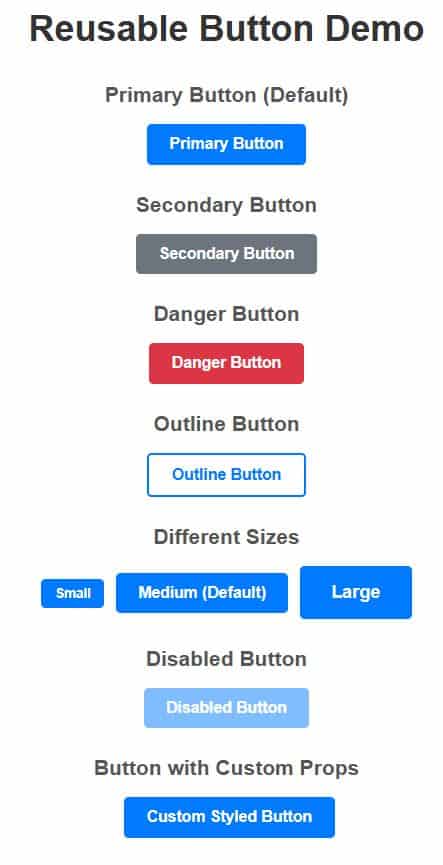
I executed the above example code and added the screenshot below.
In the CSS file, you would define .btn.lg for large buttons and .btn.danger for things like “Delete Subscription.”
Add Icons to Your React Button
Many times, a simple text label isn’t enough to grab a user’s attention.
I have found that adding a “Download PDF” or “Pay via Credit Card” icon significantly improves the user experience.
You can modify your component to accept an icon prop to make it even more versatile.
const IconButton = ({ label, icon, iconPosition = 'left', ...props }) => {
  return (
    <button className="flex-btn" {...props}>
      {icon && iconPosition === 'left' && <span className="icon">{icon}</span>}
      {label}
      {icon && iconPosition === 'right' && <span className="icon">{icon}</span>}
    </button>
  );
};
Best Practices for Accessible Buttons
When I build for a US-based audience, I always keep ADA compliance and accessibility in mind.
Ensure that your button has enough color contrast so that all users can read the text.
You should also ensure that the aria-label is used if the button only contains an icon (like a “Close” ‘X’ button).
This makes your website usable for people who rely on screen readers.
Common Mistakes to Avoid
One mistake I see frequently is developers passing too many individual style props like color, padding, and margin.
This defeats the purpose of a reusable component because it allows for too much visual variation.
Stick to predefined variants to keep the UI clean and professional.
Another issue is forgetting to handle the “Loading” state for buttons that trigger API calls.
Complete Example: The Ultimate Reusable Button
Here is a full, production-ready example that combines everything we have discussed.
import React from 'react';

const Button = ({
  children,
  onClick,
  type = 'button',
  variant = 'primary',
  size = 'medium',
  isLoading = false,
  isDisabled = false,
  className = '',
  ...rest
}) => {

  const baseStyle = {
    padding: size === 'large' ? '12px 24px' : '8px 16px',
    fontSize: size === 'large' ? '18px' : '14px',
    borderRadius: '4px',
    cursor: isDisabled || isLoading ? 'not-allowed' : 'pointer',
    opacity: isDisabled || isLoading ? 0.6 : 1,
    border: 'none',
    fontWeight: 'bold',
    transition: '0.3s'
  };

  const variants = {
    primary: { backgroundColor: '#007bff', color: '#fff' },
    secondary: { backgroundColor: '#6c757d', color: '#fff' },
    danger: { backgroundColor: '#dc3545', color: '#fff' },
  };

  const appliedStyle = { ...baseStyle, ...variants[variant] };

  return (
    <button
      type={type}
      onClick={onClick}
      disabled={isDisabled || isLoading}
      style={appliedStyle}
      className={`custom-button ${className}`}
      {...rest}
    >
      {isLoading ? 'Processing...' : children}
    </button>
  );
};

export default Button;

// Usage Example
// <Button variant="primary" size="large" onClick={() => alert('Order Placed!')}>
//   Place Order
// </Button>
Building a reusable button component is one of the best investments you can make in your React project.
It saves time, ensures a consistent look, and makes your codebase much easier to maintain.
You may read:
- Export Functions from React Components
- How to Pass Children to a Component in React
- How to Build a React Login Component
- How to Fix React Component Not Defined Error

Bijay Kumar is an experienced Python and AI professional who enjoys helping developers learn modern technologies through practical tutorials and examples. His expertise includes Python development, Machine Learning, Artificial Intelligence, automation, and data analysis using libraries like Pandas, NumPy, TensorFlow, Matplotlib, SciPy, and Scikit-Learn. At PythonGuides.com, he shares in-depth guides designed for both beginners and experienced developers. More about us.

