
Markdown is the industry standard for writing content quickly, but standard HTML output is often too boring for modern web applications.
I have spent years building documentation portals and blogs where I needed my Markdown to do more than just display bold text and headers.
If you are using react-markdown, you probably already know it is safer than using dangerouslySetInnerHTML, but the real magic happens when you start mapping your own React components to Markdown elements.
In this guide, I will share my firsthand experience on how to take control of your Markdown rendering to build a truly premium user experience.
The Basic Setup for React-Markdown
Before we dive into the custom stuff, you need to have the library installed in your project.
I usually prefer using npm, but yarn or pnpm work just as well for this setup.
npm install react-markdownOnce installed, you can render basic Markdown by simply passing a string to the component.
import ReactMarkdown from 'react-markdown';

export default function BasicMarkdown() {
  const content = "# San Francisco Travel Guide \n Exploring the **Golden Gate Bridge** is a must-do for any visitor.";

  return (
    <div className="p-8">
      <ReactMarkdown>{content}</ReactMarkdown>
    </div>
  );
}
This works fine for basic text, but it just renders standard <h1> and <p> tags with no styling.
Method 1: Customize Standard Elements with Tailwind CSS
The most common reason I use custom components is to apply specific styles to elements like headers or links.
Instead of writing global CSS that might leak into other parts of your app, you can pass a components object to ReactMarkdown.
I find this approach much cleaner because it keeps your design system logic encapsulated.
import ReactMarkdown from 'react-markdown';

// Define custom renderers for standard HTML tags
const MarkdownComponents = {
  h1: ({ node, ...props }) => (
    <h1 className="text-4xl font-bold text-blue-900 mb-4 border-b-2 border-blue-100 pb-2" {...props} />
  ),
  p: ({ node, ...props }) => (
    <p className="text-lg text-gray-700 leading-relaxed mb-6" {...props} />
  ),
  a: ({ node, ...props }) => (
    <a className="text-blue-600 hover:text-blue-800 underline decoration-2 underline-offset-4" {...props} />
  )
};

export default function StyledMarkdown() {
  const content = `
# New York City Tech Scene
Silicon Alley is growing faster than ever. Check out the latest [tech events in Manhattan](https://example.com).
  `;

  return (
    <div className="max-w-3xl mx-auto py-12">
      <ReactMarkdown components={MarkdownComponents}>
        {content}
      </ReactMarkdown>
    </div>
  );
}
I executed the above example code and added the screenshot below.
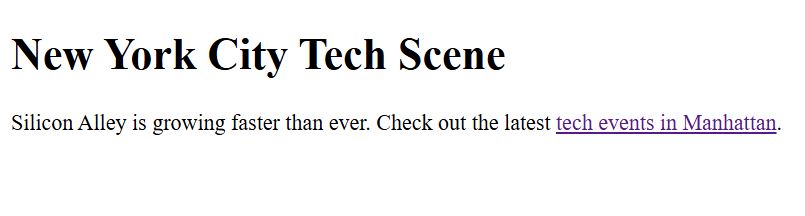
In this example, I am mapping the h1, p, and a tags to my own functional components that use Tailwind utility classes.
Method 2: Integrate Syntax Highlighting for Code Blocks
If you are building a technical blog for developers in the USA, raw <pre> tags simply won’t cut it.
I always integrate react-syntax-highlighter because it makes code snippets look professional and easy to read.
First, you’ll need to install the highlighter package.
npm install react-syntax-highlighterNow, we can override the default code component to detect the language and apply a theme like “Dracula” or “One Dark.”
import ReactMarkdown from 'react-markdown';
import { Prism as SyntaxHighlighter } from 'react-syntax-highlighter';
import { atomDark } from 'react-syntax-highlighter/dist/esm/styles/prism';

const components = {
  code({ node, inline, className, children, ...props }) {
    const match = /language-(\\w+)/.exec(className || '');

    return !inline && match ? (
      <SyntaxHighlighter
        style={atomDark}
        language={match[1]}
        PreTag="div"
        className="rounded-lg my-4"
        {...props}
      >
        {String(children).replace(/\n$/, '')}
      </SyntaxHighlighter>
    ) : (
      <code className="bg-gray-100 px-1 rounded text-red-500" {...props}>
        {children}
      </code>
    );
  }
};

export default function TechBlogExample() {
  const markdown = `
### React State Hook
To manage state in a functional component, use the \`useState\` hook:

\`\`\`javascript
const [count, setCount] = useState(0);
console.log('Current count in Austin, TX:', count);
\`\`\`
  `;

  return (
    <div className="p-10">
      <ReactMarkdown components={components}>{markdown}</ReactMarkdown>
    </div>
  );
}
I executed the above example code and added the screenshot below.
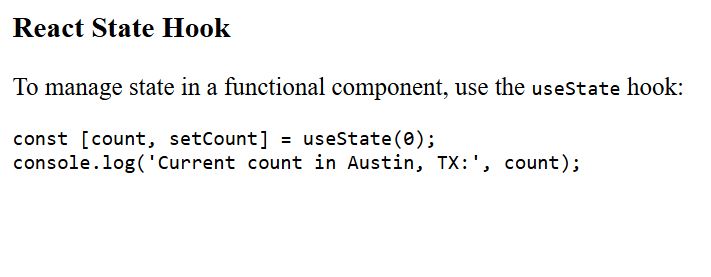
This setup checks if the code is an inline snippet (like code) or a full block, providing a beautiful highlighted experience for the latter.
Method 3: Enhance Images with Next.js Optimization
When I build sites with Next.js, I never want to use the standard <img> tag because it lacks lazy loading and optimization.
You can swap out the Markdown image renderer for the Next.js Image component effortlessly.
I also like to add a caption using the alt text to make the blog post more accessible and SEO-friendly.
import ReactMarkdown from 'react-markdown';
import Image from 'next/image';
const CustomImage = ({ src, alt }) => {
return (
<figure className="my-8 flex flex-col items-center">
<div className="relative w-full h-[400px]">
<Image
src={src}
alt={alt}
fill
className="object-cover rounded-xl shadow-lg"
/>
</div>
{alt && (
<figcaption className="mt-3 text-sm text-gray-500 italic">
{alt} — Captured in Grand Canyon National Park
</figcaption>
)}
</figure>
);
};
export default function MarkdownWithImages() {
const content = "";
return (
<div className="max-w-4xl mx-auto p-6">
<ReactMarkdown components={{ img: CustomImage }}>
{content}
</ReactMarkdown>
</div>
);
}I executed the above example code and added the screenshot below.

This ensures that every image in your Markdown files is automatically optimized for performance and layout stability.
Handle External Links and Security
One thing I have learned the hard way is that users might try to inject malicious links into Markdown if you allow user-generated content.
react-markdown is safe by default, but I always recommend adding target=”_blank” and rel=”noopener noreferrer” to external links.
I usually write a helper function to determine if a link is internal or external.
const CustomLink = ({ href, children }) => {
  const isInternal = href.startsWith('/') || href.startsWith('#');

  if (isInternal) {
    return <a href={href}>{children}</a>;
  }

  return (
    <a href={href} target="_blank" rel="noopener noreferrer" className="text-emerald-600 font-semibold">
      {children} ↗
    </a>
  );
};
You can then add this to your components object under the a key.
Common Troubleshooting Tips
In my React development experience, I have seen a few recurring issues when customizing Markdown.
If your styles aren’t appearing, double-check that your CSS framework (like Tailwind) isn’t being reset by a global stylesheet.
Also, remember that react-markdown uses remark and rehype under the hood. If you need support for tables or task lists, you must include the remark-gfm plugin.
npm install remark-gfmThen, add it to your component:
import remarkGfm from 'remark-gfm';

<ReactMarkdown remarkPlugins={[remarkGfm]} components={components}>
  {content}
</ReactMarkdown>
I hope this guide helps you build a more dynamic and engaging Markdown-driven application.
Using custom components is the best way to bridge the gap between simple text and a full-featured React application.
It gives you the flexibility to change your UI without ever touching your content files.
You may also like to read:
- How to Convert HTML to React Component
- Cypress React Component Testing
- React Dashboard Component Libraries
- How to Use React Arrow Function Components

Bijay Kumar is an experienced Python and AI professional who enjoys helping developers learn modern technologies through practical tutorials and examples. His expertise includes Python development, Machine Learning, Artificial Intelligence, automation, and data analysis using libraries like Pandas, NumPy, TensorFlow, Matplotlib, SciPy, and Scikit-Learn. At PythonGuides.com, he shares in-depth guides designed for both beginners and experienced developers. More about us.

