
As a Python developer who has spent over a decade building data pipelines, I often find myself switching between different environments and servers.
One of the first things I do when a script behaves unexpectedly is check the version of the libraries I am using.
Pandas is updated frequently, and features that work in version 2.0 might not exist in version 1.5, leading to those frustrating “AttributeError” messages.
In this tutorial, I will show you how to quickly check your Pandas version using a few different methods I use in my daily workflow.
Why You Need to Know Your Pandas Version
Before we jump into the code, let me share a quick story from a project I handled for a retail chain based in Chicago.
We were processing a massive dataset of the US Census Bureau population shifts to predict regional sales trends.
The code kept failing on a specific .to_json() parameter because the local environment was running an outdated version of Pandas.
Once I identified the version mismatch, the fix took thirty seconds, saving me hours of debugging.
Knowing your version helps you consult the right documentation and ensures your team is working on a unified codebase.
Method 1: Use the version Attribute
This is the method I use 90% of the time because it is the fastest way to get a quick answer inside a script or a Jupyter Notebook.
Every Pandas installation includes a built-in attribute called __version__ that stores the version string.
Here is the code I use to check it:
import pandas as pd

# Checking the version of pandas
print(f"My current Pandas version is: {pd.__version__}")
Output:
My current Pandas version is: 2.3.3You can see the output in the screenshot below.
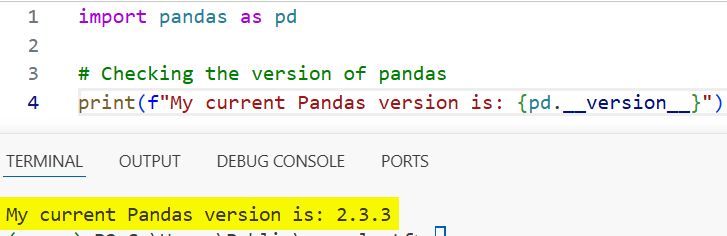
In this example, I simply import the library and print the attribute. It’s clean, efficient, and requires no extra dependencies.
Method 2: Use the pd.show_versions() Function
Sometimes, knowing just the Pandas version isn’t enough, especially when dealing with complex data formats like Excel or HDF5.
I remember working on a financial dashboard for a firm in New York where we had issues reading specific .xlsx files.
I used the pd.show_versions() function to see not just Pandas, but also the versions of xlrd, openpyxl, and Cython.
This function provides a full diagnostic report of your environment.
import pandas as pd

# Getting a full report of all dependency versions
pd.show_versions()
You can see the output in the screenshot below.
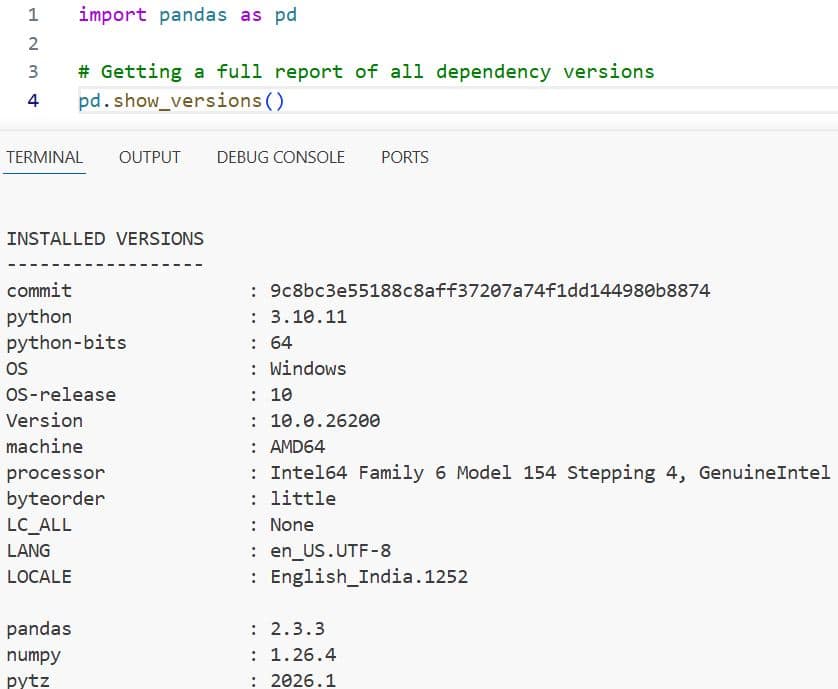
When you run this, Pandas will print a detailed list including your Python version, OS (like Windows or Linux), and all optional dependencies.
This is incredibly helpful when you are posting a bug report on GitHub or StackOverflow, as it gives maintainers all the context they need.
Method 3: Check Version via the Command Line (Terminal)
If I am working on a remote server via SSH and don’t want to open a Python shell, I check the version directly from the terminal.
This is a “pro-tip” for DevOps engineers or anyone managing environments with pip.
You can use the following command in your terminal or command prompt:
pip show pandasOutput:
Name: pandas
Version: 2.3.3
Summary: Powerful data structures for data analysis, time series, and statistics
Home-page: https://pandas.pydata.org
Author: The Pandas Development Team
...
You can see the output in the screenshot below.
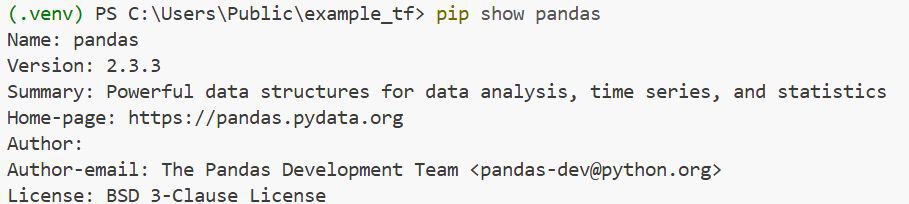
This command is great because it also shows you where the package is installed on your machine and what other packages it requires.
If you are using Anaconda, which is very common in US-based data science roles, you can use:
conda list pandasMethod 4: Use the Importlib Metadata (Python 3.8+)
In newer versions of Python, there is a standard way to check metadata for any installed package without actually importing the package itself.
This is useful if you have a massive library and you want to check the version without the overhead of loading the entire library into memory.
Here is how I do it using importlib.metadata:
from importlib.metadata import version

# Check version without importing the full pandas library
pandas_version = version('pandas')
print(f"Pandas version via importlib: {pandas_version}")
Practical Example: Handle Version-Specific Features
Let’s look at a real-world scenario. Suppose we are analyzing a dataset of US Social Security Administration (SSA) baby names.
In newer versions of Pandas (2.0+), the “PyArrow” backend was introduced to make data processing much faster.
I often write code that checks the version to decide whether to enable these high-performance features.
import pandas as pd
from packaging import version

# Sample data: Popular US Baby Names
data = {
    'Year': [2020, 2021, 2022],
    'Name': ['Liam', 'Olivia', 'Noah'],
    'Count': [19659, 17535, 18253]
}

# Check if version is 2.0 or higher to use engine='pyarrow'
current_ver = pd.__version__

if version.parse(current_ver) >= version.parse("2.0.0"):
    print("Using high-performance Arrow backend.")
    df = pd.DataFrame(data)
    # You could specify dtype_backend='pyarrow' here in 2.0+
else:
    print("Using standard Numpy backend.")
    df = pd.DataFrame(data)

print(df)
Troubleshoot Version Issues
If you find that your version is outdated (for example, you are still on 1.x and want the 2.x features), upgrading is simple.
In the US, many corporate environments have restrictions, so ensure you have the right permissions before running these.
To upgrade via pip:
pip install --upgrade pandasTo upgrade via Conda:
conda update pandasI always recommend restarting your IDE (like VS Code or PyCharm) after an upgrade to ensure the changes are picked up correctly.
Which Method Should You Use?
In my experience, if you are currently writing code, stick to pd.__version__. It is the industry standard for a reason.
If you are debugging a complex installation or a “missing dependency” error, pd.show_versions() is your best friend.
For quick checks before running a deployment script, the command line (pip show) is the way to go.
I hope this guide helps you manage your Python environments more effectively.
You may also read:
- How to Drop Rows with NaN Values in Pandas
- How to Check if a Pandas DataFrame is Empty
- Ways to Get the First Row of a Pandas DataFrame
- How to Get Column Names in Pandas

Bijay Kumar is an experienced Python and AI professional who enjoys helping developers learn modern technologies through practical tutorials and examples. His expertise includes Python development, Machine Learning, Artificial Intelligence, automation, and data analysis using libraries like Pandas, NumPy, TensorFlow, Matplotlib, SciPy, and Scikit-Learn. At PythonGuides.com, he shares in-depth guides designed for both beginners and experienced developers. More about us.

