
jQuery is one of the most popular JavaScript libraries for DOM manipulation, and getting the ID of an element is a fundamental skill every web developer needs to master.
Whether you’re building interactive forms, dynamic content, or event-driven applications, knowing how to retrieve element IDs programmatically is essential for creating responsive web experiences.
Do You Need to Get Element IDs
Before diving into the methods, it’s important to understand common scenarios where you’d need to retrieve an element’s ID:
- Event handling: When you have event handlers attached to multiple elements with the same class, you need to identify which specific element triggered the event
- Dynamic content manipulation: Modifying specific elements based on user interactions
- Form validation: Identifying form fields for targeted validation messages
- AJAX operations: Sending specific element identifiers to server-side scripts
- Conditional styling: Applying different styles based on element IDs
Method 1: Use the attr() Method
The most common and easy way to get an element’s ID is using jQuery’s attr() method.
Basic Syntax
var elementId = $('#element').attr('id');Practical Example
<!DOCTYPE html>
<html>
<head>
    <script src="https://ajax.googleapis.com/ajax/libs/jquery/3.6.0/jquery.min.js"></script>
</head>
<body>
    <div id="myDiv">Click me to see my ID</div>
    <button id="getIdBtn">Get Div ID</button>

    <script>
    $(document).ready(function(){
        $('#getIdBtn').click(function(){
            var divId = $('#myDiv').attr('id');
            alert('The ID is: ' + divId);
        });
    });
    </script>
</body>
</html>
You can refer to the screenshot below to see the output.

Method 2: Use the prop() Method
The prop() method is another reliable way to retrieve element IDs. While similar to attr(), prop() works with DOM properties rather than HTML attributes.
Basic Syntax
var elementId = $('#element').prop('id');Example with Multiple Elements
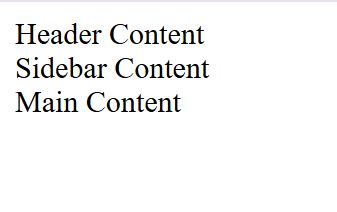
<div id="header">Header Content</div>
<div id="sidebar">Sidebar Content</div>
<div id="content">Main Content</div>

<script>
$(document).ready(function(){
    $('div').each(function(){
        var currentId = $(this).prop('id');
        console.log('Element ID: ' + currentId);
    });
});
</script>
You can refer to the screenshot below to see the output.
Method 3: Get IDs from Event Handlers
One of the most practical applications is retrieving IDs within event handlers, especially when dealing with multiple elements sharing the same class.
Event Handler Example
<div class="clickable" id="box1">Box 1</div>
<div class="clickable" id="box2">Box 2</div>
<div class="clickable" id="box3">Box 3</div>

<script>
$(document).ready(function(){
    $('.clickable').click(function(){
        var clickedId = $(this).attr('id');
        alert('You clicked element with ID: ' + clickedId);

        // You can now perform specific actions based on the ID
        if(clickedId === 'box1'){
            $(this).css('background-color', 'red');
        } else if(clickedId === 'box2'){
            $(this).css('background-color', 'blue');
        } else {
            $(this).css('background-color', 'green');
        }
    });
});
</script>
You can refer to the screenshot below to see the output.

Advanced Techniques and Best Practices
Let me explain to you the advanced techniques and best practices to get the ID of an element using jQuery.
Check if an Element Has an ID
Use this method to verify whether a specific element has an assigned ID before performing actions on it.
$(document).ready(function(){
    if($('#myElement').attr('id')){
        console.log('Element has an ID: ' + $('#myElement').attr('id'));
    } else {
        console.log('Element does not have an ID');
    }
});
Work with Dynamic Content
Handle dynamically added elements efficiently by using event delegation to get their IDs.
// For dynamically added elements, use event delegation
$(document).on('click', '.dynamic-element', function(){
    var elementId = $(this).attr('id');
    if(elementId){
        console.log('Dynamic element ID: ' + elementId);
    }
});
Store IDs in Arrays
Collect and store multiple element IDs into an array for easy access or further processing.
$(document).ready(function(){
    var elementIds = [];

    $('.collection').each(function(){
        var currentId = $(this).attr('id');
        if(currentId){
            elementIds.push(currentId);
        }
    });

    console.log('All IDs:', elementIds);
});
Common Issues and Troubleshooting
Here are some common issues that you may face while getting the ID of an element in jQuery, and also how to troubleshoot them.
1. Undefined Results
If attr(‘id’) returns undefined, the element doesn’t have an ID attribute:
var elementId = $('#element').attr('id');
if(elementId !== undefined){
    // Safe to use the ID
    console.log(elementId);
}
2. Select Elements Without IDs
Remember that not all elements have IDs:
$('div').each(function(){
    var id = $(this).attr('id');
    if(id){
        console.log('Found ID: ' + id);
    } else {
        console.log('This div has no ID');
    }
});
3. ID Naming Conventions
Ensure your IDs follow proper naming conventions:
- Don’t start with numbers
- Use alphanumeric characters and hyphens
- Keep them unique within the document
Real-World Application: Form Validation
Here’s a practical example combining ID retrieval with form validation:
<form id="userForm">
    <input type="text" id="firstName" class="required" placeholder="First Name">
    <input type="email" id="email" class="required" placeholder="Email">
    <input type="password" id="password" class="required" placeholder="Password">
    <button type="submit">Submit</button>
</form>

<script>
$(document).ready(function(){
    $('#userForm').submit(function(e){
        var isValid = true;

        $('.required').each(function(){
            var fieldId = $(this).attr('id');
            var fieldValue = $(this).val();

            if(!fieldValue.trim()){
                isValid = false;
                $(this).css('border', '2px solid red');
                console.log('Field ' + fieldId + ' is required');
            } else {
                $(this).css('border', '1px solid green');
            }
        });

        if(!isValid){
            e.preventDefault();
            alert('Please fill in all required fields');
        }
    });
});
</script>
You can refer to the screenshot below to see the output.

Getting the ID of an element using jQuery is a fundamental skill that opens up numerous possibilities for creating dynamic and interactive web applications. The attr(‘id’) and prop(‘id’) methods are your primary tools, with attr() being the most commonly used approach.
Remember to always check if an element has an ID before using it, especially when working with dynamic content or multiple elements. By mastering these techniques and following best practices, you’ll be well-equipped to build robust, interactive web experiences that respond intelligently to user interactions.
Whether you’re handling events, validating forms, or manipulating DOM elements, these jQuery ID retrieval methods will serve as essential tools in your web development toolkit.
You may also like to read the other tutorials:
- JavaScript vs jQuery: Key Differences
- How to Fix “jQuery $ is not defined” Error
- How to Set Radio Button Checked in jQuery
- jQuery Get Selected Radio Button Value

Bijay Kumar is an experienced Python and AI professional who enjoys helping developers learn modern technologies through practical tutorials and examples. His expertise includes Python development, Machine Learning, Artificial Intelligence, automation, and data analysis using libraries like Pandas, NumPy, TensorFlow, Matplotlib, SciPy, and Scikit-Learn. At PythonGuides.com, he shares in-depth guides designed for both beginners and experienced developers. More about us.

