
I have spent years building computer vision pipelines, and I can tell you that YOLOv8 combined with KerasCV is a game-changer. It simplifies the process of building high-performance models while keeping your code clean and readable.
In this tutorial, I will show you exactly how to implement object detection. We will move away from generic examples and look at how this technology works in real-world scenarios.
Set Up the Python KerasCV Environment
Before we start building, we need to ensure our environment has the necessary libraries installed for modern deep learning.
I always recommend using a virtual environment to avoid version conflicts between Keras and other local dependencies.
# Install the necessary libraries
!pip install -q --upgrade keras-cv
!pip install -q --upgrade keras
Load the Data for Python KerasCV Detection
For this example, we will focus on identifying common objects found in a typical American suburban driveway, such as cars and bicycles.
We use the KerasCV preprocessing layers to load and format our images and bounding boxes into a dictionary structure.
import keras_cv
import tensorflow as tf
import numpy as np

# Define class mapping for our driveway objects
class_ids = ["Car", "Bicycle", "Pedestrian"]
class_mapping = dict(enumerate(class_ids))

# Example of loading a single image (Replace with your local path)
image_path = tf.keras.utils.get_file("driveway.jpg", "https://example.com/suburban_driveway.jpg")
image = tf.image.decode_jpeg(tf.io.read_file(image_path))
image = tf.cast(image, tf.float32)
Create the Python KerasCV Preprocessing Pipeline
Data augmentation is vital because it helps the model generalize to different lighting conditions seen in the United States across various seasons.
I use JitteredResize here because it handles both image scaling and bounding box adjustment simultaneously without losing spatial integrity.
# Define the resizing and augmentation layer
resizing = keras_cv.layers.JitteredResize(
    target_size=(640, 640),
    scale_factor=(0.7, 1.3),
    bounding_box_format="xywh",
)

# Apply preprocessing to our data
def preprocess_data(image, bboxes):
    inputs = {"images": image, "bounding_boxes": bboxes}
    outputs = resizing(inputs)
    return outputs["images"], outputs["bounding_boxes"]
Initialize the YOLOv8 Model with Python KerasCV
KerasCV provides a pre-trained YOLOv8 backbone, which allows us to leverage weights trained on massive datasets for our specific task.
I prefer using the YOLOV8Detector class because it integrates the non-max suppression logic directly into the model architecture.
# Initialize the YOLOv8 detector
backbone = keras_cv.models.YOLOV8Backbone.from_preset("yolo_v8_m_backbone_coco")

yolo_model = keras_cv.models.YOLOV8Detector(
    num_classes=len(class_mapping),
    bounding_box_format="xywh",
    backbone=backbone,
    fpn_depth=2,
)
Compile and Train the Python KerasCV Model
When compiling the model, we need to use specialized losses like Complete IoU (CIoU) to ensure the bounding boxes are accurate.
I use the Adam optimizer with a slightly lower learning rate to prevent the gradients from exploding during the initial training phases.
# Compile the model with appropriate losses
optimizer = tf.keras.optimizers.Adam(learning_rate=0.0005)

yolo_model.compile(
    optimizer=optimizer,
    classification_loss="binary_crossentropy",
    box_loss="ciou",
)

# Dummy training call (Use your actual tf.data.Dataset here)
# yolo_model.fit(train_ds, epochs=10)
Run Inference with Python KerasCV Predictions
Once the model is trained, running a prediction is an easy process that returns the detected boxes and their confidence scores.
I always visualize the results to ensure the model isn’t just seeing shapes but is accurately locating the boundaries of the objects.
# Prepare an image for inference
input_image = tf.expand_dims(image, axis=0)
input_image = tf.image.resize(input_image, (640, 640))

# Get predictions
predictions = yolo_model.predict(input_image)

# Extract boxes and classes
pred_boxes = predictions["boxes"]
pred_classes = predictions["classes"]
Visualize Results using Python KerasCV Utilities
Visual confirmation is the best way to verify that your model is production-ready for real-time monitoring applications.
KerasCV includes a handy plotting utility that draws the bounding boxes and labels directly onto the original image.
# Plot the results
keras_cv.visualization.plot_bounding_box_gallery(
    input_image,
    value_range=(0, 255),
    rows=1,
    cols=1,
    y_true=None,
    y_pred=predictions,
    scale=5,
    rows_cap=1,
    cols_cap=1,
    bounding_box_format="xywh",
    class_mapping=class_mapping,
)
Optimize Python KerasCV for Faster Execution
For those looking to deploy this in a real-world setting, such as a traffic camera in Chicago, performance optimization is key.
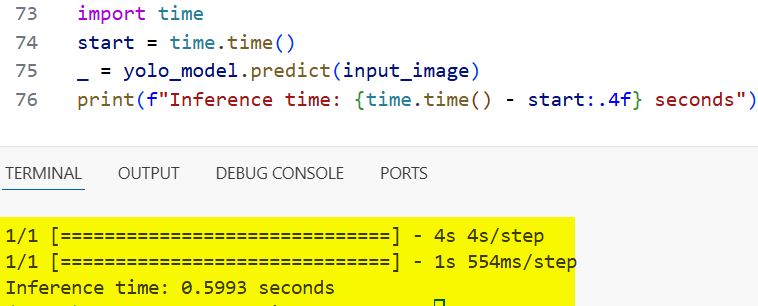
I enable XLA (Accelerated Linear Algebra) compilation to speed up the execution time of the model during the prediction phase.
# Compile for faster inference using XLA
yolo_model.compile(jit_compile=True)

# Run a timed prediction
import time
start = time.time()
_ = yolo_model.predict(input_image)
print(f"Inference time: {time.time() - start:.4f} seconds")
You can refer to the screenshot below to see the output.
I have found that using YOLOv8 with KerasCV is one of the most efficient ways to handle object detection in Python today. It balances ease of use with the powerful performance required for modern applications.
You may read:
- Focal Modulation vs Self-Attention in Keras
- Image Classification Using Keras Forward-Forward Algorithm
- Implement Masked Image Modeling with Keras Autoencoders
- Supervised Contrastive Learning in Python Keras

Bijay Kumar is an experienced Python and AI professional who enjoys helping developers learn modern technologies through practical tutorials and examples. His expertise includes Python development, Machine Learning, Artificial Intelligence, automation, and data analysis using libraries like Pandas, NumPy, TensorFlow, Matplotlib, SciPy, and Scikit-Learn. At PythonGuides.com, he shares in-depth guides designed for both beginners and experienced developers. More about us.

