
Over the years, I have built many large-scale React applications for my clients. One thing I have noticed is that developers often struggle with the best way to style their components.
I remember my first time moving from traditional CSS to React. I was confused by the “style” attribute.
In this guide, I will share my experience using inline styles in React components. I will also show you how to use them effectively in professional projects.
What is an Inline Style in React?
In traditional web development, you write styles in a separate CSS file and link it to your HTML.
React allows you to write these styles directly inside your JavaScript code.
Instead of a string, React expects the style attribute to be a JavaScript object.
I prefer this approach when I need to change styles based on the component’s state.
It keeps the logic and the presentation in one single file.
The Basic Syntax of Inline Styles
When I first started, I kept trying to use hyphens like background-color. In React, you must use camelCase for all CSS property names.
For example, background-color becomes backgroundColor, and font-size becomes fontSize.
Let’s look at a practical example. Imagine we are building a “Shipping Dashboard” for a logistics company in Chicago.
import React from 'react';

const ShippingLabel = () => {
  // Define the style object
  const labelContainerStyle = {
    backgroundColor: '#f8f9fa',
    padding: '20px',
    borderRadius: '8px',
    border: '2px solid #007bff',
    fontFamily: 'Arial, sans-serif',
    maxWidth: '400px',
    margin: '20px auto'
  };

  const headerStyle = {
    color: '#343a40',
    fontSize: '24px',
    borderBottom: '1px solid #dee2e6',
    paddingBottom: '10px'
  };

  return (
    <div style={labelContainerStyle}>
      <h2 style={headerStyle}>Priority Mail Express</h2>
      <p><strong>From:</strong> Tech Hub, Austin, TX</p>
      <p><strong>To:</strong> Manhattan Office, NY</p>
      <div style={{ marginTop: '15px', color: '#dc3545', fontWeight: 'bold' }}>
        Status: Out for Delivery
      </div>
    </div>
  );
};

export default ShippingLabel;
I executed the code above and added the screenshot below.

I usually define my style objects outside the return statement to keep the JSX clean.
Method 1: Use Style Objects as Variables
This is my go-to method for most components I build. I find that creating a separate variable for styles makes the code much more readable.
It also allows me to reuse the same style for multiple elements within the same component.
I often use this for “Texas-sized” data tables where rows need consistent padding and margins.
When you use variables, you can also keep your component logic separate from the layout.
Method 2: Conditional Styling Based on State
One of the biggest advantages of inline styles is dynamic updates. I recently worked on a project for a financial firm in New York.
We needed a button that changed color based on the stock market status. With inline styles, you can use JavaScript’s ternary operator directly in the style object.
import React, { useState } from 'react';

const MarketStatusButton = () => {
  const [isOpen, setIsOpen] = useState(true);

  const buttonStyle = {
    backgroundColor: isOpen ? '#28a745' : '#6c757d',
    color: 'white',
    padding: '12px 24px',
    border: 'none',
    borderRadius: '5px',
    cursor: 'pointer',
    fontSize: '16px'
  };

  return (
    <div style={{ textAlign: 'center', marginTop: '50px' }}>
      <h1>Wall Street Market Status</h1>
      <button
        style={buttonStyle}
        onClick={() => setIsOpen(!isOpen)}
      >
        {isOpen ? 'MARKET OPEN' : 'MARKET CLOSED'}
      </button>
    </div>
  );
};

export default MarketStatusButton;
I executed the code above and added the screenshot below.
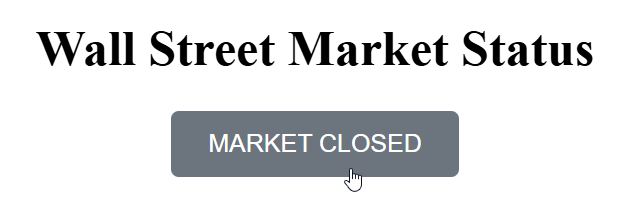
This method is incredibly powerful for creating interactive user interfaces. It eliminates the need to toggle multiple CSS classes manually.
Method 3: Spread Styles for Reusability
Sometimes you have a base style that you want to apply to multiple components. I often use the JavaScript spread operator (…) to combine styles.
Think of a “USA Brand Guideline” where every button must have the same rounded corners. You can create a base style and then add specific colors for “Primary” or “Danger” actions.
const baseButtonStyle = {
  borderRadius: '50px',
  padding: '10px 30px',
  fontWeight: '600',
  textTransform: 'uppercase'
};

const primaryStyle = {
  ...baseButtonStyle,
  backgroundColor: '#0056b3',
  color: '#fff'
};

const warningStyle = {
  ...baseButtonStyle,
  backgroundColor: '#ffc107',
  color: '#000'
};
This approach helps me maintain consistency across large applications.
Limitations of Inline Styles
While I love inline styles for dynamic data, they have some drawbacks.
In my experience, you cannot easily use pseudo-classes like :hover or :active.
You also cannot use media queries for responsive design directly in the object.
For these cases, I usually stick to CSS Modules or a library like Styled Components.
However, for simple dynamic changes, inline styles are the fastest solution.
Performance Considerations
In large applications, creating new style objects on every render can impact performance.
I always recommend defining static styles outside the component function if possible.
If the style depends on props, consider using the useMemo hook to memoize the object.
This ensures the style object is only recreated when the dependencies change.
I’ve seen this simple trick speed up complex dashboards significantly.
In this guide, we looked at how to implement inline styles in React components.
I shared how I use variables, conditional logic, and the spread operator in professional USA-based projects.
Using these methods will make your React components more flexible and easier to maintain.
You may also like to read:
- React Force Reload Component
- How to Use React Class Component Ref
- React Async Functional Component
- How to Fix Framer Motion Drag Not Working in React

Bijay Kumar is an experienced Python and AI professional who enjoys helping developers learn modern technologies through practical tutorials and examples. His expertise includes Python development, Machine Learning, Artificial Intelligence, automation, and data analysis using libraries like Pandas, NumPy, TensorFlow, Matplotlib, SciPy, and Scikit-Learn. At PythonGuides.com, he shares in-depth guides designed for both beginners and experienced developers. More about us.

