
I have spent over a decade building data-driven applications in Python. During that time, I’ve found that the loc property is the most versatile tool in the Pandas library.
It is the primary way to access, filter, and even update your data using labels. If you are still struggling with data selection, this guide will simplify everything for you.
What is the loc Property in Pandas?
The loc property stands for “location.” It allows you to select rows and columns from a DataFrame based on their labels (names).
Unlike iloc, which uses integer positions (like 0, 1, 2), loc focuses on the actual names of your indices and columns.
Set Up a USA-Based Dataset
To make these examples realistic, I’ll create a DataFrame containing sales data for different tech hubs in the United States.
import pandas as pd

# Creating a dataset of US Tech Hubs
data = {
    'City': ['San Francisco', 'Austin', 'Seattle', 'New York', 'Boston'],
    'State': ['California', 'Texas', 'Washington', 'New York', 'Massachusetts'],
    'Avg_Salary': [165000, 135000, 155000, 150000, 145000],
    'Job_Openings': [12000, 8500, 9200, 15000, 7000]
}

# Setting 'City' as the index for label-based selection
df = pd.DataFrame(data)
df.set_index('City', inplace=True)

print(df)
Method 1: Select a Single Row or Column
When I first started using Pandas, I often confused row selection with column selection. With loc, the syntax is always df.loc[row_label, column_label].
If you only provide one label, Pandas assumes you are looking for a row.
# 1. Selecting a single row (Austin)
austin_data = df.loc['Austin']
print("Data for Austin:\n", austin_data)

# 2. Selecting a single value (Salary in Seattle)
seattle_salary = df.loc['Seattle', 'Avg_Salary']
print("\nAverage Salary in Seattle:", seattle_salary)
I executed the above example code and added the screenshot below.
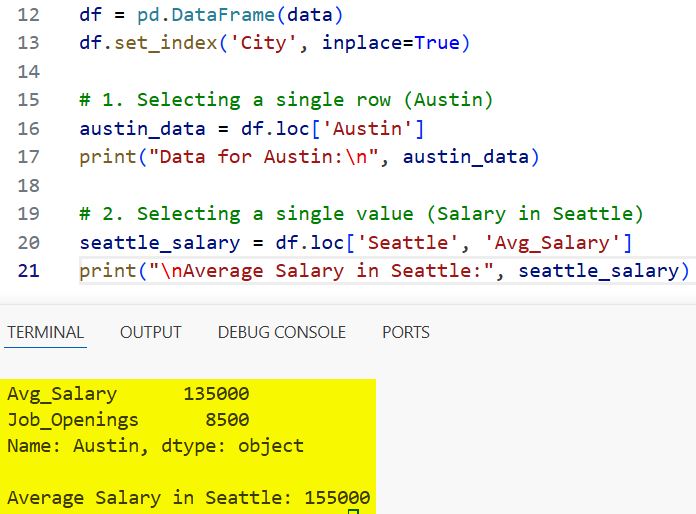
In my experience, using the row-and-column combination is much safer. It prevents accidental errors when your DataFrame structure changes.
Method 2: Select Multiple Rows and Columns
If you need a specific subset of data, you can pass a list of labels to loc. This is incredibly useful for creating reports.
Suppose I only want to compare the tech markets of San Francisco and New York.
# Selecting specific cities and specific data points
comparison = df.loc[['San Francisco', 'New York'], ['State', 'Job_Openings']]
print(comparison)
I executed the code above and added the screenshot below.
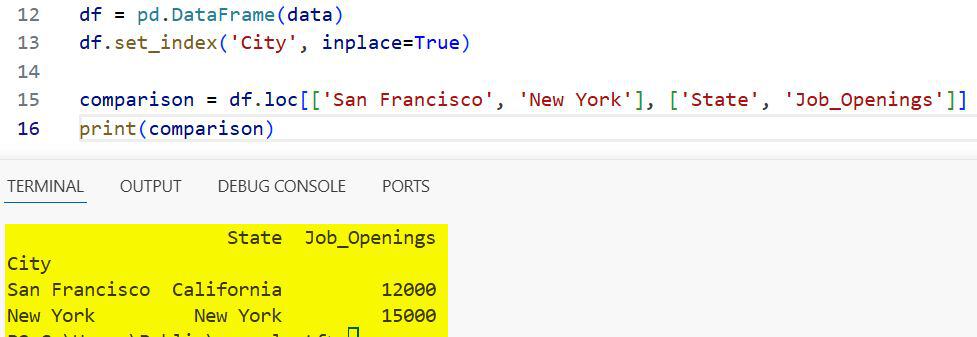
By passing a list [‘San Francisco’, ‘New York’], I tell Pandas exactly which rows to fetch. The second list specifies the columns.
Method 3: Use Slicing with loc
Slicing with loc is slightly different from standard Python slicing. In Python, the “stop” index is usually excluded.
However, with loc, both the start and the stop labels are included in the result.
# Slicing from Austin to New York
# Note: New York will be included in the results
sliced_df = df.loc['Austin':'New York']
print(sliced_df)
I executed the above example code and added the screenshot below.
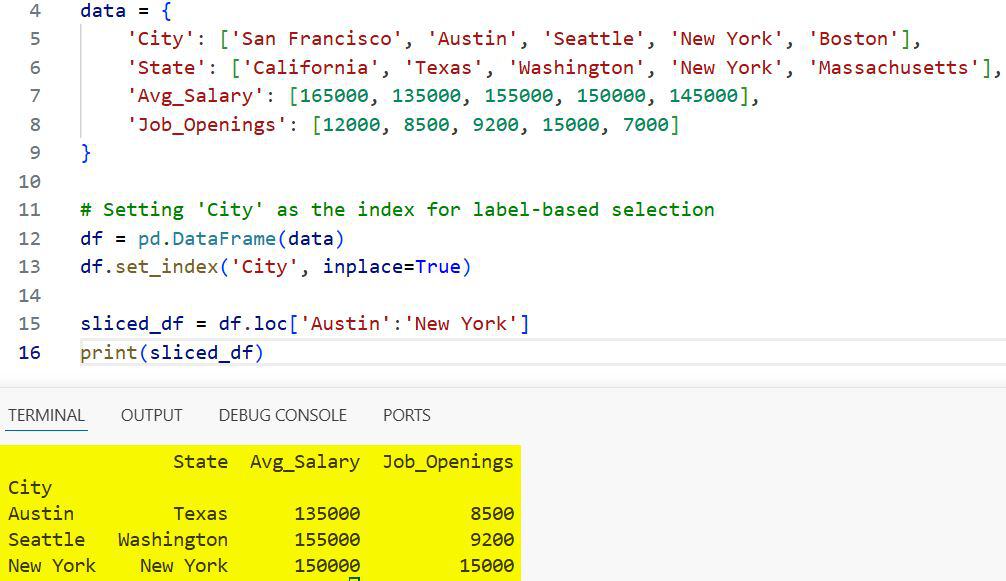
This “inclusive” behavior is very intuitive once you get used to it. It feels more like highlighting a range in an Excel spreadsheet.
Method 4: Filter with Boolean Conditions
This is where loc truly shines for a developer. I use this daily to filter datasets based on specific business logic.
Let’s say I want to find cities where the Avg_Salary is above $140,000 and the Job_Openings exceed 10,000.
# Filtering based on multiple conditions
high_growth_hubs = df.loc[(df['Avg_Salary'] > 140000) & (df['Job_Openings'] > 10000)]
print(high_growth_hubs)
When using multiple conditions, always remember to wrap each condition in parentheses (). If you forget them, Python will throw a TypeError.
Method 5: Update Data Using loc
Many beginners try to update data using “chained indexing” (e.g., df[‘Column’][0] = value). This often triggers a SettingWithCopyWarning.
The professional way to modify data is by using loc. It ensures you are modifying the original DataFrame directly.
# Updating the Job Openings for Boston
df.loc['Boston', 'Job_Openings'] = 7500

# Adding a new column 'Cost_of_Living' for all rows
df.loc[:, 'Market_Status'] = 'High'

print(df)
The colon : in the second example tells Pandas to apply the change to “all rows.”
Common Errors to Avoid
One common mistake I see is trying to use loc with integer positions when the index is not numeric. This will result in a KeyError.
Another issue is case sensitivity. If your index label is “Austin” and you type df.loc[‘austin’], the code will fail. Always verify your labels before running the script.
loc vs iloc: Which One Should You Use?
I always recommend using loc when your labels are meaningful (like dates, names, or IDs). It makes your code much more readable for other developers.
Use iloc only when the position of the data is more important than its label, such as when you want to grab the “first five rows” regardless of their names.
The loc property is a fundamental part of the Pandas library. It provides a clean and readable way to manipulate your data frames.
Whether you are filtering for specific states or updating salary figures, loc is the most reliable method to use. I hope this guide helps you write cleaner and more efficient Python code.
You may also read:
- How to Filter DataFrames with Multiple Conditions in Python Pandas
- How to Use the Pandas Core Series
- How to Convert Pandas Index to Column
- How to Sort by Column in Pandas

I am Bijay Kumar, a Microsoft MVP in SharePoint. Apart from SharePoint, I started working on Python, Machine learning, and artificial intelligence for the last 5 years. During this time I got expertise in various Python libraries also like Tkinter, Pandas, NumPy, Turtle, Django, Matplotlib, Tensorflow, Scipy, Scikit-Learn, etc… for various clients in the United States, Canada, the United Kingdom, Australia, New Zealand, etc. Check out my profile.

