
I have found that a stacked bar plot is one of the most effective ways to visualize part-to-whole relationships.
Whether I’m analyzing regional sales or tracking demographic shifts, Pandas makes it incredibly simple to generate these charts with just a few lines of code.
In this tutorial, I’ll show you exactly how to build and customize stacked bar plots using real-world US-centric examples that I’ve used in my own professional projects.
What is a Stacked Bar Plot?
A stacked bar plot is a type of chart that uses bars to show the comparisons between categories of data, but with a twist.
Each bar is divided into sub-segments that represent different groups, allowing you to see the total value and the composition of that total simultaneously.
The Dataset: US Tech Job Postings
To make this practical, let’s use a dataset representing job postings across different US tech hubs. I’ll create a DataFrame that tracks “Remote” vs. “On-site” roles in cities like San Francisco, Austin, and New York.
import pandas as pd
import matplotlib.pyplot as plt

# Creating a real-world US tech job dataset
data = {
    'City': ['San Francisco', 'Austin', 'New York', 'Seattle', 'Denver'],
    'Remote': [450, 300, 400, 350, 200],
    'On-site': [200, 250, 500, 300, 150]
}

df = pd.DataFrame(data)
df.set_index('City', inplace=True)

print(df)
Method 1: Use the DataFrame.plot() Method
This is my go-to method because it is built directly into Pandas and requires the least amount of boilerplate code.
When I want a quick visualization during the exploratory data analysis phase, I use the kind=’bar’ argument along with stacked=True.
Here is how I implement it:
# Simple stacked bar plot
df.plot(kind='bar', stacked=True, figsize=(10, 6), color=['#1f77b4', '#ff7f0e'])

plt.title('Tech Job Postings in US Cities (Remote vs. On-site)')
plt.xlabel('City')
plt.ylabel('Number of Postings')
plt.xticks(rotation=45)
plt.legend(title='Work Type')
plt.tight_layout()
plt.show()
You can see the output in the screenshot below.
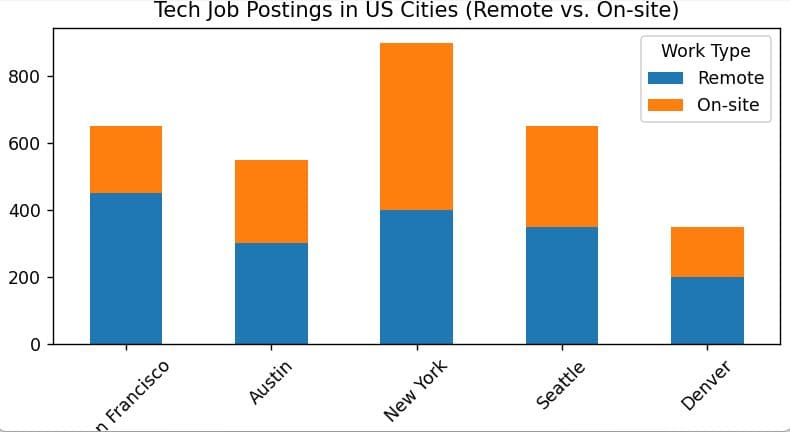
In this code, I use stacked=True to tell Pandas to place the “On-site” values on top of the “Remote” values.
I also prefer using hex codes for colors to ensure the charts match professional branding standards.
Method 2: Create a Horizontal Stacked Bar Plot
Sometimes, I find that city names or long category labels overlap on the X-axis, making the chart look messy.
In these cases, I switch to a horizontal stacked bar plot using kind=’barh’. It’s much easier to read when you have more than five or six categories.
# Horizontal stacked bar plot
df.plot(kind='barh', stacked=True, figsize=(10, 6), color=['#2ca02c', '#d62728'])

plt.title('US Job Distribution by Location Type')
plt.xlabel('Number of Jobs')
plt.ylabel('City')
plt.legend(loc='lower right')
plt.show()
You can see the output in the screenshot below.
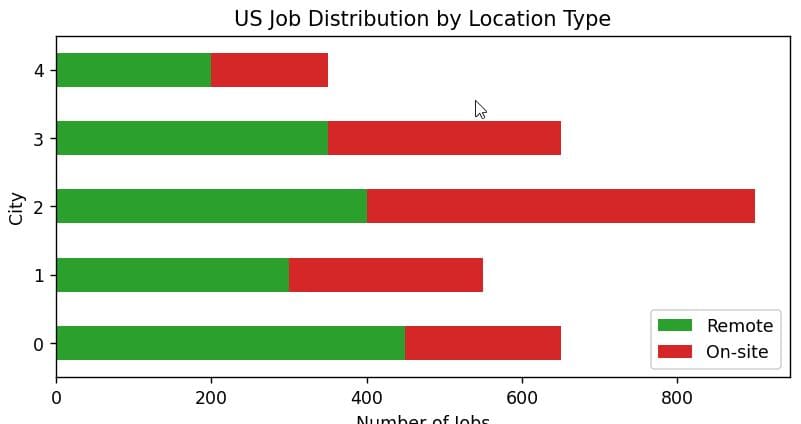
I’ve found that horizontal plots are particularly popular in executive dashboards because they feel more like a ranked list.
Method 3: Use Pivot Tables for Complex Data
In real-world scenarios, your data isn’t always “plot-ready.” Often, I receive raw logs or CSV files that need to be aggregated first.
Imagine we have a list of individual US retail transactions across different states and categories. I’ll use a pivot table to structure this for a stacked plot.
# Raw US Retail Data
retail_data = {
    'State': ['TX', 'TX', 'CA', 'CA', 'NY', 'NY', 'FL', 'FL', 'TX', 'CA'],
    'Category': ['Electronics', 'Grocery', 'Electronics', 'Grocery', 'Electronics', 'Grocery', 'Electronics', 'Grocery', 'Electronics', 'Electronics'],
    'Sales': [500, 300, 700, 400, 600, 200, 450, 300, 550, 800]
}

df_retail = pd.DataFrame(retail_data)

# Pivoting the data to get it ready for stacking
pivot_df = df_retail.groupby(['State', 'Category'])['Sales'].sum().unstack()

# Plotting the pivoted data
pivot_df.plot(kind='bar', stacked=True, figsize=(10, 6), colormap='viridis')

plt.title('Retail Sales by State and Category (USA)')
plt.ylabel('Total Sales ($)')
plt.show()
I always recommend the unstack() method after a groupby. It transforms your long-format data into a wide-format that the Pandas plotting engine can understand.
Method 4: Visualize Percentages (100% Stacked Bar Plot)
There are times when the absolute numbers aren’t as important as the ratio. For instance, comparing the percentage of the budget spent across different US government departments.
To do this, I normalize the data so that every bar adds up to 1 (or 100%).
# Data: Departmental Spend (Millions)
spend_data = {
    'Year': ['2023', '2024', '2025'],
    'Infrastructure': [50, 60, 70],
    'Education': [40, 35, 50],
    'Healthcare': [80, 90, 100]
}

df_spend = pd.DataFrame(spend_data).set_index('Year')

# Normalize the data to 100%
df_perc = df_spend.divide(df_spend.sum(axis=1), axis=0)

# Plotting 100% stacked bar
df_perc.plot(kind='bar', stacked=True, figsize=(10, 6), width=0.8)

plt.title('US Budget Allocation Trends (Percentage Basis)')
plt.ylabel('Proportion of Total Budget')
plt.legend(bbox_to_anchor=(1.05, 1), loc='upper left')
plt.tight_layout()
plt.show()
This specific visualization is my favorite for showing trends over time when the total volume might be growing, but we want to see if the priorities are shifting.
Customize Your Stacked Bar Plot
In my experience, a default plot is rarely enough for a final report. Here are the common tweaks I apply to make the plots look professional.
Add Data Labels
One common complaint I hear from clients is that they can’t see the exact value of a segment. I use the containers property in Matplotlib to add labels automatically.
ax = df.plot(kind='bar', stacked=True, figsize=(10, 6))

# Iterating through segments to add labels
for c in ax.containers:
    ax.bar_label(c, label_type='center', color='white', fontweight='bold')

plt.title('US Tech Jobs with Labels')
plt.show()
Change the Color Palette
Pandas uses Matplotlib’s default colors, but for US-specific reports, I often use palettes like ‘Pastel1’, ‘Set2’, or even custom lists of hex codes that represent the organization’s brand.
df.plot(kind='bar', stacked=True, colormap='Paired')Common Issues to Avoid
I’ve made plenty of mistakes with stacked plots in the past. Here are two things I always watch out for:
- Too Many Categories: If you have more than 5 or 6 segments in a single bar, the chart becomes unreadable. In those cases, I group smaller categories into an “Others” bucket.
- Negative Values: Stacked bar plots behave very strangely with negative numbers. If your US financial data includes losses, I suggest using a grouped bar chart instead of a stacked one.
Summary of Techniques
| Goal | Method | Key Parameter |
| Basic Stacked Plot | df.plot() | kind='bar', stacked=True |
| Horizontal View | df.plot() | kind='barh', stacked=True |
| Percentage Comparison | Normalization | df.divide(df.sum(axis=1), axis=0) |
| Labeling Segments | ax.bar_label | label_type='center' |
Whether you are analyzing US census data, election results, or corporate sales, mastering the stacked bar plot in Pandas will significantly improve your data storytelling.
I find that keeping the code simple and focusing on the clarity of the labels makes the biggest difference.
I hope you found this tutorial helpful! Using Pandas for visualization has saved me countless hours, and I’m sure it will do the same for you.
You may read:
- How to Reset Pandas DataFrame Index
- How to Create a Pandas DataFrame from a Dictionary
- How to Use Pandas pivot_table in Python
- How to Check if a Column Exists in a Pandas DataFrame

Bijay Kumar is an experienced Python and AI professional who enjoys helping developers learn modern technologies through practical tutorials and examples. His expertise includes Python development, Machine Learning, Artificial Intelligence, automation, and data analysis using libraries like Pandas, NumPy, TensorFlow, Matplotlib, SciPy, and Scikit-Learn. At PythonGuides.com, he shares in-depth guides designed for both beginners and experienced developers. More about us.

