
I have spent years visualizing complex datasets using Matplotlib, and one of the most common hurdles I see developers face is handling the axis range in imshow.
By default, Matplotlib treats your array indices as coordinates, which rarely matches the real-world scale of your data.
In this tutorial, I will show you exactly how to control the axis range so your visualizations look professional and accurate.
The Problem with Default imshow Axes
When you first load an image or a 2D array into imshow, Matplotlib starts the axes at zero and goes up to the number of rows and columns.
While this works for basic debugging, it is useless when you are trying to map data to specific geographic coordinates or time frames.
I have found that the most reliable way to fix this is by using the extent parameter or adjusting the axis limits directly.
Method 1: Use the ‘extent’ Parameter
The extent parameter is my favorite way to define the axis range because it scales the data and the labels simultaneously.
It takes a list of four values: [left, right, bottom, top]. This tells Matplotlib exactly where the corners of your image should sit in the coordinate system.
In the example below, I’ll visualize a simulated heatmap of broadband speeds across a specific longitudinal and latitudinal range in the USA.
import matplotlib.pyplot as plt
import numpy as np

# Creating a 10x10 grid of simulated broadband speeds (Mbps)
# Imagine this represents a section of the Midwestern USA
data = np.random.rand(10, 10) * 100

# Defining the geographic extent: [West Longitude, East Longitude, South Latitude, North Latitude]
# Let's target an area roughly covering Iowa/Illinois
# Longitudes: -96 to -88 | Latitudes: 39 to 43
usa_extent = [-96, -88, 39, 43]

plt.figure(figsize=(8, 6))

# Applying the extent parameter to set the axis range
plt.imshow(data, extent=usa_extent, cmap='YlGnBu', origin='lower')

plt.colorbar(label='Avg Broadband Speed (Mbps)')
plt.title('Simulated Broadband Speeds: Iowa-Illinois Region')
plt.xlabel('Longitude')
plt.ylabel('Latitude')

plt.show()
I executed the above example code and added the screenshot below.

By using origin=’lower’, I ensure that the first row of my data starts at the bottom latitude, which is how most geographic data is structured.
Method 2: Adjust Range with set_xlim and set_ylim
Sometimes you don’t want to rescale the whole image; you just want to zoom in on a specific part of the data.
In these cases, I use set_xlim and set_ylim. This acts like a magnifying glass over your existing plot.
I often use this when I have a large dataset (like population density for the entire USA) but only need to highlight a specific coastal region.
import matplotlib.pyplot as plt
import numpy as np

# Generating a large 50x50 data grid
# Let's imagine this is population density across a larger territory
np.random.seed(42)
population_data = np.random.poisson(lam=20, size=(50, 50))

fig, ax = plt.subplots(figsize=(8, 6))

# Displaying the image with a wide default range
img = ax.imshow(population_data, cmap='magma')

# Setting a specific axis range to 'zoom' into a specific neighborhood
# We only want to see the central business district (indices 10 to 30)
ax.set_xlim(10, 30)
ax.set_ylim(30, 10) # Keeping Y inverted to match image coordinates

plt.colorbar(img, label='People per Square Mile')
plt.title('Population Density Focus: Downtown District')

plt.show()
I executed the above example code and added the screenshot below.
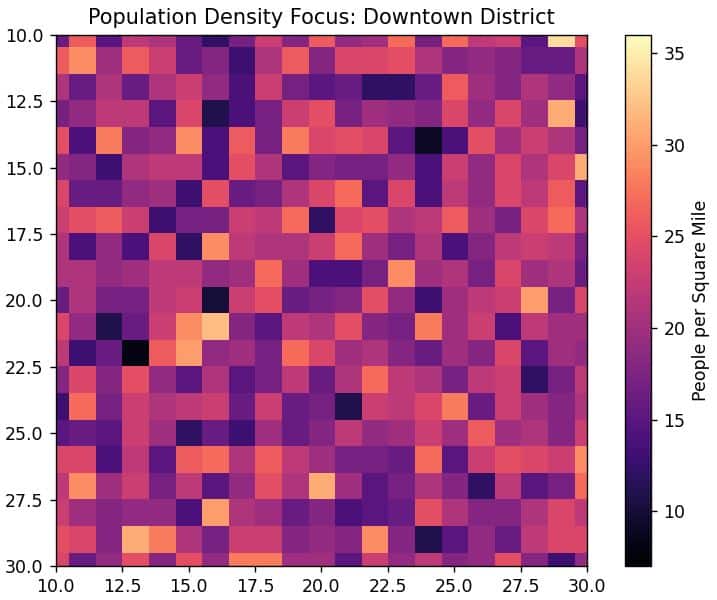
Notice that set_ylim(30, 10) follows the image convention where the origin (0,0) is in the top-left. If you want the Y-axis to increase upwards, you would flip those numbers.
Method 3: Handle Aspect Ratio with Axis Ranges
One thing I learned the hard way is that changing the axis range often “squishes” your image.
Matplotlib tries to keep the pixels square by default. If your extent range is much wider than it is tall, you will end up with a tiny sliver of a plot.
To fix this, I use the aspect parameter. Setting it to ‘auto’ allows the image to stretch to fill the defined axis range perfectly.
import matplotlib.pyplot as plt
import numpy as np

# Simulated US Treasury Bond yield changes over time
# Rows = Years (10 years), Columns = Months (12 months)
yield_data = np.random.normal(loc=0.05, scale=0.01, size=(10, 12))

# We want the X-axis to show months 1-12 and Y-axis to show years 2014-2024
bond_extent = [1, 12, 2014, 2024]

plt.figure(figsize=(10, 5))

# Use aspect='auto' so the monthly data fills the wide plot area
plt.imshow(yield_data, extent=bond_extent, aspect='auto', cmap='RdYlGn', origin='lower')

plt.title('US 10-Year Treasury Yield Fluctuations (2014-2024)')
plt.xlabel('Month of the Year')
plt.ylabel('Year')
plt.colorbar(label='Yield Change (%)')

plt.show()
I executed the above example code and added the screenshot below.
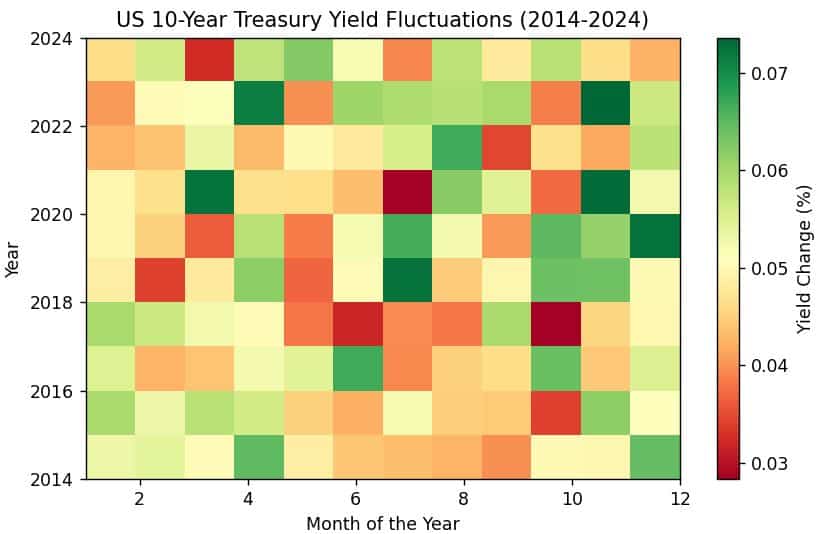
I find aspect=’auto’ essential for financial dashboards where time (X-axis) and categories (Y-axis) rarely have the same scale.
Important Tips for Setting Axis Ranges
Through years of trial and error, I have found a few “gotchas” you should keep in mind:
- Coordinate Alignment: Remember that extent defines the outer edges of the pixels. If your array is 10×10, the center of the first pixel is actually half a unit in from the edge.
- Origin Consistency: Always check if your data starts from the top-left or bottom-left. Use origin=’lower’ for maps and origin=’upper’ (default) for standard images.
- The set_ticks conflict: If you manually set axis ranges using extent, avoid manually setting xticks unless you are certain they fall within that range; otherwise, your labels will disappear.
I hope this tutorial helps you master the axis range in your Matplotlib visualizations.
Being able to map your data arrays to real-world ranges like longitude, latitude, or fiscal years is what separates a basic script from a professional data tool.
Try these methods out with your own datasets and see which one fits your workflow best!
You can also read:
- Plot Multiple Bar Charts with Time Series in Matplotlib
- Matplotlib 2D Color Surface Plots
- How to Set Axis Limits in Matplotlib 3D Plots
- Set Axis Limits for All Subplots in Matplotlib

Bijay Kumar is an experienced Python and AI professional who enjoys helping developers learn modern technologies through practical tutorials and examples. His expertise includes Python development, Machine Learning, Artificial Intelligence, automation, and data analysis using libraries like Pandas, NumPy, TensorFlow, Matplotlib, SciPy, and Scikit-Learn. At PythonGuides.com, he shares in-depth guides designed for both beginners and experienced developers. More about us.

