
One of the most common challenges I face when building complex data visualizations is managing scales. Sometimes, a single Y-axis just doesn’t tell the whole story.
In my experience, adding a secondary axis is the best way to compare two different data scales on a single chart. However, getting the range right can be tricky.
I’ve spent countless hours tweaking secondary_axis functions to ensure my charts are both accurate and readable. It’s a skill that separates basic plots from professional-grade dashboards.
In this tutorial, I will show you exactly how to set and control the secondary axis range in Matplotlib using methods I use in my daily development work.
Set a Secondary Axis Range
When I work with US economic data, I often need to plot the GDP (in trillions) alongside the Unemployment Rate (as a percentage).
If I put these on the same axis, one of the lines would look like a flat line at the bottom of the chart.
Setting a secondary axis allows you to visualize both trends clearly. Controlling the range is vital so the “ticks” align logically and the data isn’t misleading.
Method 1: Use the secondary_yaxis with a Literal Function
This is my go-to method when the relationship between the primary and secondary axes is linear or follows a specific mathematical formula.
Matplotlib introduced the secondary_yaxis (and secondary_xaxis) to make this process much cleaner than the older twinx() approach.
I prefer this because it handles the scaling automatically based on a “forward” and “backward” function.
The Real-World Example: US Temperature Conversion
Imagine you are visualizing average monthly temperatures in New York City. You want the primary axis in Fahrenheit and the secondary axis in Celsius.
import matplotlib.pyplot as plt
import numpy as np

# Average monthly high temperatures in NYC (Fahrenheit)
months = ['Jan', 'Feb', 'Mar', 'Apr', 'May', 'Jun', 'Jul', 'Aug', 'Sep', 'Oct', 'Nov', 'Dec']
temp_f = [39, 42, 50, 62, 72, 80, 85, 84, 76, 65, 54, 44]

def f_to_c(x):
    return (x - 32) / 1.8

def c_to_f(x):
    return x * 1.8 + 32

fig, ax = plt.subplots(figsize=(10, 6))

# Plotting the primary data
ax.plot(months, temp_f, marker='o', color='#007acc', linewidth=2, label='Temp (F)')

# Setting primary axis limits (the range)
ax.set_ylim(30, 90)
ax.set_ylabel('Temperature (°F)', fontsize=12)
ax.set_title('Average Monthly High Temperatures in New York City', fontsize=14)

# Adding the secondary axis
# 'functions' takes a tuple of (forward, backward) conversions
secax = ax.secondary_yaxis('right', functions=(f_to_c, c_to_f))
secax.set_ylabel('Temperature (°C)', fontsize=12)

# Customizing the secondary axis range implicitly via the primary
# If you need to force a specific range, you can call set_ylim on the secondary
# but usually, it's tied to the primary scale.

ax.grid(True, linestyle='--', alpha=0.6)
ax.legend()

plt.tight_layout()
plt.show()
You can see the output in the screenshot below.
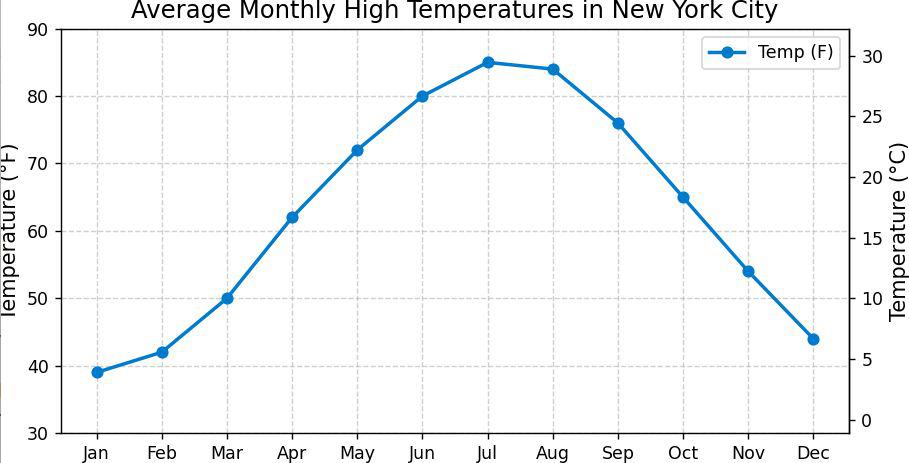
I defined two functions: f_to_c and c_to_f. The secondary_yaxis uses these to map the primary range (30-90) to the Celsius equivalent.
This ensures that whenever I change the primary range using ax.set_ylim(), the secondary axis range updates perfectly in sync.
Method 2: Manually Setting Range with twinx()
Before secondary_yaxis existed, I used twinx(). I still find this method incredibly useful when the two datasets are independent.
For example, if I am plotting US Stock Market Volume vs. the S&P 500 Price, there is no mathematical formula to convert volume to price.
In this case, I create a completely independent secondary axis and set its range manually.
The Real-World Example: S&P 500 Price vs. Trading Volume
Let’s look at how to set the range for a secondary axis when dealing with high-value financial data.
import matplotlib.pyplot as plt
import numpy as np

# Simulated Data for US Tech Stock Analysis
days = np.arange(1, 11)
price = [150, 152, 155, 153, 158, 162, 160, 165, 170, 172]
volume = [1.2, 1.5, 0.8, 2.1, 1.9, 1.1, 1.4, 2.5, 3.0, 2.8] # in Millions

fig, ax1 = plt.subplots(figsize=(10, 6))

# Primary Axis: Price
color = 'tab:blue'
ax1.set_xlabel('Trading Days (Day 1 to 10)')
ax1.set_ylabel('Stock Price ($)', color=color, fontsize=12)
ax1.plot(days, price, color=color, linewidth=3, marker='s')
ax1.tick_params(axis='y', labelcolor=color)

# Explicitly setting the primary range
ax1.set_ylim(140, 180)

# Creating the secondary axis
ax2 = ax1.twinx()

# Secondary Axis: Volume
color = 'tab:red'
ax2.set_ylabel('Volume (Millions)', color=color, fontsize=12)
ax2.bar(days, volume, alpha=0.3, color=color)
ax2.tick_params(axis='y', labelcolor=color)

# Setting the secondary axis range explicitly
# I want to make sure the bars don't overlap the line too much
ax2.set_ylim(0, 5)

plt.title('US Tech Stock Performance: Price vs. Volume', fontsize=14)
fig.tight_layout()
plt.show()
You can see the output in the screenshot below.
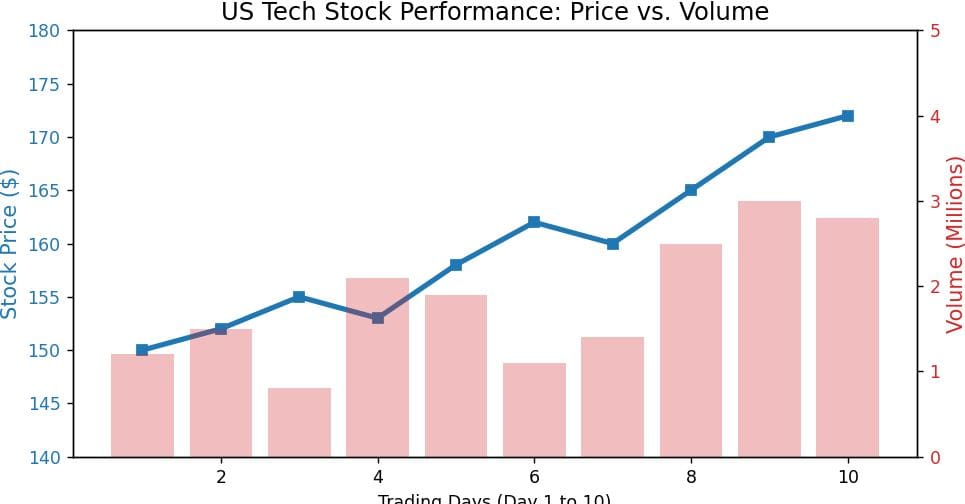
By calling ax2.set_ylim(0, 5), I manually control the “height” of the volume bars.
If I didn’t set this range, Matplotlib would auto-scale it to 0-3, making the bars look much larger and potentially cluttering the price line.
I use this technique to “push” secondary data to the bottom or top of a chart.
Method 3: Use set_ticks to Control the Range Density
Sometimes setting the range isn’t enough; I also need to control where the labels appear.
In US demographic reports, I often need to show population growth. If the secondary axis range is too wide, the default ticks might look messy.
I use set_yticks on the secondary axis object to precisely place the labels within my desired range.
import matplotlib.pyplot as plt

# Data: Years and Population of a US State (Simulated)
years = [2010, 2012, 2014, 2016, 2018, 2020, 2022]
pop_millions = [5.1, 5.4, 5.8, 6.2, 6.7, 7.1, 7.5]

fig, ax1 = plt.subplots(figsize=(10, 6))

ax1.plot(years, pop_millions, color='green', marker='D')
ax1.set_ylabel('Population (Millions)')
ax1.set_ylim(5, 8)

# Create secondary axis for percentage of total US population (Assume 330M)
secax = ax1.secondary_yaxis('right', functions=(lambda x: (x/330)*100, lambda x: (x*330)/100))
secax.set_ylabel('Percentage of Total US Population (%)')

# Setting the range density manually
# I want ticks exactly at these percentage points
secax.set_yticks([1.6, 1.8, 2.0, 2.2])

plt.title('State Population Growth vs. US Share')
plt.show()
You can see the output in the screenshot below.
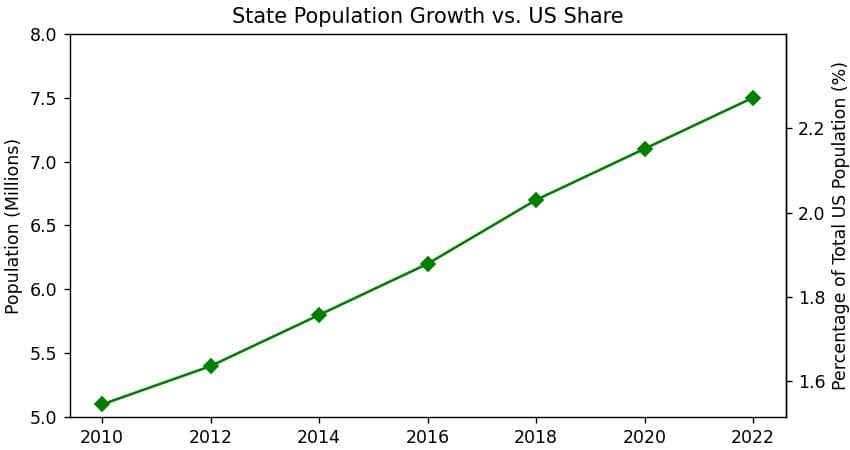
In this guide, we’ve examined several methods for handling secondary axis ranges in Matplotlib. Whether you’re comparing temperature scales or stock market data, the key is knowing when to use a linked function and when to set the limits manually.
I’ve found that using the secondary_yaxis method is the most robust for scientific data, while twinx gives you the ultimate flexibility for unrelated datasets.
You may also read:
- Matplotlib 2D Color Surface Plots
- How to Set Axis Limits in Matplotlib 3D Plots
- Set Axis Limits for All Subplots in Matplotlib
- Set Axis Range in Matplotlib imshow

Bijay Kumar is an experienced Python and AI professional who enjoys helping developers learn modern technologies through practical tutorials and examples. His expertise includes Python development, Machine Learning, Artificial Intelligence, automation, and data analysis using libraries like Pandas, NumPy, TensorFlow, Matplotlib, SciPy, and Scikit-Learn. At PythonGuides.com, he shares in-depth guides designed for both beginners and experienced developers. More about us.

