
In my years of developing data-driven applications in Python, I’ve found that Matplotlib’s default scaling is usually great, but it isn’t perfect.
There are many times when the default view starts the axis at a value that hides the trend you are trying to highlight.
I often find myself needing to force a plot to start at zero or a specific baseline to make the visual comparison more honest and impactful.
In this tutorial, I will show you exactly how to set the axis lower limit in Matplotlib using several different methods I use in my daily workflow.
Manually Set the Lower Axis Limit
When you plot data like quarterly revenue or gas prices in the US, Matplotlib tries to fit the data tightly within the frame.
While this maximizes the data’s visibility, it can sometimes exaggerate small fluctuations by cutting off the bottom of the y-axis.
By setting a manual lower limit, you maintain control over the “story” your chart tells, ensuring that the scale remains consistent across different plots.
Method 1: Use the set_xlim() and set_ylim() Methods
The most common way I adjust axis limits is by using the set_xlim() and set_ylim() methods on the axes object.
To do this, you simply pass None for the upper limit or use the bottom or left keyword arguments.
In the example below, I’ll plot the average price of a gallon of gas in a US city and ensure the y-axis starts exactly at $2.00, regardless of the price peaks.
import matplotlib.pyplot as plt

# Data: Months of the year and average gas prices in a US city
months = ['Jan', 'Feb', 'Mar', 'Apr', 'May', 'Jun', 'Jul', 'Aug', 'Sep', 'Oct', 'Nov', 'Dec']
gas_prices = [3.15, 3.22, 3.45, 3.55, 3.65, 3.80, 3.75, 3.70, 3.60, 3.40, 3.30, 3.25]

# Create the figure and axes
fig, ax = plt.subplots(figsize=(10, 6))

# Plot the data
ax.plot(months, gas_prices, marker='o', color='tab:blue', linewidth=2)

# Method 1: Set only the lower limit for the Y-axis
# We set the bottom to 2.0 and keep the top automatic
ax.set_ylim(bottom=2.0)

# Adding titles and labels for a US-centric report
ax.set_title('Average Monthly Gas Prices (USA)', fontsize=14)
ax.set_xlabel('Month', fontsize=12)
ax.set_ylabel('Price per Gallon (USD)', fontsize=12)

# Adding a grid for better readability
ax.grid(True, linestyle='--', alpha=0.7)

# Display the plot
plt.show()
You can refer to the screenshot below to see the output.

When you use ax.set_ylim(bottom=2.0), Matplotlib keeps the upper boundary dynamic. This is my go-to approach when I know the floor of my data, but want the chart to grow if there is a sudden spike.
Method 2: Use the plt.axis() Function
If you are working with a simple script and want a quick way to set limits without grabbing the axes object, plt.axis() is a great shortcut.
I use this method frequently during the exploratory data analysis (EDA) phase when I just need a quick look at the data with specific boundaries.
The plt.axis() function takes a list in the format [xmin, xmax, ymin, ymax]. To keep a limit automatic, you can’t easily pass “None” here, so you typically provide the full range.
Here is an example using US household income distribution data.
import matplotlib.pyplot as plt
import numpy as np

# Data: Years and median household income (simulated for illustration)
years = np.arange(2010, 2024)
income = [49000, 50000, 51000, 52000, 54000, 56000, 59000, 61000, 63000, 68000, 67000, 70000, 74000, 75000]

plt.figure(figsize=(10, 6))
plt.plot(years, income, color='green', linestyle='-', marker='s')

# Method 2: Setting the lower and upper limits using plt.axis
# format: [xmin, xmax, ymin, ymax]
# We want to start the Y-axis at 40,000 and the X-axis at 2008
plt.axis([2008, 2025, 40000, 80000])

plt.title('Median US Household Income Growth (2010-2023)', fontsize=14)
plt.xlabel('Year', fontsize=12)
plt.ylabel('Income (USD)', fontsize=12)
plt.grid(True)

plt.show()
You can refer to the screenshot below to see the output.
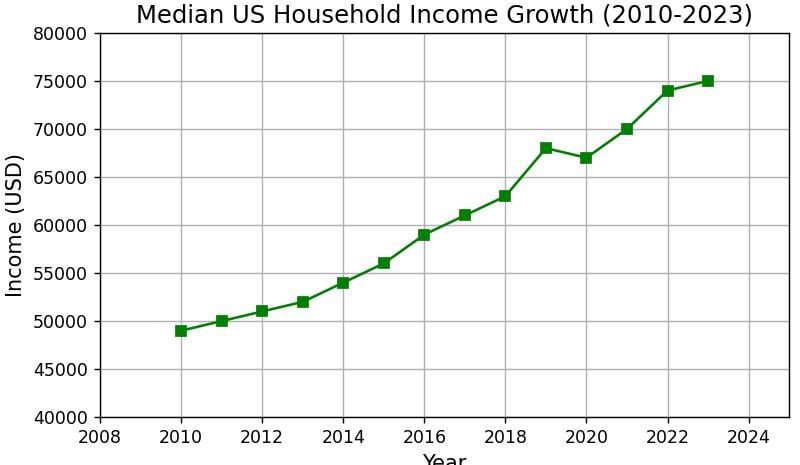
While this method is shorter to type, I find it a bit less “future-proof” than the first method because it forces you to hardcode the maximum values as well.
Method 3: Use set_xbound() and set_ybound()
A lesser-known but very effective way to fix the lower limit is using set_xbound() and set_ybound().
In my experience, these functions are slightly different from set_ylim because they are designed to be “direction-independent.”
This means if you flip your axis (for example, plotting depth where numbers go down), these functions still respect the specific boundary values you provide.
Let’s look at an example involving US electricity consumption (kWh).
import matplotlib.pyplot as plt

# Data: Daily electricity usage in a standard US home (kWh)
days = list(range(1, 11))
usage = [28, 32, 25, 45, 38, 30, 29, 31, 35, 40]

fig, ax = plt.subplots(figsize=(10, 6))
ax.bar(days, usage, color='orange')

# Method 3: Setting the lower bound using set_ybound
# This keeps the upper bound automatic if you only pass one value or use logic
current_upper = ax.get_ybound()[1]
ax.set_ybound(lower=20, upper=current_upper)

ax.set_title('Daily Residential Electricity Usage (USA)', fontsize=14)
ax.set_xlabel('Day of the Month', fontsize=12)
ax.set_ylabel('Usage (kWh)', fontsize=12)

plt.show()
You can refer to the screenshot below to see the output.
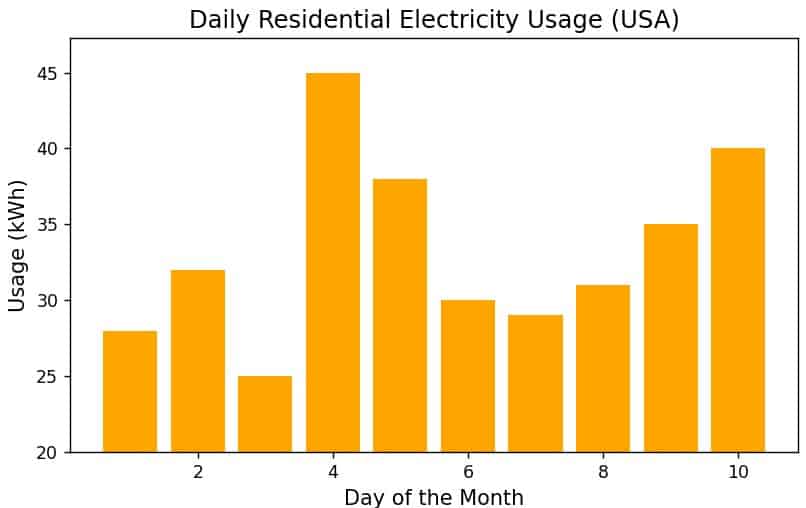
I usually reach for set_ybound when I am building more complex visualizations, where the axis might be inverted or shared across multiple subplots.
Method 4: Modify the rcParams Globally
If you are creating a series of charts for a presentation and you want all of them to share a specific starting point, you can modify the Matplotlib global settings.
I don’t do this often, but it is a lifesaver when you have 20 different plots and don’t want to add set_ylim to every single one of them.
import matplotlib.pyplot as plt

# Setting global margins to 0 so plots always start exactly at the data edge
plt.rcParams['axes.xmargin'] = 0
plt.rcParams['axes.ymargin'] = 0

# Data: US Tech Stock Price (Simulated)
days = list(range(1, 6))
price = [150, 155, 153, 158, 162]

plt.figure(figsize=(8, 5))
plt.plot(days, price, marker='D')

# Because we set margins to 0, the plot starts exactly at the first data point
plt.title('Global Margin Adjustment Example', fontsize=14)
plt.show()

# Resetting to defaults so other plots aren't affected
plt.rcdefaults()
You can adjust the axes.autolimit_mode to ’round_numbers’ or manipulate how the margins are calculated.
Pro-Tip: Handle the “Zero” Baseline
In the USA, many professional style guides (like those used in financial reporting) require that bar charts always start at a zero baseline.
If you are creating a bar chart, I highly recommend always using ax.set_ylim(bottom=0).
This prevents the bars from looking like they are floating and ensures the relative heights of the bars accurately represent the differences in the data.
I hope this tutorial helps you take better control of your Matplotlib axes. Using these methods will make your charts look much more professional and easier to read.
You may read:
- How to Set Axis Limits in Matplotlib 3D Plots
- Set Axis Limits for All Subplots in Matplotlib
- Set Axis Range in Matplotlib imshow
- Set the Secondary Axis Range in Matplotlib

Bijay Kumar is an experienced Python and AI professional who enjoys helping developers learn modern technologies through practical tutorials and examples. His expertise includes Python development, Machine Learning, Artificial Intelligence, automation, and data analysis using libraries like Pandas, NumPy, TensorFlow, Matplotlib, SciPy, and Scikit-Learn. At PythonGuides.com, he shares in-depth guides designed for both beginners and experienced developers. More about us.

