
As a Python developer, I often work with large PDF files. Many times, I only needed specific chapters or selected page ranges, not the entire file.
One day, I had a 900+ page PDF and needed to send only a few pages separately. Manually extracting pages using online tools was frustrating. That’s when I decided to build my own PDF Split Tool using Python and Streamlit.
This tool allows users to upload a PDF (up to 1000 pages), enter custom page ranges like 1-10, 25-40, and instantly download the split files. You can split the PDF evenly by page count, or split the pages based on chapters that have bookmarks.
PDF Split Tool in Python
I developed a PDF Split Tool using Python, using the Streamlit library to design a user interface. Streamlit is the best library for web apps.
pip install streamlit PyPDF2In this way, we can install all the necessary libraries. Streamlit is used to build the entire web interface, and PyPDF2 is used to read and split PDF files.
Libraries Used in the Python PDF Split Tool
Here is the list of libraries that I have used in the Python PDF Split Tool.
import streamlit as st
from PyPDF2 import PdfReader, PdfWriter
import io
from io import BytesIO
from PyPDF2 import PdfReader, PdfWriter
streamlit
Streamlit in Python is used to design and manage the complete user interface of the PDF Split Tool. It handles PDF file uploads, page range input fields, split buttons, download options, warning messages, and session state management. This makes the application interactive.
PyPDF2
PyPDF2 in Python is responsible for reading and manipulating the PDF files. It allows the application to access the total number of pages, extract specific page ranges, and generate new PDF files based on user input. This library acts as the core engine behind the splitting functionality.
io (BytesIO)
Python’s io module is used to create in-memory file objects. Instead of saving split PDFs temporarily on the system, the tool generates them directly in memory. This improves performance and allows users to download the split files instantly without unnecessary file storage.
re (Regular Expressions)
The re module is used to validate and process the page range input provided by the user. It ensures that the format (such as 1-10, 15-20) is correct and helps extract valid page numbers safely before processing. This prevents errors and ensures smooth execution.
User Controls in Python PDF Split Tool
Python’s Streamlit has a default server upload limit = 200 MB; changing it must be done outside your app code.
- Locate your project folder
- Create .streamlit folder
- Create a config.toml file
[server]
maxUploadSize = 25
The PDF Split Tool is designed with simple and intuitive user controls so that anyone can split large PDF files. Below are the main user controls available in the application:
PDF File Upload
Users can upload a PDF file directly through the interface. Once uploaded, the tool automatically reads the file and displays the total number of pages, helping users decide how they want to split it.
Split Option Selection
The tool provides different splitting methods, such as:
- Custom page ranges (e.g., 1-10, 15-25)
- Split evenly by page count
This allows users to choose the method that best fits their requirements.
Page Range Input Field
When selecting custom splitting, users can enter specific page ranges.
For example:
1-5, 10-15, 20-30The tool validates the format before processing to prevent incorrect input or out-of-range page errors.
Pages Per Split Input (For Even Splitting)
If users choose to split evenly, they can enter how many pages each new PDF should contain. The application then automatically divides the original PDF accordingly.
Split Button
Once all inputs are provided, users click the Split PDF button. The application processes the request and generates the split files instantly.
Download Buttons
After splitting, separate download buttons appear for each generated PDF file. Users can download individual split files directly without reprocessing.
Validations Used in Python PDF Split Tool
To ensure smooth performance and prevent runtime errors, multiple validation checks are implemented in Python’s PDF Split Tool. These validations help maintain accuracy, protect against invalid inputs, and improve overall user experience.
File Type Validation
This tool accepts only PDF files during upload. If a user attempts to upload a non-PDF file, the application immediately restricts processing. This prevents format-related errors during PDF reading.
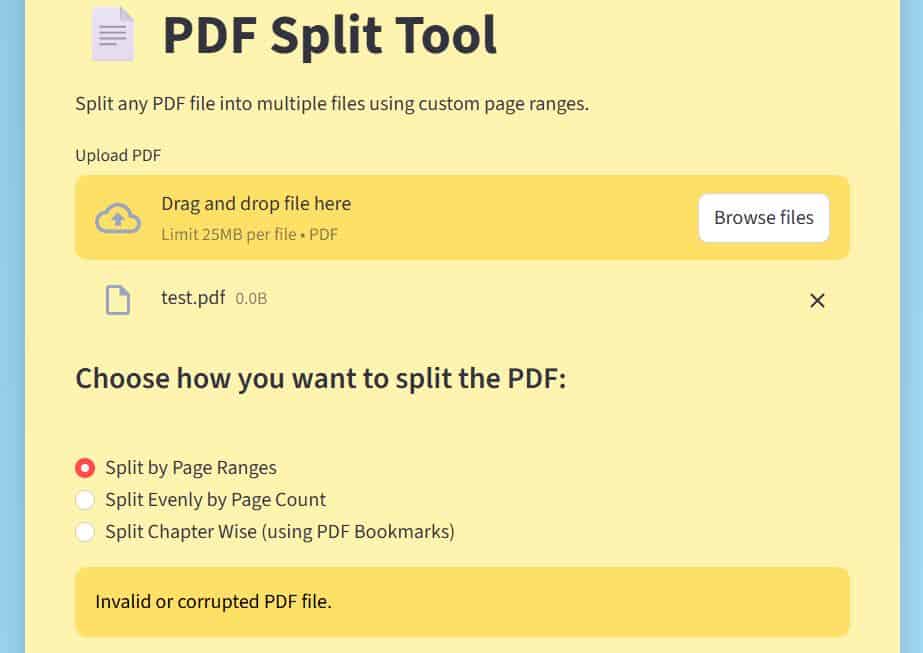
Maximum Page Limit Validation (1000 Pages)
The application supports PDF files up to 1000 pages. After upload, the tool checks the total page count: If the file exceeds 1000 pages, processing is stopped. A warning message is displayed to the user.
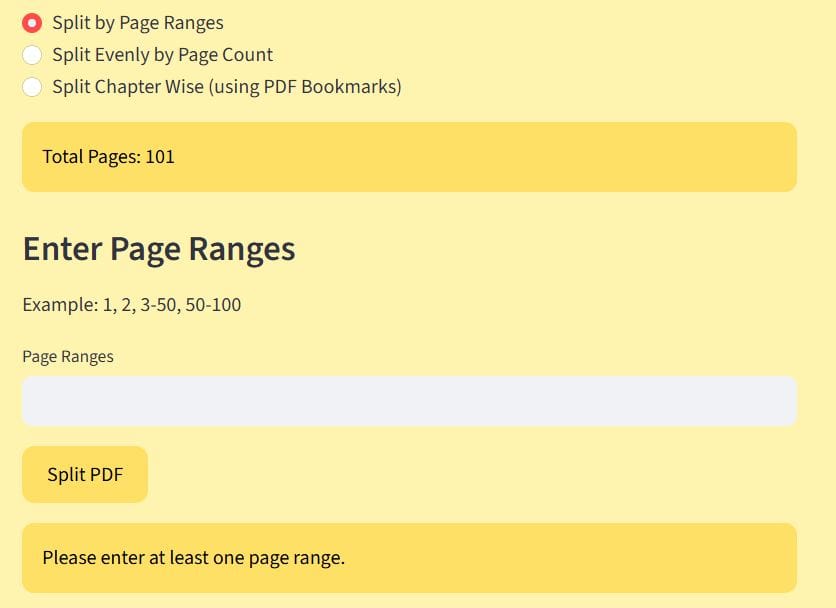
Empty Input Validation
Before splitting, if no page range is entered (for a custom split), the tool displays a warning. If the pages-per-split value is missing (for an even split), processing does not begin.
Page Range Format Validation
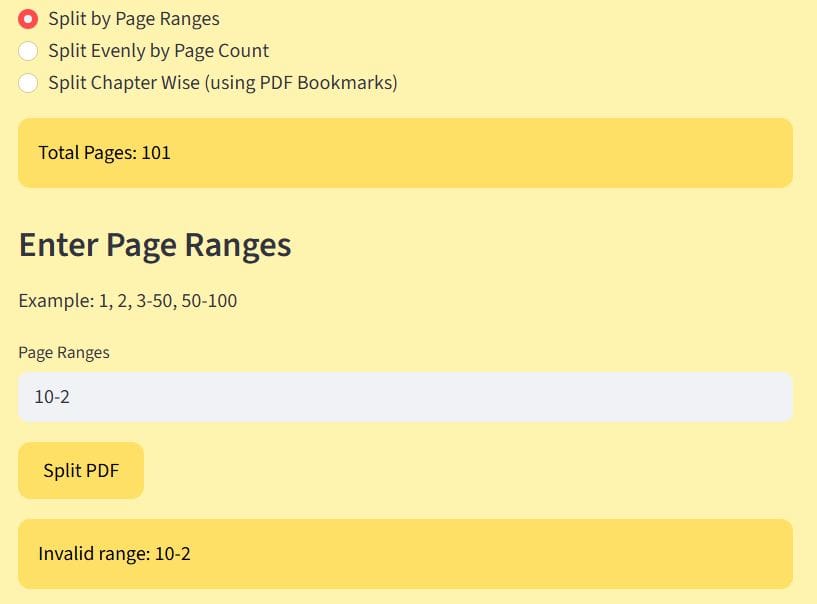
The tool validates Correct range structure, Proper use of commas and hyphens, and numeric values only.
Invalid formats such as:
1--10
abc-5
10-2
are detected and blocked before processing.
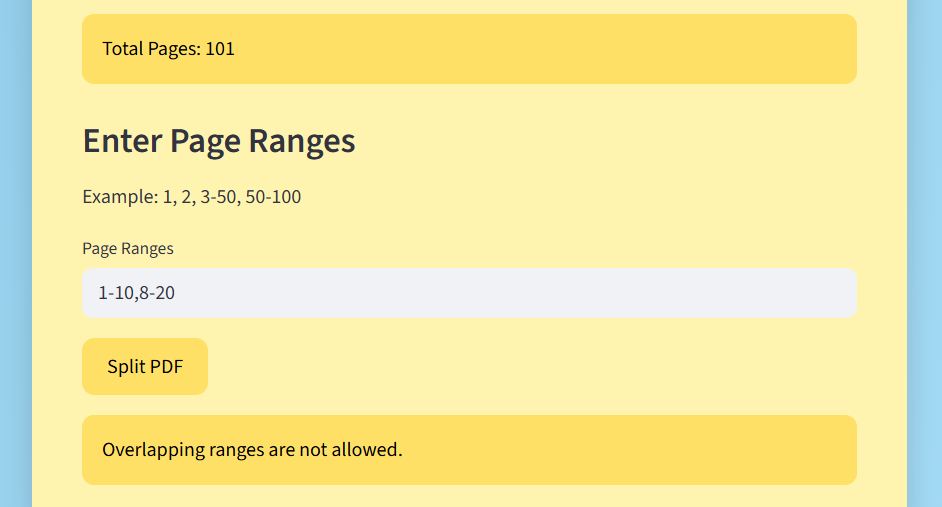
Overlapping and Duplicate Range Handling
The tool processes each range carefully to avoid unintended duplication or logical errors. This ensures consistent and predictable output files.
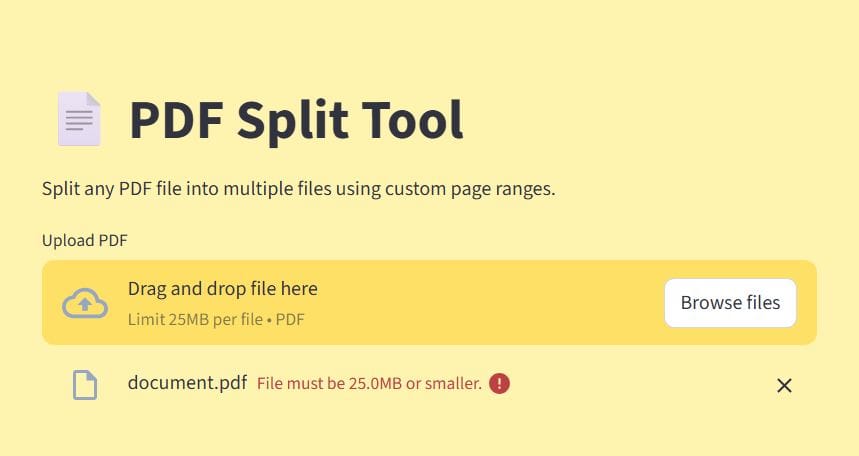
Upload Size Restriction
If the uploaded PDF exceeds the allowed file size limit, which is 25 MB, the application stops processing and displays an appropriate error message. This prevents the system from slowing down or crashing due to extremely large files.
Split Count Control
When users provide multiple custom page ranges (for example: 1-10, 15-20, 25-30), each range generates a separate PDF file. To prevent excessive file generation, the tool limits the maximum number of allowed split ranges to 50 maximum splits in split by ranges and 100 maximum splits in split evenly by page count.
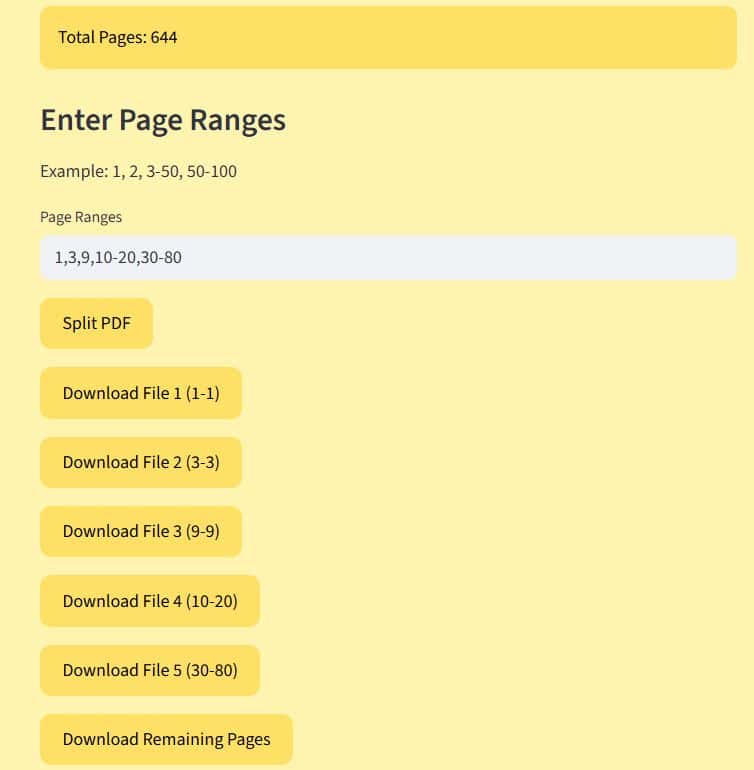
Split by Page Ranges
Here I have added the screenshot to show how split by page ranges works:
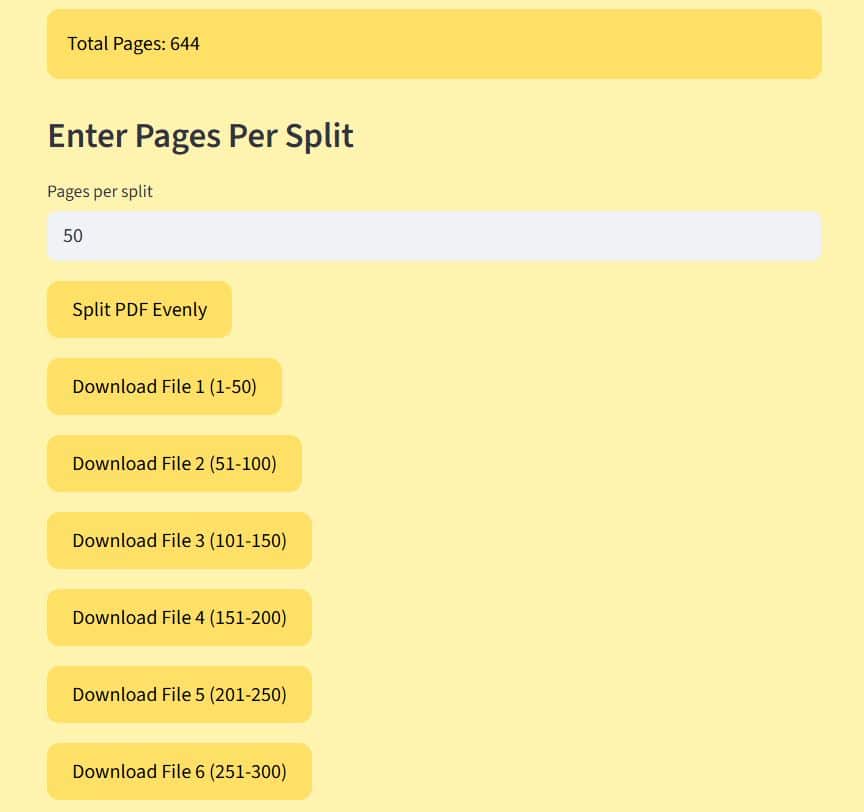
Split Evenly by Page Count
Here is the screenshot in which I have shown how splitting evenly by page count works.
Split Chapter Wise (using PDF Bookmarks)
Refer to the screenshot below to see how split based on chapter-wise (using bookmark) works.
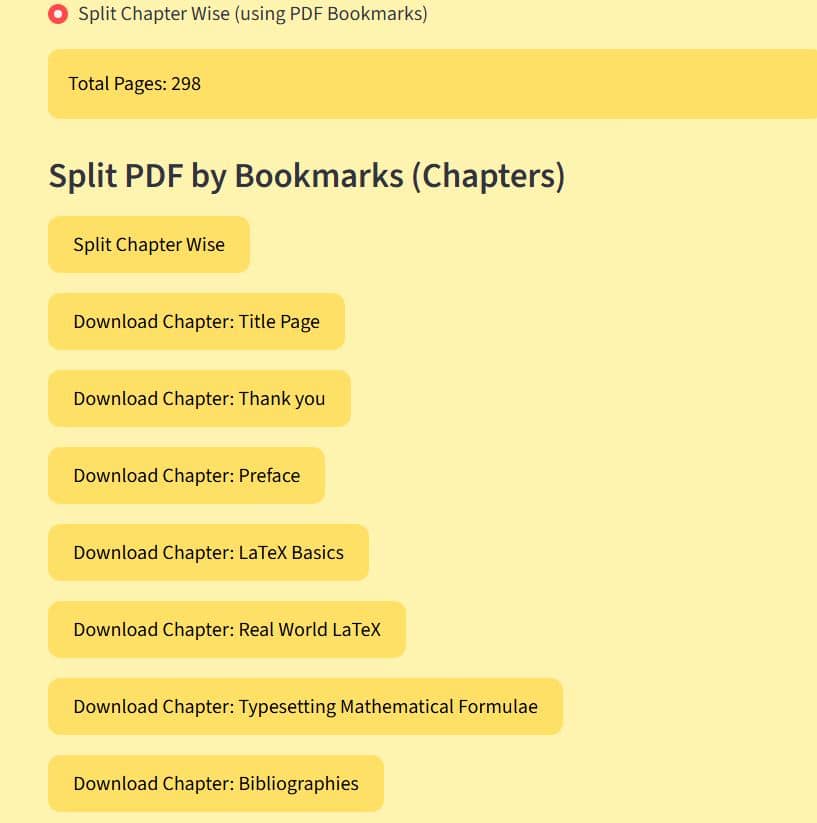
You can split the PDF using these three ways according to your requirement, and you can download the splitted PDF’s.

Bijay Kumar is an experienced Python and AI professional who enjoys helping developers learn modern technologies through practical tutorials and examples. His expertise includes Python development, Machine Learning, Artificial Intelligence, automation, and data analysis using libraries like Pandas, NumPy, TensorFlow, Matplotlib, SciPy, and Scikit-Learn. At PythonGuides.com, he shares in-depth guides designed for both beginners and experienced developers. More about us.

