
I have spent over a decade working with data in Python, and if there is one thing I have learned, it is that data is rarely perfect when you first load it.
Usually, I find myself staring at a “Price” column that is somehow a string or a “Date” column that Python thinks is just a bunch of numbers.
In this tutorial, I will show you how to change the data type of a column in Pandas using the same methods I use in my daily production work.
Use the astype() Method
The astype() method is my go-to tool when I need to perform a quick and explicit conversion of a column.
It is easy and allows you to cast a pandas object to a specified dtype very efficiently.
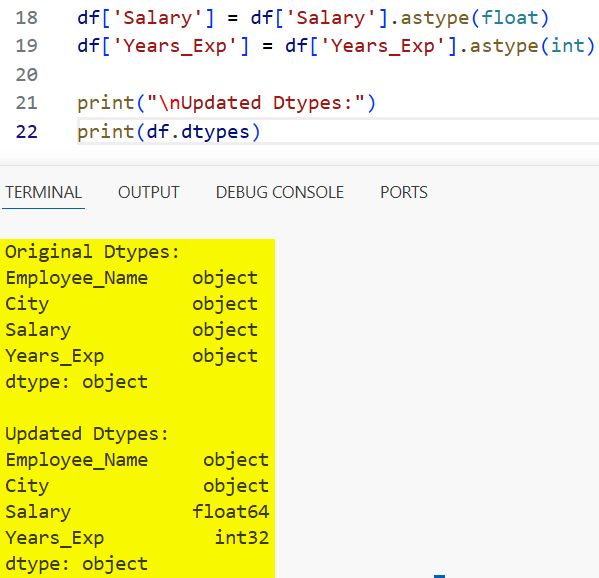
In the example below, I have a dataset of tech employees in California where the ‘Salary’ was imported as a string, and I need it to be a float for calculations.
import pandas as pd

# Creating a dataset of tech employees in San Francisco
data = {
    'Employee_Name': ['Alice', 'Bob', 'Charlie', 'David'],
    'City': ['San Francisco', 'Los Angeles', 'San Diego', 'San Jose'],
    'Salary': ['125000.50', '98000.00', '110000.75', '135000.25'],
    'Years_Exp': ['5', '3', '7', '10']
}

df = pd.DataFrame(data)

# Checking original data types
print("Original Dtypes:")
print(df.dtypes)

# Changing 'Salary' to float and 'Years_Exp' to integer
df['Salary'] = df['Salary'].astype(float)
df['Years_Exp'] = df['Years_Exp'].astype(int)

print("\nUpdated Dtypes:")
print(df.dtypes)
You can refer to the screenshot below to see the output.
One thing I really like about astype() is that you can pass a dictionary to change multiple columns at once, which keeps the code clean.
Change Multiple Columns with a Dictionary
When I am dealing with large DataFrames, I prefer not to write a new line for every single column conversion.
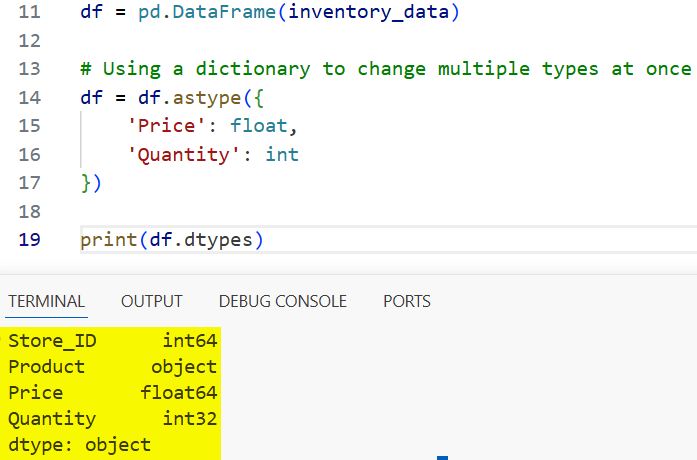
Using a dictionary with astype() is much cleaner and easier to maintain in a professional codebase.
import pandas as pd

# Data representing retail store inventory in Chicago
inventory_data = {
    'Store_ID': [101, 102, 103],
    'Product': ['Laptop', 'Monitor', 'Keyboard'],
    'Price': ['1200.50', '300.00', '45.99'],
    'Quantity': ['15', '40', '100']
}

df = pd.DataFrame(inventory_data)

# Using a dictionary to change multiple types at once
df = df.astype({
    'Price': float,
    'Quantity': int
})

print(df.dtypes)
You can refer to the screenshot below to see the output.
Use pd.to_numeric for Robust Conversions
Sometimes, astype() fails because the data contains “dirty” values like a stray “N/A” string or a random character.
In these cases, I always use pd.to_numeric() because it has an errors parameter that is a lifesaver.
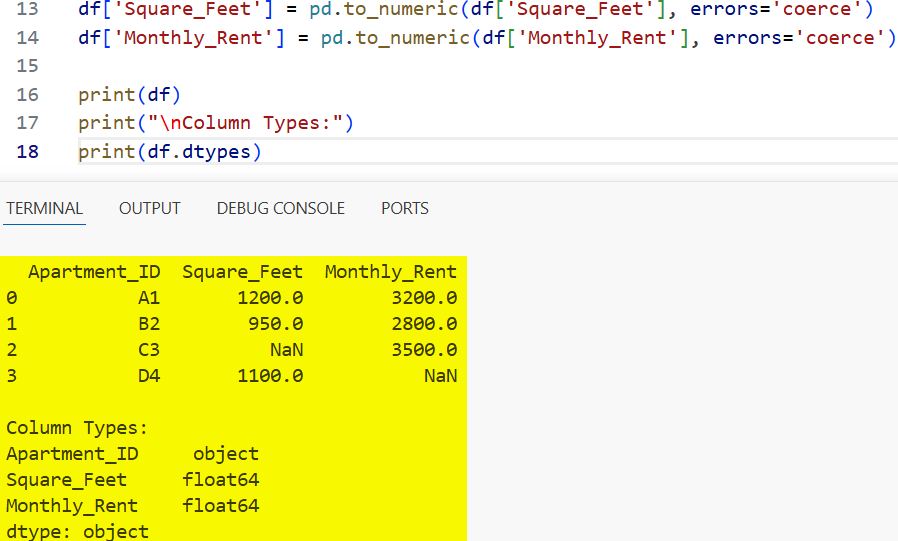
Setting errors=’coerce’ will turn any non-convertible value into a NaN, preventing your whole script from crashing.
import pandas as pd

# Data from a New York housing survey with some messy entries
housing_data = {
    'Apartment_ID': ['A1', 'B2', 'C3', 'D4'],
    'Square_Feet': ['1200', '950', 'MISSING', '1100'],
    'Monthly_Rent': ['3200', '2800', '3500', 'invalid_data']
}

df = pd.DataFrame(housing_data)

# Converting to numeric and handling errors gracefully
df['Square_Feet'] = pd.to_numeric(df['Square_Feet'], errors='coerce')
df['Monthly_Rent'] = pd.to_numeric(df['Monthly_Rent'], errors='coerce')

print(df)
print("\nColumn Types:")
print(df.dtypes)
You can refer to the screenshot below to see the output.
Convert Strings to Datetime
Working with dates is notorious for being difficult, but pd.to_datetime() makes it significantly easier.
I use this constantly when analyzing American holiday sales or stock market trends where dates come in various formats.
import pandas as pd

# Sales data for a 4th of July promotion
sales_data = {
    'Sale_Date': ['2024-07-01', '2024-07-02', '2024-07-03', '2024-07-04'],
    'Revenue': [4500, 5200, 6100, 8900]
}

df = pd.DataFrame(sales_data)

# Changing 'Sale_Date' from object to datetime64
df['Sale_Date'] = pd.to_datetime(df['Sale_Date'])

print(df.dtypes)
# Now we can easily extract the day of the week
df['Day_of_Week'] = df['Sale_Date'].dt.day_name()
print(df[['Sale_Date', 'Day_of_Week']])
The convert_dtypes() Method
If you are feeling a bit lazy or have a massive DataFrame and want Pandas to take its best guess at the types, use convert_dtypes().
This was introduced in newer versions of Pandas to automatically convert columns to the best possible “nullable” types.
import pandas as pd

# Sample dataset with mixed types
data = {
    'A': [1, 2, 3],
    'B': ['a', 'b', 'c'],
    'C': [True, False, True],
    'D': [1.5, 2.5, 3.5]
}

df = pd.DataFrame(data)
# Force everything to object type first to simulate a raw import
df = df.astype(object)

# Let Pandas automatically infer and convert to best types
df_optimized = df.convert_dtypes()

print(df_optimized.dtypes)
In this tutorial, we looked at several ways to change the data type of a column in Pandas.
Choosing the right method depends on whether you have clean data or need to handle missing and “dirty” values.
You may also read:
- How to Check if a Pandas DataFrame is Empty
- Ways to Get the First Row of a Pandas DataFrame
- How to Get Column Names in Pandas
- How to Check Pandas Version in Python

Bijay Kumar is an experienced Python and AI professional who enjoys helping developers learn modern technologies through practical tutorials and examples. His expertise includes Python development, Machine Learning, Artificial Intelligence, automation, and data analysis using libraries like Pandas, NumPy, TensorFlow, Matplotlib, SciPy, and Scikit-Learn. At PythonGuides.com, he shares in-depth guides designed for both beginners and experienced developers. More about us.

