
I’ve spent years working with massive datasets in Python, and one tool I always come back to is the Pandas pivot table.
It’s often the quickest way to turn a messy spreadsheet into a clear, actionable summary that actually makes sense.
In this tutorial, I’ll show you exactly how to use the pivot_table function through examples I’ve encountered in real-world projects.
What is a Pandas Pivot Table?
A pivot table is a way to summarize and reorganize selected columns and rows of data in a dataframe.
It allows you to group data by specific keys and then apply mathematical operations like sum, mean, or count to get a high-level view.
The Dataset: USA Tech Sales Performance
To make this practical, I’ve created a dataset representing quarterly sales for a tech company across different US regions.
import pandas as pd
import numpy as np

# Creating a realistic USA-based sales dataset
data = {
    'Region': ['Northeast', 'Northeast', 'West', 'West', 'South', 'South', 'Midwest', 'Midwest', 'West', 'Northeast'],
    'State': ['NY', 'NJ', 'CA', 'WA', 'TX', 'FL', 'IL', 'OH', 'OR', 'MA'],
    'Product': ['Cloud', 'SaaS', 'Cloud', 'SaaS', 'Cloud', 'SaaS', 'Cloud', 'SaaS', 'SaaS', 'SaaS'],
    'Sales_USD': [55000, 42000, 78000, 91000, 62000, 35000, 48000, 29000, 85000, 31000],
    'Units': [120, 95, 210, 250, 150, 80, 110, 65, 230, 70]
}

df = pd.DataFrame(data)
print(df)
Method 1: Create a Basic Pivot Table
In my experience, the simplest way to start is by grouping data by a single index.
If I want to see the total sales for each US region, I only need to specify the index and the values.
# Grouping sales by Region
pivot_basic = df.pivot_table(index='Region', values='Sales_USD', aggfunc='sum')

print(pivot_basic)
You can refer to the screenshot below to see the output.
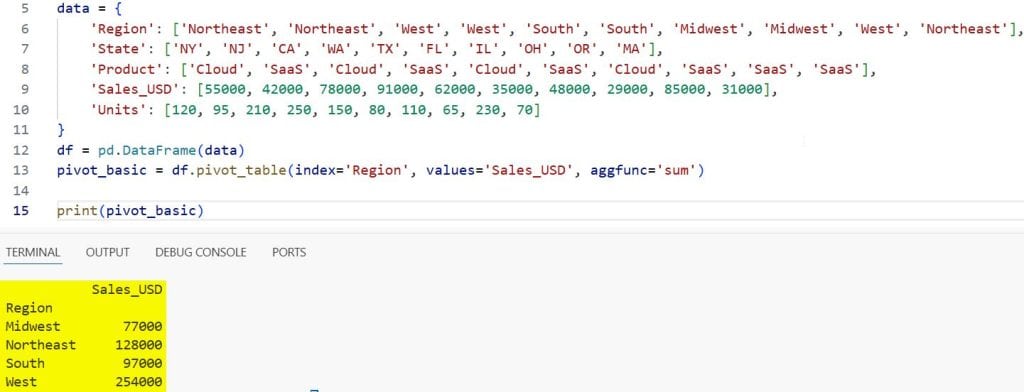
By default, the pivot table uses the mean. However, when I’m looking at revenue, I almost always change the aggfunc to ‘sum’ to get the total dollar amount.
Method 2: Add Columns for Multi-Dimensional Analysis
Sometimes a single index isn’t enough. I often need to see how different products are performing within each region.
Adding a columns argument allows you to spread your data horizontally, making it look like a professional report.
# Sales by Region and Product
pivot_multi = df.pivot_table(index='Region', columns='Product', values='Sales_USD', aggfunc='sum')

print(pivot_multi)
You can refer to the screenshot below to see the output.
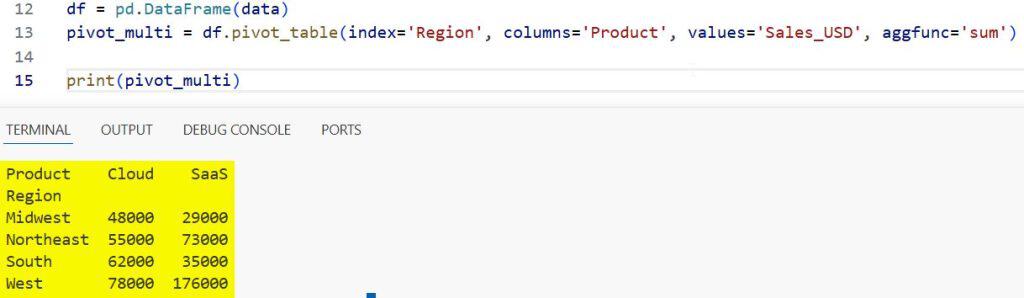
This layout makes it incredibly easy to compare Cloud vs. SaaS performance across the Northeast and the West at a glance.
Method 3: Use Multiple Aggregation Functions
I frequently get asked for more than just the total sales. Usually, stakeholders want to see the average sale price and the total units sold simultaneously.
You can pass a list of functions to the aggfunc parameter to get multiple metrics in one table.
# Calculating sum and mean for Sales and Units
pivot_stats = df.pivot_table(index='Region',
                             values=['Sales_USD', 'Units'],
                             aggfunc={'Sales_USD': ['sum', 'mean'], 'Units': 'sum'})

print(pivot_stats)
You can refer to the screenshot below to see the output.
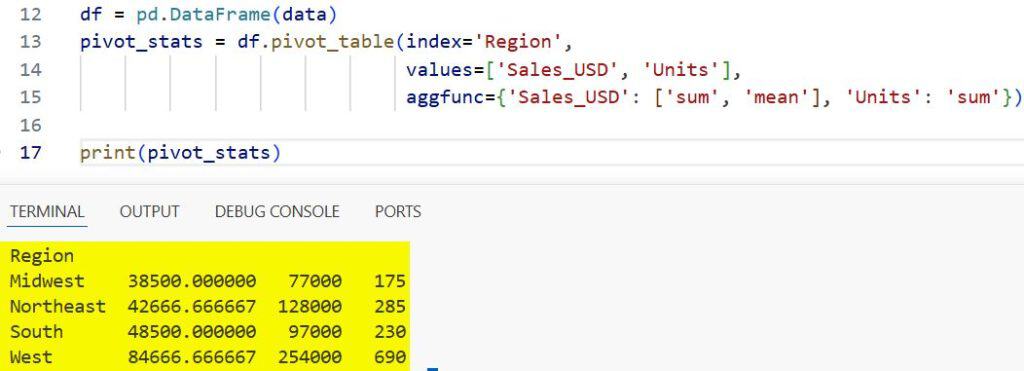
I find this method particularly useful for identifying high-volume regions that might have lower-than-average transaction values.
Method 4: Add Grand Totals with Margins
One of the most useful features for executive reporting is the margins parameter.
In Excel, we call these “Grand Totals.” In Pandas, setting margins=True adds a final row and column that sums up everything.
# Adding totals to the pivot table
pivot_totals = df.pivot_table(index='Region',
                              columns='Product',
                              values='Sales_USD',
                              aggfunc='sum',
                              margins=True,
                              margins_name='Total USA Sales')

print(pivot_totals)
I always rename the margins to something descriptive like ‘Total USA Sales’, so the reader immediately knows what they are looking at.
Method 5: Handle Missing Data with fill_value
When you pivot data, you’ll often end up with NaN (Not a Number) values if a specific combination (like ‘Midwest’ and ‘SaaS’) doesn’t exist in your original data.
I hate seeing NaN in my reports because it looks messy. I use the fill_value parameter to replace those gaps with 0.
# Replacing NaN with 0 for a cleaner look
pivot_clean = df.pivot_table(index='Region',
                             columns='Product',
                             values='Sales_USD',
                             aggfunc='sum',
                             fill_value=0)

print(pivot_clean)
This simple addition makes the table much easier to read and ready for export to a CSV or Excel file.
Pivot Table vs. GroupBy
I often get asked when to use pivot_table instead of groupby.
While both can technically achieve the same results, I find pivot_table much more intuitive when I want my output to look like a matrix or a spreadsheet.
GroupBy usually results in a “long” format, which is great for further processing but not always great for human eyes. pivot_table is built for readability.
Filter and Sort the Pivot Table
Once you have your pivot table, you can treat it just like any other Pandas DataFrame.
I often sort my results to see the highest-performing regions at the top.
# Sorting the pivot table by total sales
sorted_pivot = pivot_basic.sort_values(by='Sales_USD', ascending=False)
print(sorted_pivot)
Working with Pandas pivot tables has saved me countless hours of manual data manipulation. Whether you are analyzing sales trends in the US or looking at website traffic, this function is a must-have in your Python toolkit.
You may also read:
- How to Check Pandas Version in Python
- How to Change Data Type of Column in Pandas
- How to Reset Pandas DataFrame Index
- How to Create a Pandas DataFrame from a Dictionary

Bijay Kumar is an experienced Python and AI professional who enjoys helping developers learn modern technologies through practical tutorials and examples. His expertise includes Python development, Machine Learning, Artificial Intelligence, automation, and data analysis using libraries like Pandas, NumPy, TensorFlow, Matplotlib, SciPy, and Scikit-Learn. At PythonGuides.com, he shares in-depth guides designed for both beginners and experienced developers. More about us.

