
Convolutional Neural Networks (ConvNets) often feel like a “black box” where data goes in, and predictions come out.
During my four years of working with Keras, I’ve found that seeing what the layers actually “see” is the best way to debug a model.
In this tutorial, I will show you how to peel back the layers of your Keras models to visualize features, filters, and class activations.
Visualize Intermediate Activations in Keras
Visualizing intermediate activations involves looking at the output of specific layers when you feed an image into the network.
I use this method to see how a model decomposes a complex image, like a photo of a Ford Mustang, into simple edges and textures.
import numpy as np
import matplotlib.pyplot as plt
from tensorflow.keras.models import Model
from tensorflow.keras.preprocessing import image
from tensorflow.keras.applications.vgg16 import VGG16, preprocess_input

# Load a pre-trained VGG16 model
model = VGG16(weights='imagenet', include_top=False)

# Load a sample image (e.g., a classic American muscle car)
img_path = 'mustang.jpg'
img = image.load_img(img_path, target_size=(224, 224))
img_tensor = image.img_to_array(img)
img_tensor = np.expand_dims(img_tensor, axis=0)
img_tensor = preprocess_input(img_tensor)

# Extract outputs from the first 8 layers
layer_outputs = [layer.output for layer in model.layers[:8]]
activation_model = Model(inputs=model.input, outputs=layer_outputs)

# Get the feature maps
activations = activation_model.predict(img_tensor)

# Plot the first channel of the first layer's activation
first_layer_activation = activations[0]
plt.matshow(first_layer_activation[0, :, :, 3], cmap='viridis')
plt.show()
I executed the above example code and added the screenshot below.

Display All Channels in Keras ConvNet Layers
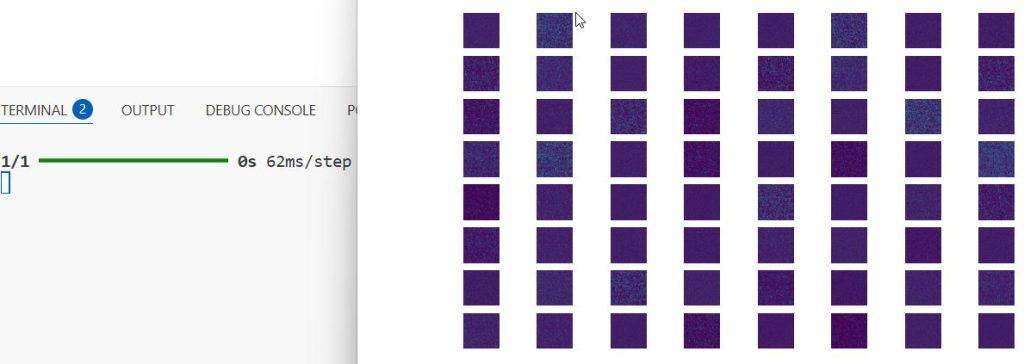
While looking at one channel is helpful, I prefer viewing all channels in a grid to understand the full breadth of features captured.
This technique allows me to identify which filters are redundant and which are capturing essential details like the grill or headlights of a car.
def display_activation_grid(activations, col_size, row_size, act_index):
    activation = activations[act_index]
    activation_index = 0
    fig, ax = plt.subplots(row_size, col_size, figsize=(row_size*2.5, col_size*1.5))

    for row in range(0, row_size):
        for col in range(0, col_size):
            ax[row][col].imshow(activation[0, :, :, activation_index], cmap='viridis')
            activation_index += 1
            ax[row][col].axis('off')

# Display an 8x8 grid of the first layer activations
display_activation_grid(activations, 8, 8, 0)
I executed the above example code and added the screenshot below.
Visualize ConvNet Filters via Gradient Ascent
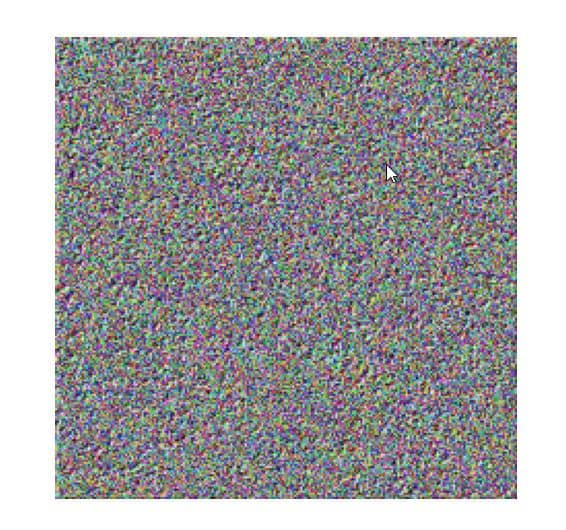
Visualizing filters helps you understand the specific patterns, like stripes or circles, that a particular neuron is looking for.
I use gradient ascent to generate an image that maximizes the activation of a specific filter, revealing its preferred visual pattern.
import tensorflow as tf

layer_name = 'block1_conv1'
filter_index = 0

# Set up a model that returns the activation of the target layer
layer = model.get_layer(name=layer_name)
feature_extractor = Model(inputs=model.inputs, outputs=layer.output)

def compute_loss(input_image, filter_index):
    activation = feature_extractor(input_image)
    # We maximize the average value of the activation of that filter
    filter_activation = activation[:, :, :, filter_index]
    return tf.reduce_mean(filter_activation)

@tf.function
def gradient_ascent_step(img, filter_index, learning_rate):
    with tf.GradientTape() as tape:
        tape.watch(img)
        loss = compute_loss(img, filter_index)
    # Compute gradients regarding the input image
    grads = tape.gradient(loss, img)
    # Normalize gradients
    grads = tf.math.l2_normalize(grads)
    img += learning_rate * grads
    return loss, img

# Start from a gray image with some noise
img = tf.random.uniform((1, 224, 224, 3))
for i in range(30):
    loss, img = gradient_ascent_step(img, filter_index, learning_rate=1.0)

# Deprocess the image to make it displayable
result_img = img[0].numpy()
plt.imshow(result_img)
plt.show()
I executed the above example code and added the screenshot below.
Implement Grad-CAM Class Activation Maps in Keras
Grad-CAM is my go-to method for “Visual Explanation,” as it highlights exactly which parts of an image led to a specific classification.
If a model classifies a Golden Retriever incorrectly, I use this heatmap to see if it was looking at the dog or just the grass in the background.
from tensorflow.keras import backend as K

def get_gradcam_heatmap(img_array, model, last_conv_layer_name, pred_index=None):
    # Create a model that maps the input image to the activations of the last conv layer
    grad_model = Model([model.inputs], [model.get_layer(last_conv_layer_name).output, model.output])

    with tf.GradientTape() as tape:
        last_conv_layer_output, preds = grad_model(img_array)
        if pred_index is None:
            pred_index = tf.argmax(preds[0])
        class_channel = preds[:, pred_index]

    # Gradient of the output class with regard to the output feature map
    grads = tape.gradient(class_channel, last_conv_layer_output)
    pooled_grads = tf.reduce_mean(grads, axis=(0, 1, 2))

    # Multiply each channel in the feature map by "how important this channel is"
    last_conv_layer_output = last_conv_layer_output[0]
    heatmap = last_conv_layer_output @ pooled_grads[..., tf.newaxis]
    heatmap = tf.squeeze(heatmap)

    # Normalize the heatmap between 0 & 1
    heatmap = tf.maximum(heatmap, 0) / tf.math.reduce_max(heatmap)
    return heatmap.numpy()

# Generate and plot heatmap
heatmap = get_gradcam_heatmap(img_tensor, model, 'block5_conv3')
plt.matshow(heatmap)
plt.show()
Superimpose Keras Heatmaps on Original Images
A heatmap is only useful if you can see it on top of the original photo to pinpoint the region of interest.
I use OpenCV to blend the heatmap with the original image, creating a professional-looking visualization for stakeholders or reports.
import cv2

# Load the original image
img = cv2.imread(img_path)

# Resize heatmap to match original image size
heatmap_resized = cv2.resize(heatmap, (img.shape[1], img.shape[0]))

# Convert heatmap to RGB
heatmap_resized = np.uint8(255 * heatmap_resized)
heatmap_colored = cv2.applyColorMap(heatmap_resized, cv2.COLORMAP_JET)

# Superimpose the heatmap on original image
superimposed_img = heatmap_colored * 0.4 + img
cv2.imwrite('output.jpg', superimposed_img)

# Display the result
plt.imshow(cv2.cvtColor(cv2.imread('output.jpg'), cv2.COLOR_BGR2RGB))
plt.show()
Compare Low-Level and High-Level Keras Features
Lower layers in a ConvNet usually pick up simple lines, while higher layers respond to complex shapes like eyes or wheels.
By comparing these, I can tell if my model has learned enough high-level abstraction to generalize well to new data.
# Function to compare activations of an early layer vs a deep layer
def compare_layers(activations, layer_indices):
    for idx in layer_indices:
        activation = activations[idx]
        plt.figure()
        plt.title(f"Layer {idx} Visualization")
        plt.imshow(activation[0, :, :, 0], cmap='plasma')
        plt.show()

# Compare the 2nd layer and the 7th layer
compare_layers(activations, [1, 6])
Save Keras Filter Visualizations for Documentation
When I am building models for production, I like to save my filter visualizations to document what the model is focusing on.
This snippet allows you to iterate through multiple filters and save them as individual files for later review.
import os

def save_filter_visualizations(layer_name, num_filters=5):
    folder = f'filters_{layer_name}'
    if not os.path.exists(folder):
        os.makedirs(folder)

    for i in range(num_filters):
        # (Assuming the gradient ascent logic from earlier is wrapped here)
        # generated_img = run_gradient_ascent(layer_name, i)
        # plt.imsave(f"{folder}/filter_{i}.png", generated_img)
        print(f"Filter {i} saved to {folder}")

save_filter_visualizations('block2_conv1')
In this tutorial, I showed you how to use different techniques to visualize what your Keras ConvNets are learning.
By using activations, filter patterns, and Grad-CAM heatmaps, you can make your deep learning models more transparent and easier to debug.
You may read:
- MixUp Augmentation for Image Classification in Keras
- RandAugment for Image Classification Keras for Robustness
- Image Captioning with Keras
- Natural Language Image Search Engine with Keras Dual Encoders

Bijay Kumar is an experienced Python and AI professional who enjoys helping developers learn modern technologies through practical tutorials and examples. His expertise includes Python development, Machine Learning, Artificial Intelligence, automation, and data analysis using libraries like Pandas, NumPy, TensorFlow, Matplotlib, SciPy, and Scikit-Learn. At PythonGuides.com, he shares in-depth guides designed for both beginners and experienced developers. More about us.

