
I have spent over a decade cleaning messy datasets, and if there is one thing I’ve learned, it’s that real-world data is rarely “clean.”
Whenever I import a massive CSV file, the first thing I look for is missing values, those pesky NaN (Not a Number) entries.
Missing data can break your machine learning models or lead to incorrect averages when analyzing business metrics.
In this tutorial, I will show you how to efficiently drop rows with NaN values in Pandas using the dropna() method.
I’ll walk you through the techniques I use every day to keep my DataFrames lean and accurate.
Understand the Pandas dropna() Method
Before we dive into the code, it is essential to understand that Pandas provides a dedicated function called dropna().
In my experience, this is the most reliable way to handle missing rows without manually iterating through the data.
The dropna() method looks for any null values (NaN, None, or NaT) and removes the entire row (or column) based on the parameters you set.
Set Up Our US Business Dataset
To make this practical, let’s create a DataFrame representing a list of retail stores across the United States.
I’ve included some missing values in the “Revenue,” “City,” and “Employee Count” columns to simulate a real scenario.
import pandas as pd
import numpy as np

# Creating a sample dataset of US Retail Stores
data = {
    'Store_ID': [101, 102, 103, 104, 105, 106, 107],
    'City': ['New York', 'Los Angeles', np.nan, 'Chicago', 'Houston', 'Phoenix', np.nan],
    'State': ['NY', 'CA', 'IL', 'IL', 'TX', 'AZ', 'FL'],
    'Revenue_M': [1.2, np.nan, 0.8, 1.5, np.nan, 1.1, np.nan],
    'Employees': [15, 25, 10, np.nan, 30, np.nan, np.nan]
}

df = pd.DataFrame(data)

print("Original DataFrame:")
print(df)
In this dataset, several rows have incomplete data. Let’s look at how to handle them.
Method 1: Drop Rows If Any Value is Missing
The simplest way to clean your data is to drop a row if it contains at least one NaN value.
I usually do this when I have a high-quality dataset where even a single missing data point renders the entire record useless.
By default, the dropna() method uses how=’any’.
# Drop rows where at least one element is missing
df_cleaned = df.dropna()

print("DataFrame after dropping rows with ANY NaN:")
print(df_cleaned)
I executed the above example code and added the screenshot below.
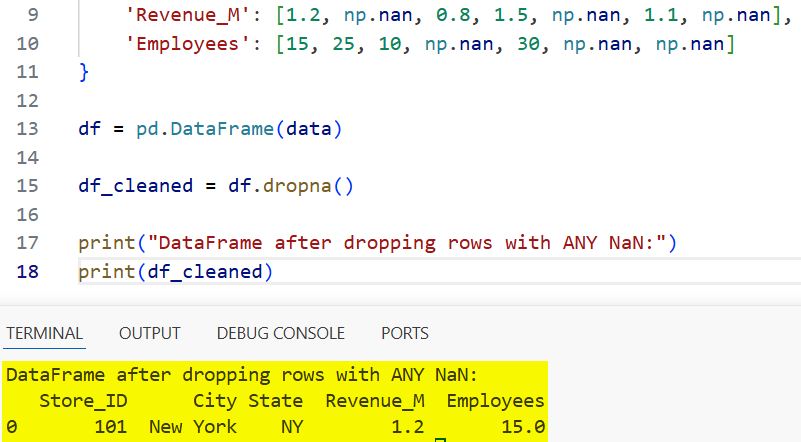
When you run this, Pandas will only keep rows that are 100% complete. In our example, only Store 101 (New York) remains.
Method 2: Drop Rows Only If All Values are Missing
Sometimes, you might have empty rows, perhaps due to a formatting error during the data import.
In such cases, I use the how=’all’ argument. This ensures I don’t lose rows that still have some useful information.
# Adding a completely empty row for demonstration
df.loc[7] = [np.nan, np.nan, np.nan, np.nan, np.nan]

# Drop rows only if ALL values in the row are NaN
df_all_nan = df.dropna(how='all')

print("DataFrame after dropping rows where ALL values are NaN:")
print(df_all_nan)
I executed the above example code and added the screenshot below.
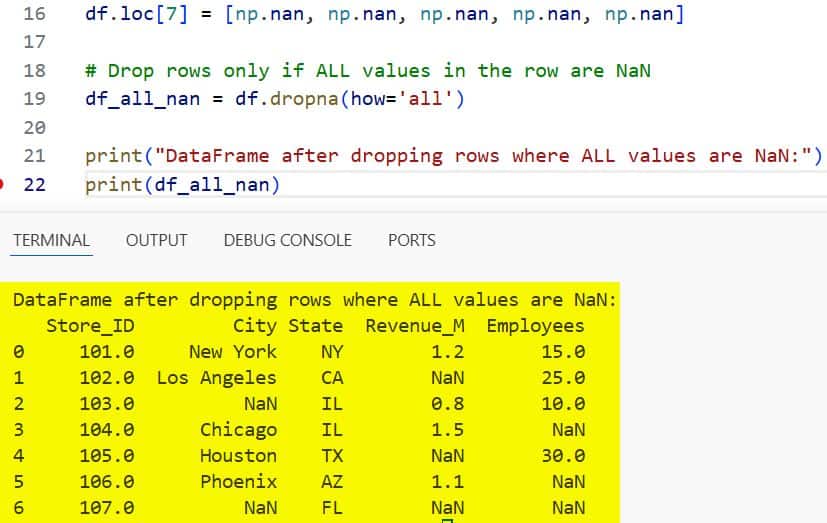
This approach is safer when you want to perform a “soft clean” of your dataset.
Method 3: Drop Rows Based on Specific Columns
In my professional projects, I rarely want to delete an entire row just because a non-essential column is missing data.
For instance, if I am calculating total US revenue, I only care if the “Revenue_M” column has data. I use the subset parameter to target specific columns.
# Drop rows only if 'Revenue_M' is missing
df_revenue_cleaned = df.dropna(subset=['Revenue_M'])

print("DataFrame cleaned based on Revenue column:")
print(df_revenue_cleaned)
I executed the above example code and added the screenshot below.
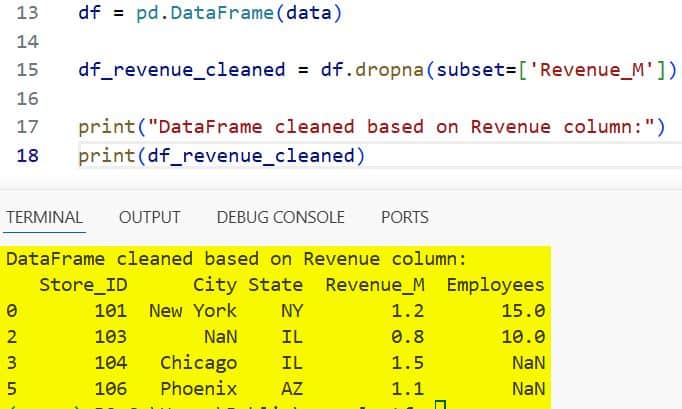
This keeps the rows where I have financial data, even if the “City” or “Employees” count is missing.
Method 4: Use a Threshold to Keep Rows
There are times when I want to keep rows that have at least a certain amount of data.
The thresh parameter allows you to specify the minimum number of non-NaN values a row must have to stay in the DataFrame.
If I set thresh=3, a row must have at least three valid data points to avoid being dropped.
# Keep rows that have at least 3 non-NaN values
df_thresh = df.dropna(thresh=3)

print("DataFrame filtered by threshold (min 3 non-NaN values):")
print(df_thresh)
I find this particularly useful when dealing with survey data where some participants might have skipped a few optional questions.
Method 5: Modify the DataFrame In-Place
By default, dropna() returns a new DataFrame. This is great for testing, but it consumes more memory.
When I am working with millions of rows of US census data, I prefer to modify the DataFrame directly to save resources. I do this by setting inplace=True.
# Copying the dataframe to keep the original intact for the guide
df_inplace = df.copy()

# Drop rows in-place
df_inplace.dropna(inplace=True)

print("DataFrame modified in-place:")
print(df_inplace)
Note: Be careful with this! Once you run it with inplace=True, the missing data is gone for good from that variable.
Handle NaN Values in Specific Geographic Data
When working with US-specific data, you might encounter issues where “State” is present, but “City” is missing.
In such scenarios, dropping rows might not always be the answer, but if you must, you can combine logic.
For example, you can drop rows where both “City” and “Revenue_M” are missing.
# Drop rows where BOTH City and Revenue_M are missing
df_multi_subset = df.dropna(subset=['City', 'Revenue_M'], how='all')

print("Cleaned based on multiple specific columns:")
print(df_multi_subset)
Common Issues When Dropping Rows
One mistake I often see junior developers make is forgetting that dropna() does not reset the index.
If you drop three rows, your index will skip from 1 to 5, which can cause errors in future loops or joins.
I always recommend chaining the reset_index() method.
# Drop NaNs and reset the index immediately
df_final = df.dropna().reset_index(drop=True)

print("Cleaned DataFrame with reset index:")
print(df_final)
Setting drop=True inside reset_index() prevents Pandas from adding the old index as a new column.
When Should You Drop Rows?
I often get asked if it is better to drop rows or fill them with values (like the mean or median).
Here is my rule of thumb:
- Drop rows if the missing data is in the “Target” variable of your model.
- Drop rows if more than 50% of the data in that record is missing.
- Fill data if the dataset is very small and every record counts.
In large-scale US financial reporting, we usually drop rows with missing critical IDs because we cannot “guess” a Store ID.
Handling missing data is a fundamental skill for any data scientist or Python developer.
The dropna() function in Pandas is incredibly versatile, allowing you to clean data precisely how you need it.
Whether you are dropping rows with any missing values or using a threshold, these methods will help you maintain data integrity.
You may also like to read:
- How to Change Column Type in Pandas
- How to Create a Pandas DataFrame from a List of Dictionaries
- How to Drop Rows in Pandas Based on Column Values
- How to Use the Pandas Apply Function to Each Row

Bijay Kumar is an experienced Python and AI professional who enjoys helping developers learn modern technologies through practical tutorials and examples. His expertise includes Python development, Machine Learning, Artificial Intelligence, automation, and data analysis using libraries like Pandas, NumPy, TensorFlow, Matplotlib, SciPy, and Scikit-Learn. At PythonGuides.com, he shares in-depth guides designed for both beginners and experienced developers. More about us.

